// Singularity documentation
Terminals
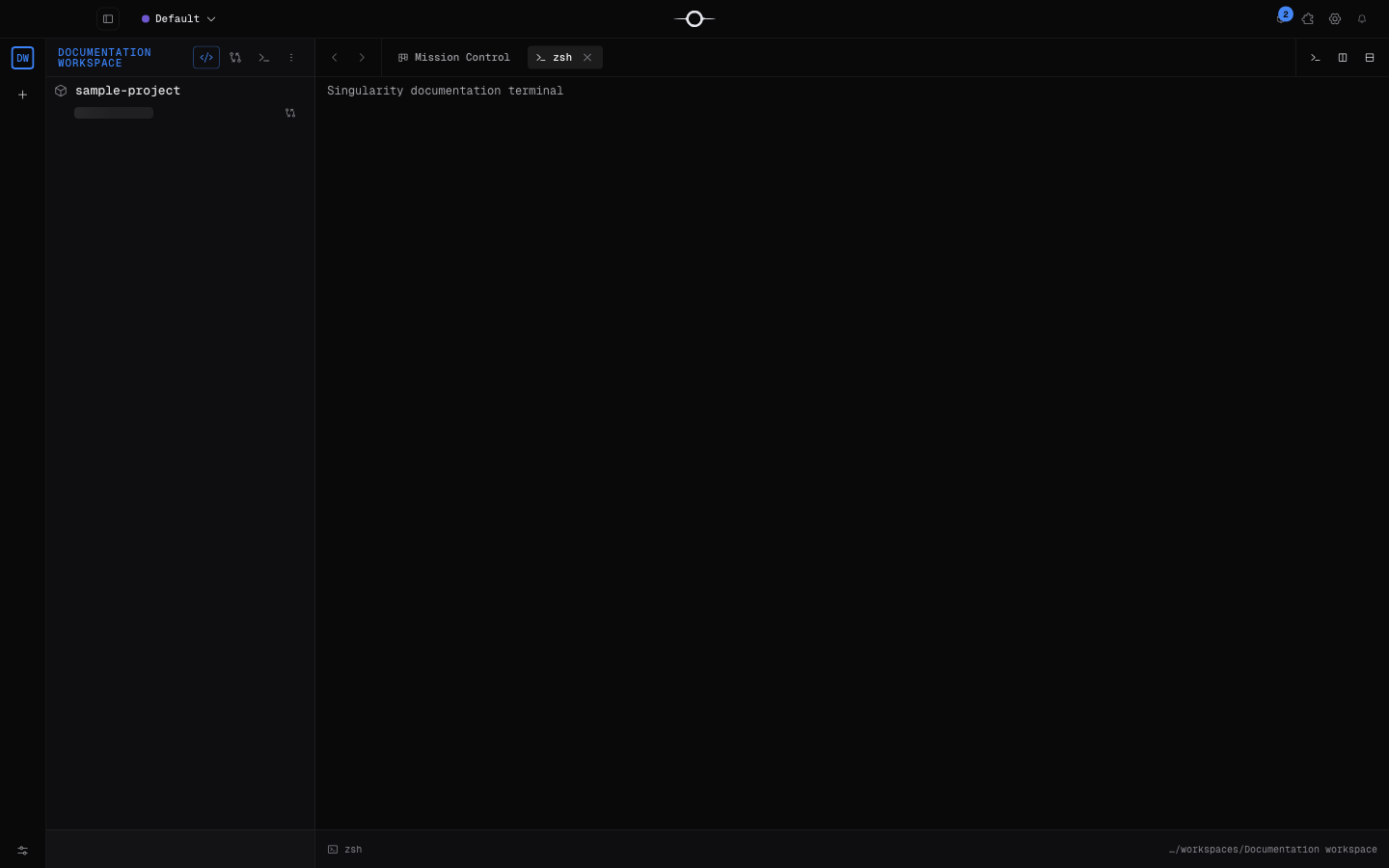
Singularity embeds real system terminals in the workbench. Open several shells, find your agent sessions, and work in the right directory without leaving the context of your workspace.
Open a terminal
Click New terminal in the Deck tab bar, or open the navigator’s Terminals view and create a session. Aperture can also take you to the Terminal view: open it with ⌘K on macOS or Ctrl K on Windows and Linux, then search for terminal.
From a project tree, Open in Terminal starts the shell in the selected project or in the folder containing the file. A terminal created without file context uses the workspace directory when one exists, otherwise the first project in that workspace.
A real terminal
The terminal is not a console that imitates a small command set. Singularity uses xterm.js for rendering and node-pty to open a native PTY. You therefore work with your system shell, its environment, aliases, functions, and interactive tools installed on your machine.
ANSI colors, resizing, and full-screen programs travel through the same kind of PTY session as in a dedicated terminal application.
Manage sessions
The New terminal button always creates a fresh shell, so several sessions can run commands in parallel. Each session has its own terminal: tab and process. Close the tab to close a user shell; the navigator’s Terminals view groups the active workspace’s sessions and lets you reopen or terminate them.
Terminals belong to their workspace. Switching workspace hides other workspaces’ sessions without stopping them; they reappear when you return to their workspace.
Agent terminals
Every agent run has its own terminal. During the mission, it shows the provider’s real output; after completion, its history remains available as read-only content and a dedicated field may let you continue the conversation. A session relayed from another machine is read-only as well.
Closing an agent view does not kill its process. Find it again under Terminals or from the ticket, and use the explicit stop action if you want to interrupt the run. See AI agent orchestration for the complete lifecycle.
Terminal settings
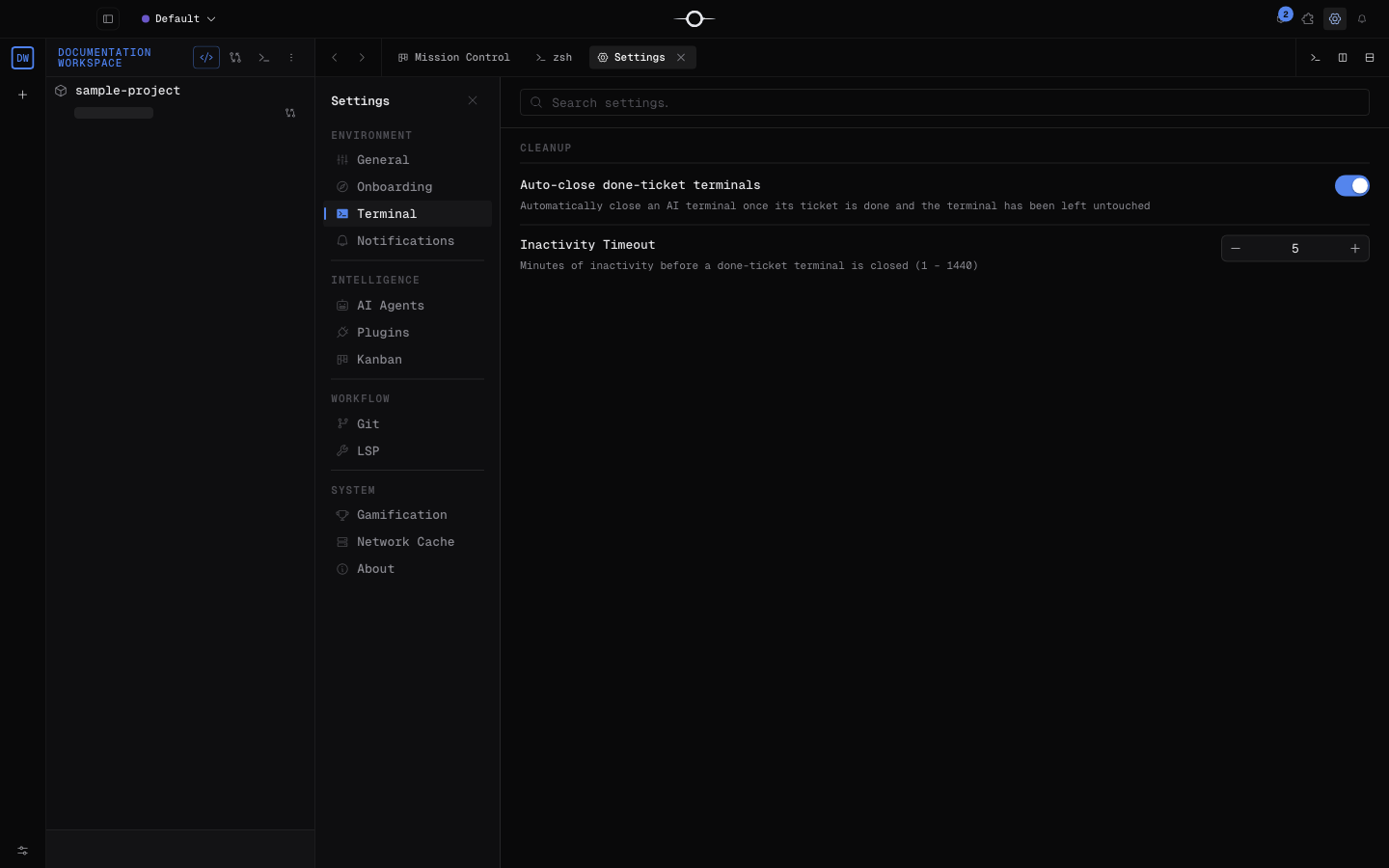
Open Settings → Terminal. In version 2.17, this panel contains exactly two cleanup options:
- Auto-close done-ticket terminals: automatically closes an agent terminal after its ticket is done and the session has not been touched.
- Inactivity Timeout: the number of minutes before that closure, from 1 to 1,440.
The font, font size, and scrollback depth cannot be configured in this panel. Singularity currently uses Geist Mono at 12 px (reduced to 11 px in a narrow pane) and keeps about 30,000 lines.
Useful shortcuts
- Copy: ⌘C on macOS, or Ctrl C with a selection and Ctrl Shift C on Windows and Linux.
- Paste: ⌘V on macOS, Ctrl Shift V on Windows and Linux.
- Search the scrollback: ⌘F or Ctrl F. Enter moves to the next result, Shift Enter to the previous one, and Escape closes search.
- Clear the screen: use your shell’s usual command, such as
clear, or its own shortcut when available. Singularity does not add a dedicated clear shortcut.
Frequently asked questions
Is the Singularity terminal a simulated shell?
No. xterm.js renders the session, while node-pty launches a native PTY connected to your system shell.
Does closing an agent tab stop its run?
No. Closing its view detaches the terminal; the run continues and can be found again from the Terminals view. Use the stop action to actually terminate the agent.