// Singularity documentation
Worktrees & Git hooks
A Git worktree separates a run’s working files and branch; it is not a system sandbox. With the setting enabled, Singularity directs the agent’s work to a separate folder, then reapplies its commits onto the base branch with a rebase. File and network access depend on process permissions and the AI provider.
How do you prepare a worktree for an AI agent?
Preparing an AI agent worktree means installing dependencies in its checkout, supplying ignored configuration, and assigning a ticket-specific port and test database. Separate Git directories do not separate machine services.
- Enable worktrees and start independent tickets A and B. Use each path returned by Singularity; let the application manage branches and directories.
- Install dependencies from each checkout root with the repository command, such as
pnpm install --frozen-lockfile. Do not share writable node_modules, build outputs or caches. - Recreate ignored configuration from a secret-free template. Check
git check-ignore .env.localandgit status --short. Supply secrets through your usual secret manager, never ticket text, logs or commits. Never use production databases for tests. - Assign A port 43101 and
.local/ticket-a.sqlite; assign B port 43102 and.local/ticket-b.sqlite. External services need separate test databases or schemas and application-specific variables. - Run tests in both terminals at the same time. An occupied port must fail the test; select another free port and record it in the ticket. Do not kill unknown processes.
A reproducible two-ticket example
The downloadable recipe installs a Node 24+ example using npm ci, without third-party dependencies. Download package.json, package-lock.json and isolation.test.mjs into each checkout. Create only A configuration in A and B configuration in B.
# A: examples/worktree-setup/.env.local
TICKET_ID=ticket-a
PORT=43101
TEST_DB_PATH=.local/ticket-a.sqlite
# B: examples/worktree-setup/.env.local
TICKET_ID=ticket-b
PORT=43102
TEST_DB_PATH=.local/ticket-b.sqlite
npm test checks the ticket HTTP response and SQLite ownership, keeping servers alive for 1.5 seconds of overlap. It closes the server and database even on failure. This verifies resource isolation for this example, not every application environment.
Stop, clean up or sequence
Stop development servers before removing the worktree; delete only this ticket’s test databases. Preserve useful changes before Git cleanup. If tickets share an emulator, database or fixed port, sequence them with a dependency: A stops and releases the resource before B starts. The integration queue serialises commits, not servers.
These are repository commands, not a Singularity setup API. Cursor’s worktrees.json and Superset or Conductor scripts are not presented as supported configurations here. See first steps, orchestration and the shared comparison protocol.
A second folder for the same repository
A Git worktree is a second working directory attached to the same repository. It has its own branch and checked-out files while sharing Git history with the main directory. You can leave unfinished changes open in your usual tree while another piece of work progresses elsewhere.
It is neither a full repository copy nor an abstract branch without files: tools, tests, and editors can open it normally.
Why Singularity creates them
With the setting enabled, every agent run gets its own worktree under .singularity-worktrees/<uuid>/ and a dedicated branch. The workflow instructs the agent to read, edit, test, and commit inside that directory, separating its changes from your uncommitted files.
This separation reduces overlapping file changes between agents. It does not restrict the process’s access to the rest of the system.
Is a Git worktree a sandbox?
No. A Git worktree is a separate working directory, not a system sandbox. By itself, it blocks neither reads nor writes in the main directory and does not limit network connections. An agent, command, test, or hook can access other paths and services if process permissions allow it.
Effective restrictions depend on the provider CLI, its sandbox mode, approval policy, and operating system permissions. Check allowed read and write paths, network access, and approval requests before running the agent. In Settings → AI Providers, inspect the selected provider’s options: see AI provider settings, including Codex sandbox mode and approvals and Gemini options. Their capabilities differ; enabling worktrees does not add universal system protection.
The lifecycle of a run
- Singularity creates the worktree from the ticket’s base branch.
- The agent works on its dedicated branch, verifies the work, and creates commits there.
- At completion, Singularity reapplies those commits onto the latest base branch.
- Depending on board settings, the result is integrated automatically or presented in the Review tab.
Integration uses a rebase, not a merge. Commits are replayed on top of the base to keep history linear, without a merge commit. If the base has moved and a conflict appears, the run remains available to resolve it.
Parallel tickets and semantic conflicts
Prequalification can identify dependencies between active tickets: if B depends on A, B waits for its integration. The integration queue orders tickets for the same project. After rebasing onto an advanced base, the agent must rerun affected tests and project checks and inspect tests added or modified by other tickets.
Green tests do not guarantee the absence of semantic conflicts. Two requests can impose incompatible rules without a Git conflict. Define the shared rule in acceptance criteria and test interactions. A business contradiction needs a decision; turn off auto-merge to retain human review. See the parallel tickets article.
The ‘Use git worktrees’ setting
Open Settings → Git → Worktrees to control isolation. Keep Use git worktrees enabled to separate runs’ directories and branches. Auto-merge is separate: turn it off if completed runs should wait for approval in the Review tab.
When isolation is disabled, the agent writes straight into your working tree. There is no separate folder or branch, so Singularity has no isolated result to present in Review.
Remove and clean up worktrees
In the navigator, open the project’s worktrees section and the relevant menu. Remove worktree deletes its directory but keeps its branch and commits, so its history remains recoverable.
Clean up worktrees also deletes their branch references. This action cannot be undone. Make sure useful work has been integrated or preserved elsewhere before confirming.
Explore a ticket’s worktree
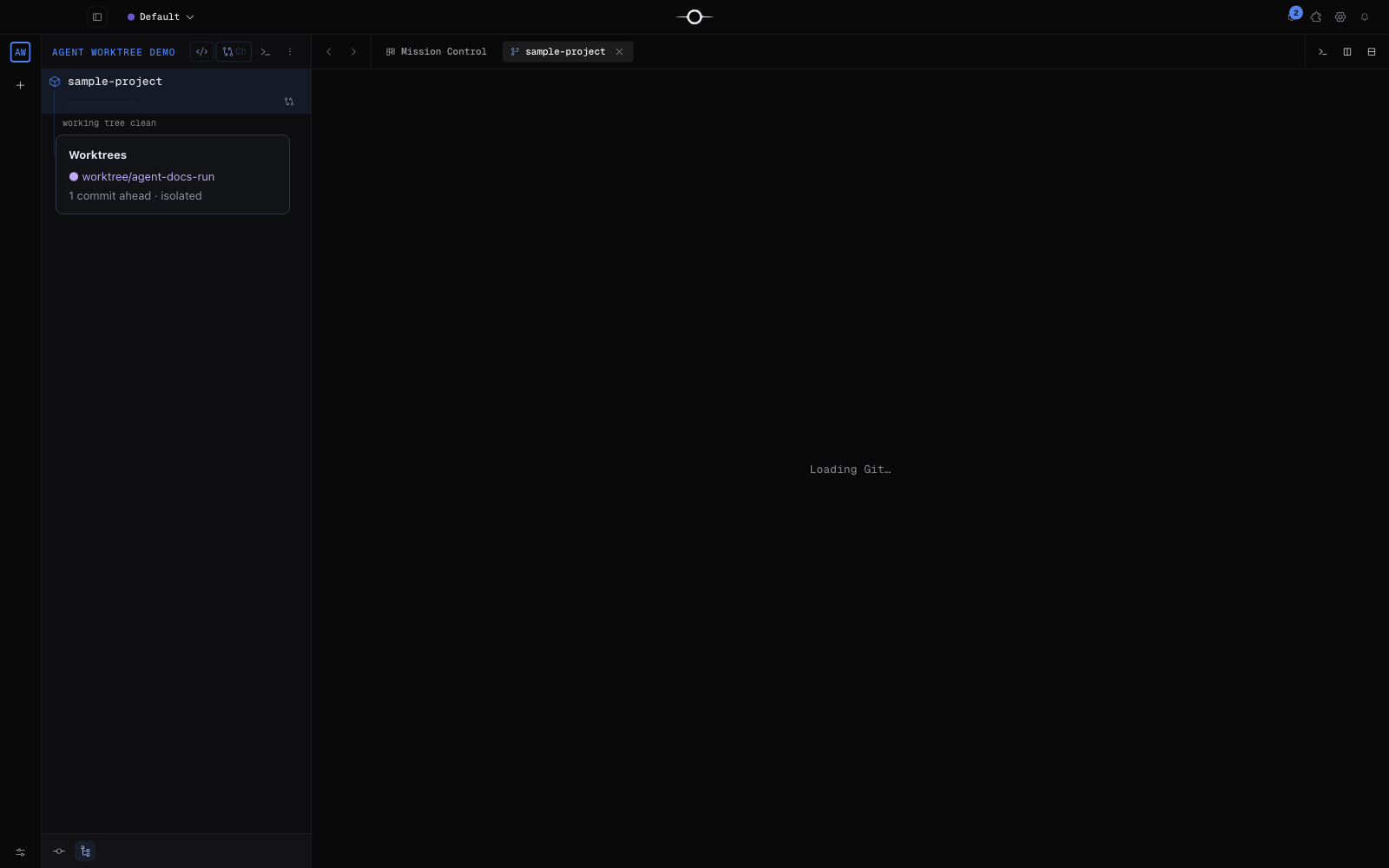
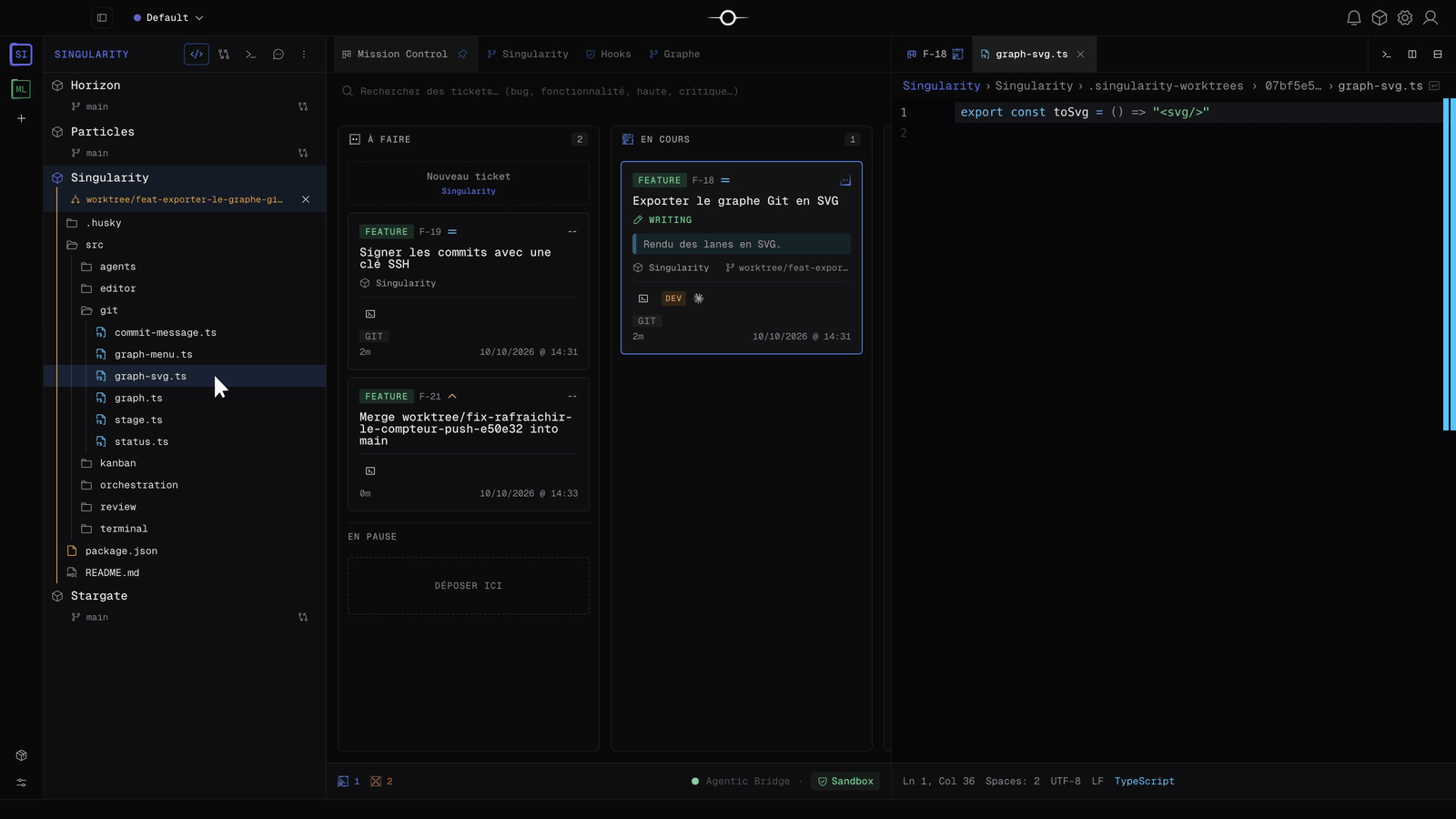
A ticket’s detail shows, under Work, the project, the worktree branch and its base branch. In the navigator’s Git view, the project’s Worktrees section separates unmerged and merged worktrees, with their counters. Expand one to see its latest commit and changed files, then choose Merge into main…, Graph or Explore.
Explore opens the worktree in the file explorer: you browse and open the files the agent writes while it works, without touching your own copy. Close the exploration to return to your project. If the merge conflicts, see resolve a Git conflict.
Inspect Git hooks
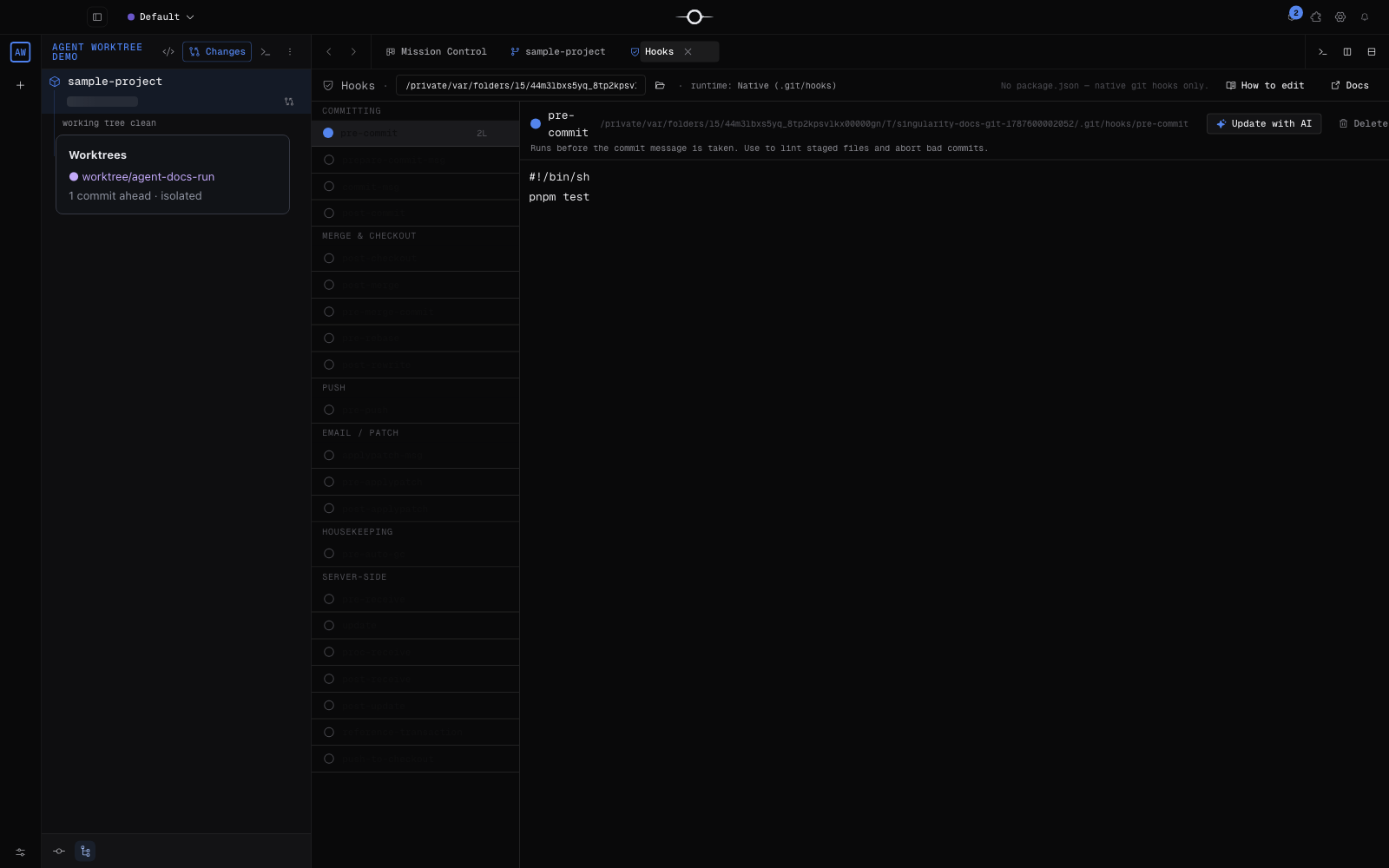
From a project’s Git cockpit, open the Hooks tab to inspect hooks detected in the repository. They run project-defined checks at the Git events they target.
If a pre-commit hook fails, the commit did not happen. Fix the reported cause—formatting, lint, or a test, for example—then run the commit again. Files may remain modified or staged: check their state in the Git cockpit.
Hooks, Husky and commit
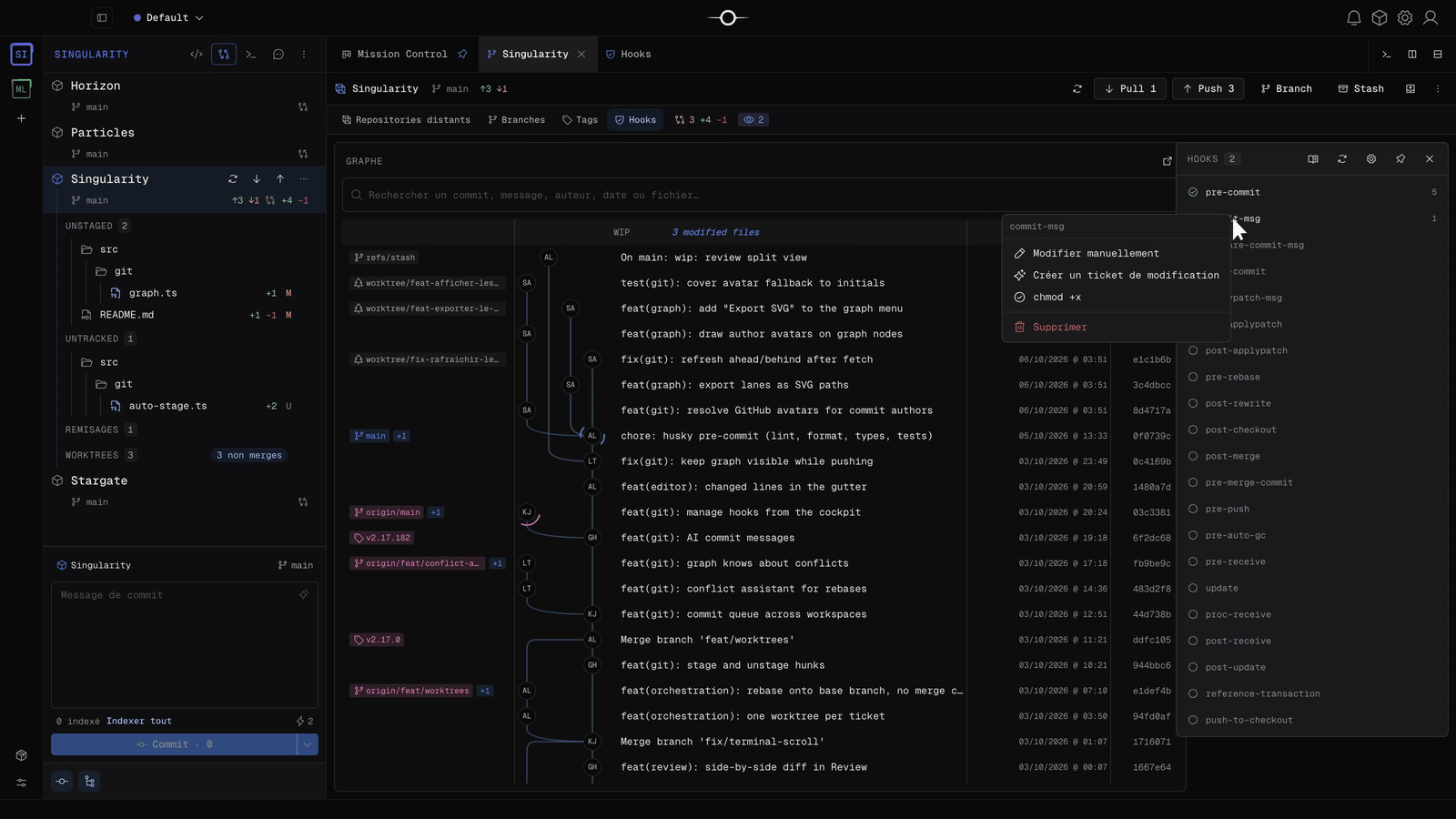
The Hooks panel lists every possible Git hook; installed ones are ticked, with their line count. Singularity detects Husky (core.hooksPath) and reads hooks where Git actually runs them. A hook’s menu offers Edit manually, Create a change ticket — an agent adapts the hook in its worktree —, chmod +x for a non-executable hook, and Delete. A missing hook can be created from a template.
In the commit composer, the ⚡ indicator followed by a number announces the hooks that will run. Their output is shown in a terminal; if a hook fails, the commit does not happen: fix the cause and try again.
Frequently asked questions
Can an agent change my current working tree?
The workflow with ‘Use git worktrees’ directs the agent to its own folder and branch. A worktree does not prevent the process from accessing the main directory if its permissions allow it. If the option is disabled, the run works directly in your current tree.
Does removing a worktree erase the agent’s work?
Removing one worktree only deletes its directory: the branch and commits remain available. Global cleanup also deletes branch references and cannot be undone.