// Singularity documentation
The Git cockpit
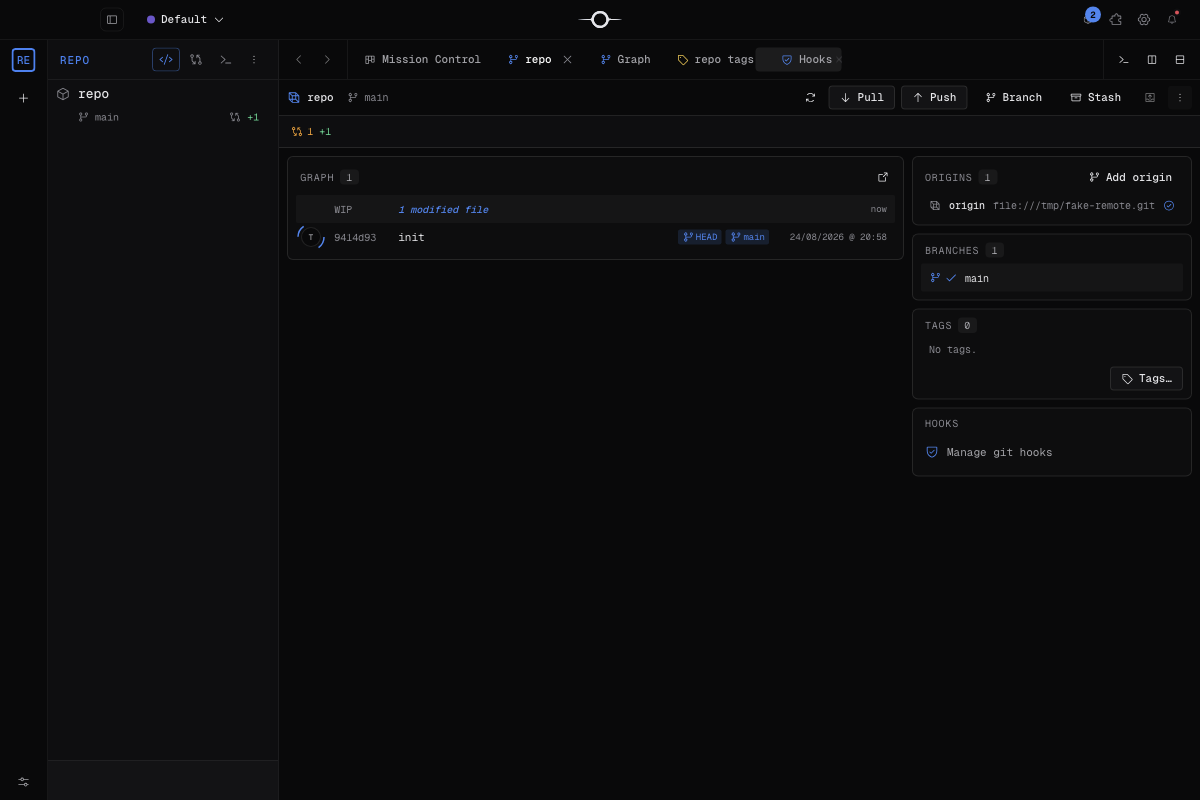
The Git cockpit brings together repository status, commit preparation, remote synchronization, and project history. Each project gets its own tab, keeping the correct repository’s branch and changes in view.
Open a project’s cockpit
In the Navigator, expand a project and use its Git button. You can also right-click the project and choose Open Git, or open Aperture with ⌘K / Ctrl K and search for the project or Git command.
Singularity opens a cockpit tab bound to that project. Opening Git from another project creates or focuses its own tab, so repositories never get mixed together.
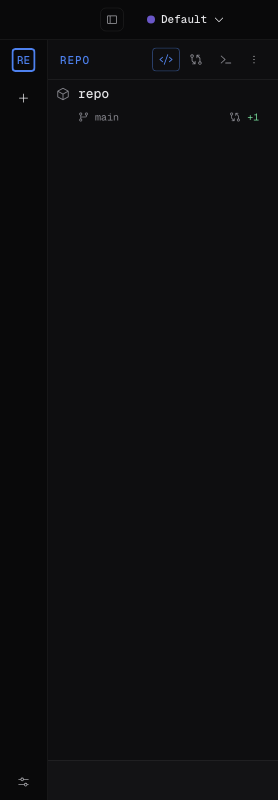
Read repository status
The header shows the current branch. The ahead and behind indicators compare it with its upstream branch: ahead counts local commits left to publish, while behind counts remote commits left to integrate.
Changes are split into Staged Files (the next commit’s contents) and Unstaged Files. New files are shown as untracked. Addition and deletion totals indicate the size of the diff; select a file to inspect it.
Stage and commit
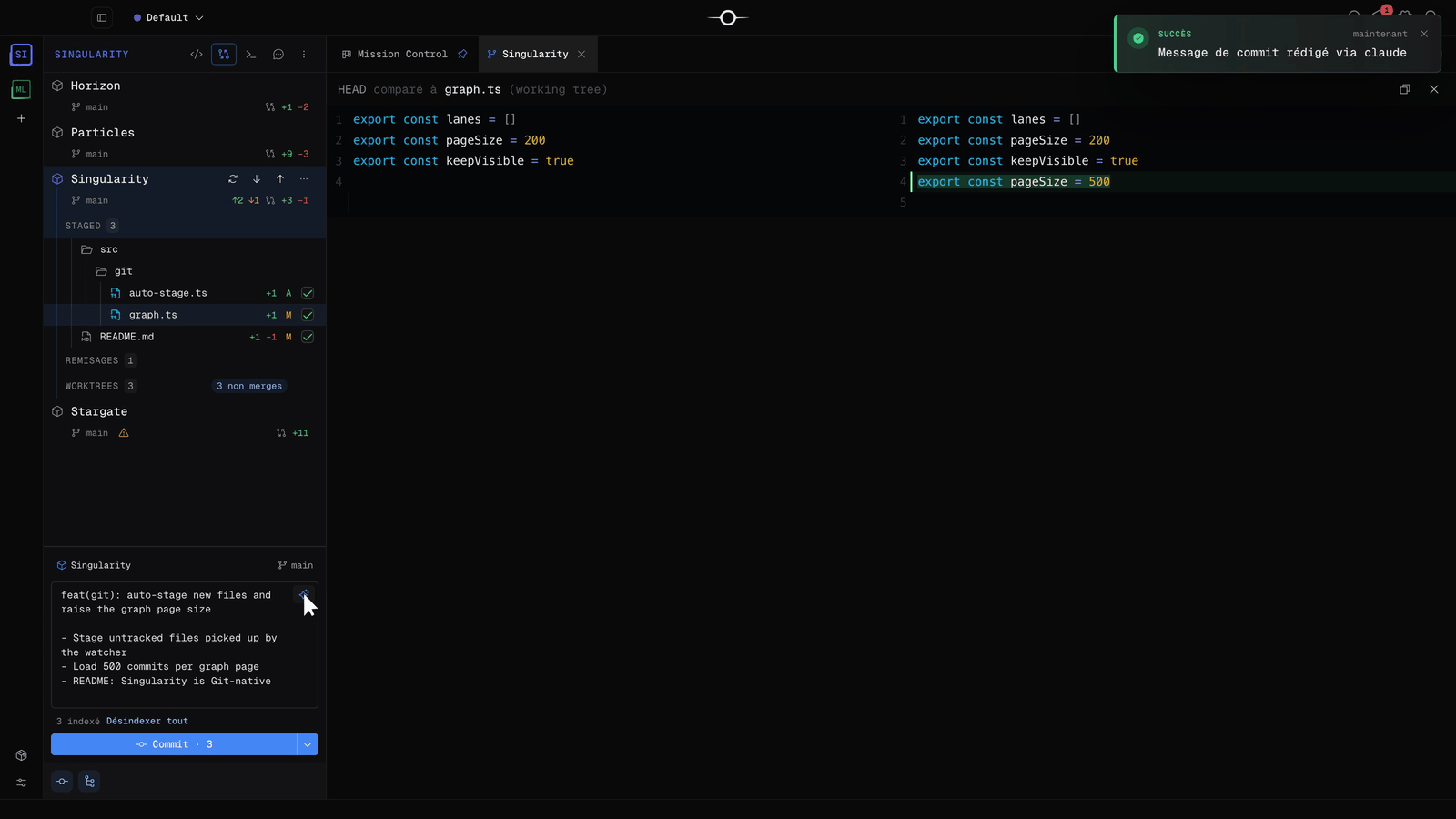
Use a file’s button to stage it, or the group action to stage every relevant file. In the diff, a hunk’s controls can accept or reject that hunk, allowing you to prepare only selected lines when they belong to a selectable hunk. A staged file can be unstaged before committing.
In the composer, enter a concise subject and an optional separate body. Review the staged selection, then choose Commit. Only staged changes are recorded; everything else remains in the working tree.
Write the commit message with AI
Once files are staged, the composer’s sparkle button asks your AI provider for a commit message drawn from the actual diff. The suggestion lands in the composer — a short title followed by the details of the changes — and a notification confirms which agent wrote it. Review it, edit if needed, then click Commit.
The Commit button menu also offers amend and adding Signed-off-by. An existing commit’s message can be rewritten the same way from the graph. A ⚡ indicator flags the hooks that will run on commit.
Exchange with the remote
Fetch downloads remote references and refreshes the counters without changing your files. Pull fetches and then integrates the upstream branch into the current branch. Push sends local commits to the configured destination; when several remotes exist, select the offered target.
The additional-actions menu also provides Pull (rebase), which replays local commits on top of fetched commits. Let one operation finish before starting another, and resolve any conflict reported by Singularity.
Stash changes
Choose Stash all changes to temporarily clean the working tree without creating a commit. Singularity includes tracked, staged, and untracked files in the stash and gives it a work-in-progress message tied to the branch.
Pop latest stash restores the newest stash and then removes it from the stack, like git stash pop. If applying it causes conflicts, the stash is not lost; resolve them before continuing.
Discard changes
These commands are destructive. Discard a file’s changes restores its tracked version and cannot be undone. Trash untracked files deletes the selected new files and folders; because Git has no copy of them, that deletion cannot be undone.
Discard all restores staged and modified files from HEAD, resets tracked submodules, deletes brand-new files and nested repositories, then aborts any merge or rebase in progress. Any changes restored by that abort’s autostash are permanently discarded too. This cannot be undone. Read the confirmation before approving it.
View a file’s history
Open a file’s context menu in the cockpit and choose File history. The list shows commits that touched that path. Select a commit to display its files, then select the file to read the diff between that revision and its previous version.
The diff distinguishes additions from deletions and retains context around changed hunks. History is read-only: it changes neither the current branch nor the working tree.
Frequently asked questions
Does Fetch change my files?
No. Fetch updates remote references and ahead/behind counters without integrating commits into your branch or changing the working tree.
Can I recover a file after Discard all?
Not from Singularity. This action restores tracked files and deletes untracked files; its confirmation explicitly says it cannot be undone.