// Singularity documentation
The workbench
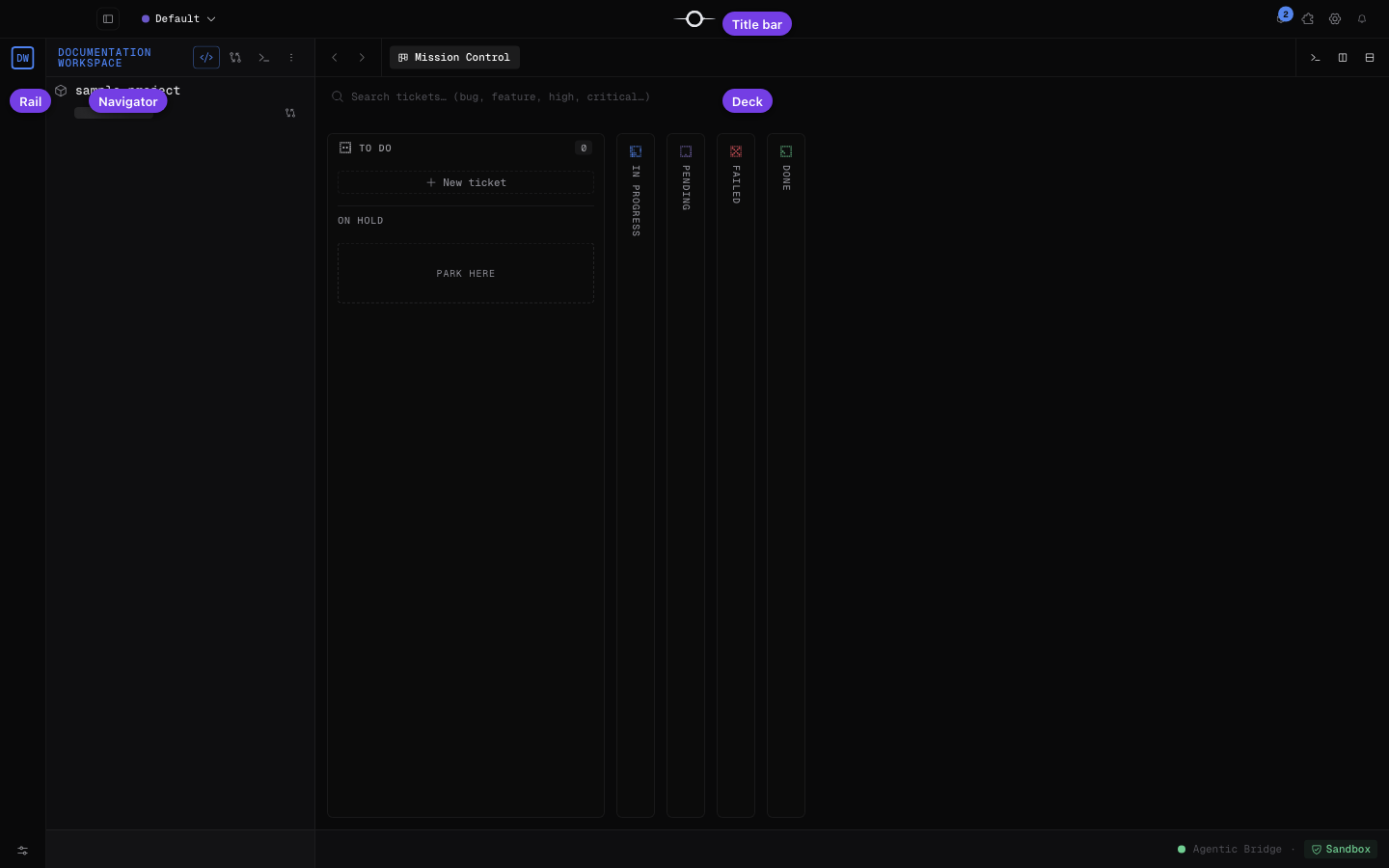
The workbench is the chrome that remains around your work in Singularity. Its rail switches workspaces, its navigator exposes projects, its deck hosts tabs, and its title bar gathers global commands.
Overview
From left to right, the rail selects a workspace, the navigator shows its tree and tools, and the deck fills the central area. The title bar runs across the top of the window and keeps global actions available.
The rail
Every workspace has a badge in the rail. The active workspace is placed first with a larger badge; the others remain available underneath. An animated outline appears around a badge while an agent is running a ticket in that workspace.
To move a project without opening a dialog, drag it from the navigator onto another workspace badge. The target badge highlights, then the project is assigned to that workspace when dropped.
The deck and its tabs
The deck brings together files, tickets, reviews, terminals, Git cockpits, Git graphs, branches, hooks, settings, Marketplace, and Mission Control. Every document carries a stable identity—such as a file path or ticket ID—so it can never open twice: opening it again activates the existing copy.
Pin a tab to keep it at the start of its strip. Other tabs can be closed with their close control; Mission Control always remains present and cannot be closed.
Splits
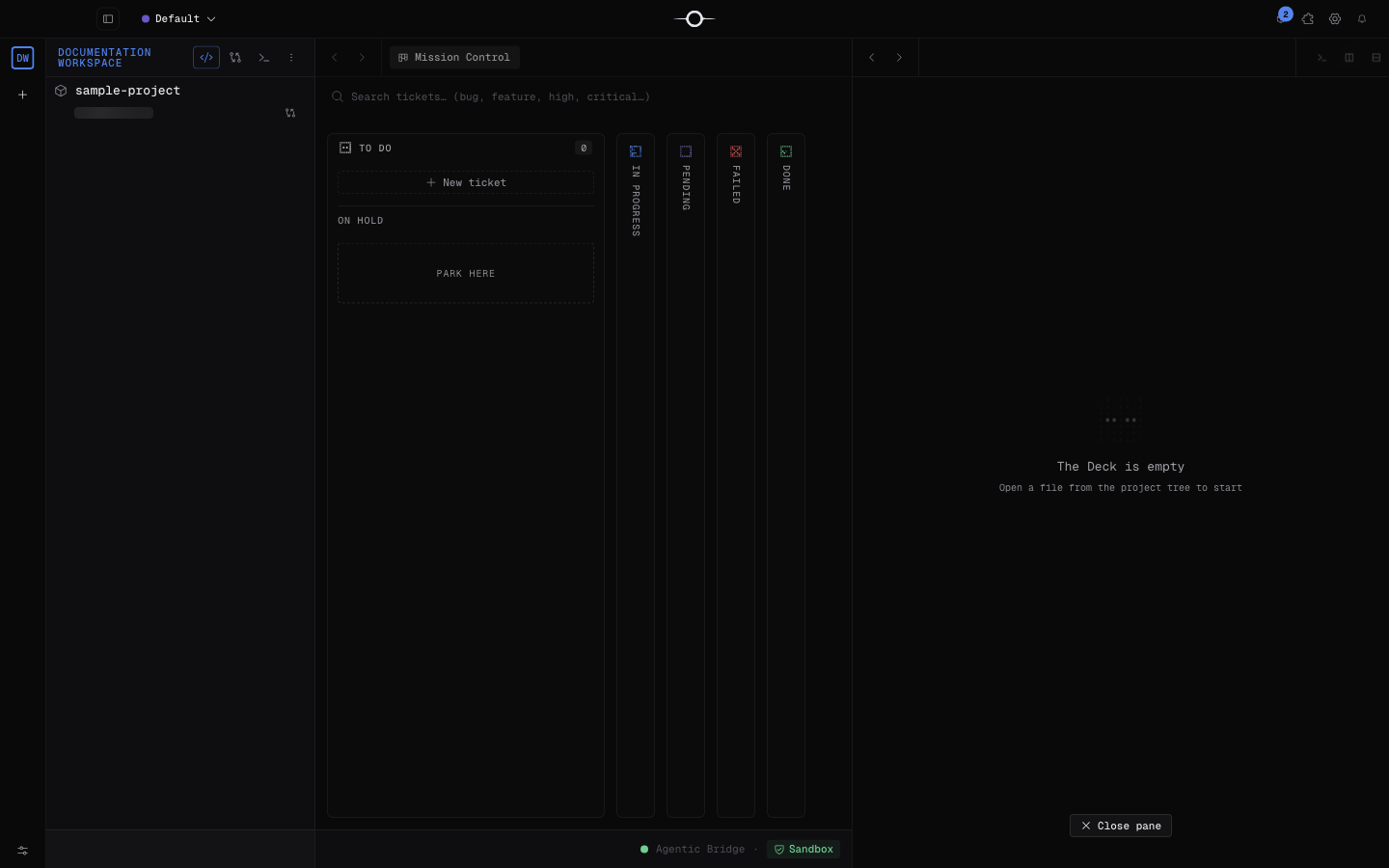
Buttons in the tab strip split the active group to the right or downward. Splits can be combined into horizontal, vertical, or nested layouts.
Drag a tab onto another group to move it there, or onto a group edge to create a split at that position. Exactly one group has focus: its outline is accented and new tabs open in it.
The title bar
On the right, the title bar provides permanent access to the update center, Marketplace, Settings, and Notifications. Marketplace and Settings open their stable tab in the deck; the update center and notifications open over the workbench.
Collapsible panels
The panel button in the title bar—or ⌘B/Ctrl B—collapses and reopens the navigator sidebar. Its previous width is reused when reopened and its collapsed state is remembered.
The console is now a Terminal surface in the deck: collapse its lower group with the split handle, or close its tab. Because it belongs to the deck, its position among groups is saved with the workspace layout.
What is restored after restart
Singularity saves the complete deck layout per workspace: the split tree, each group’s tabs, the active tab, the focused group, and pinned tabs. When you return to a workspace—including after a restart—its own session is restored without replacing other workspaces’ sessions.
Frequently asked questions
Can I open the same document twice?
No. Every tab has a stable identifier: another open request focuses the existing tab instead.
Is the layout shared by every workspace?
No. Singularity saves a separate deck layout for each workspace.