// Singularity documentation
Search
Singularity has three separate search experiences: text search inside project files, Aperture for commands and workbench items, and the dedicated settings search. Pick the tool that matches what you need, because their results and options differ.
Three searches for three jobs
Find in files looks for text in the contents of workspace projects. Aperture (⌘/Ctrl K) provides quick navigation across commands, files, tickets, and projects. Settings search only filters the preferences catalog. The same query can therefore produce three different result lists.
Search inside files
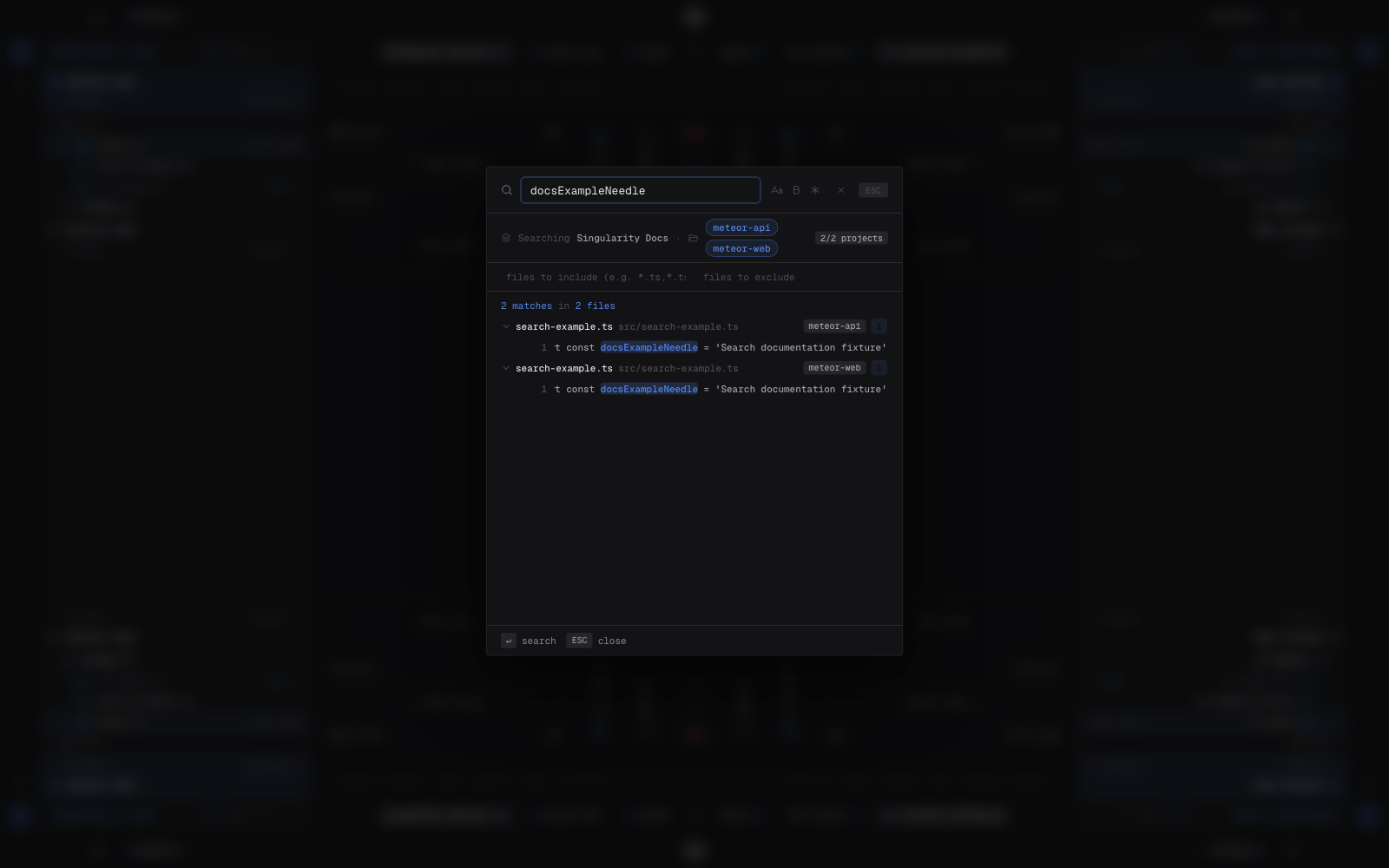
Open file search with ⌘⇧F on macOS or Ctrl⇧F on Windows and Linux. It recursively scans the contents of projects in the active workspace. Project chips include or exclude individual projects; the two filter fields also accept comma-separated file patterns to include and directory names to exclude.
Results are grouped by file and show the matching line. Expand a group when needed, then select a match to close search and open the file in the editor.
Matching options
Three buttons change matching behavior: match case distinguishes Search from search; whole word avoids matches inside a longer word; and regular expression interprets the query as an extended regular expression. Without the last option, the query is treated as literal text.
Search with Aperture
Open Aperture with ⌘K or Ctrl K, then type a few characters. Aperture matches the query against commands and views, files, tickets, and projects available in its current scope. Local sections respond immediately; file-content results arrive after a short delay. Use the arrow keys and Enter, or click a row, to open it.
Search settings
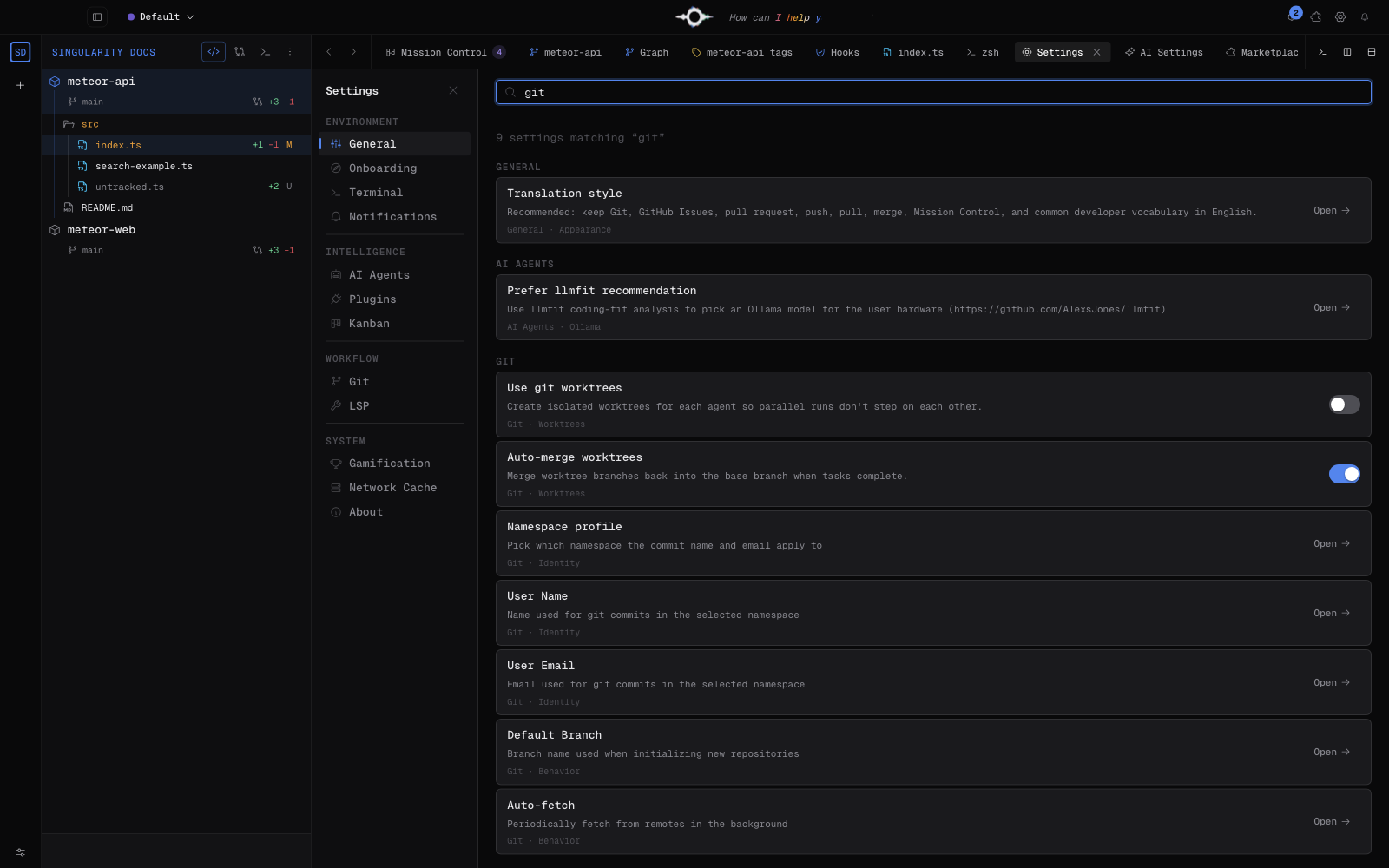
Open Settings with ⌘, or Ctrl ,, then use the bar at the top. Search is case-insensitive and checks every typed term against each setting’s name, description, group, panel, and keywords.
Every result is actionable. The Open button navigates to the relevant panel; when a switch or numeric control appears in the row, you can change that setting directly without leaving the results.
File-search limits
File search is an on-demand scan, not a persistent index. Large projects can therefore take longer; each project has roughly ten seconds of scan time and the combined result set is capped at 500 matches. Partial results may be shown when the time or match limit is reached.
Binary files are skipped. By default, Singularity does not scan node_modules, .git, dist, build, .next, .cache, or coverage. Tickets, commands, and settings are not part of this scan: use Aperture or settings search for those.
Frequently asked questions
Does file search use an index?
No. Singularity scans the selected projects when you submit a query, so changes saved on disk can be found without rebuilding an index.
Why is a file missing from the results?
Check that its project is selected, that the include and exclude filters do not remove it, and that it is not a binary file or inside a directory ignored by default.