// Singularity documentation
Notifications & bug reports
The notification center collects events that need your attention. This page explains in-app and system alerts, their settings, and the information that helps the team act on a bug report.
The notification center
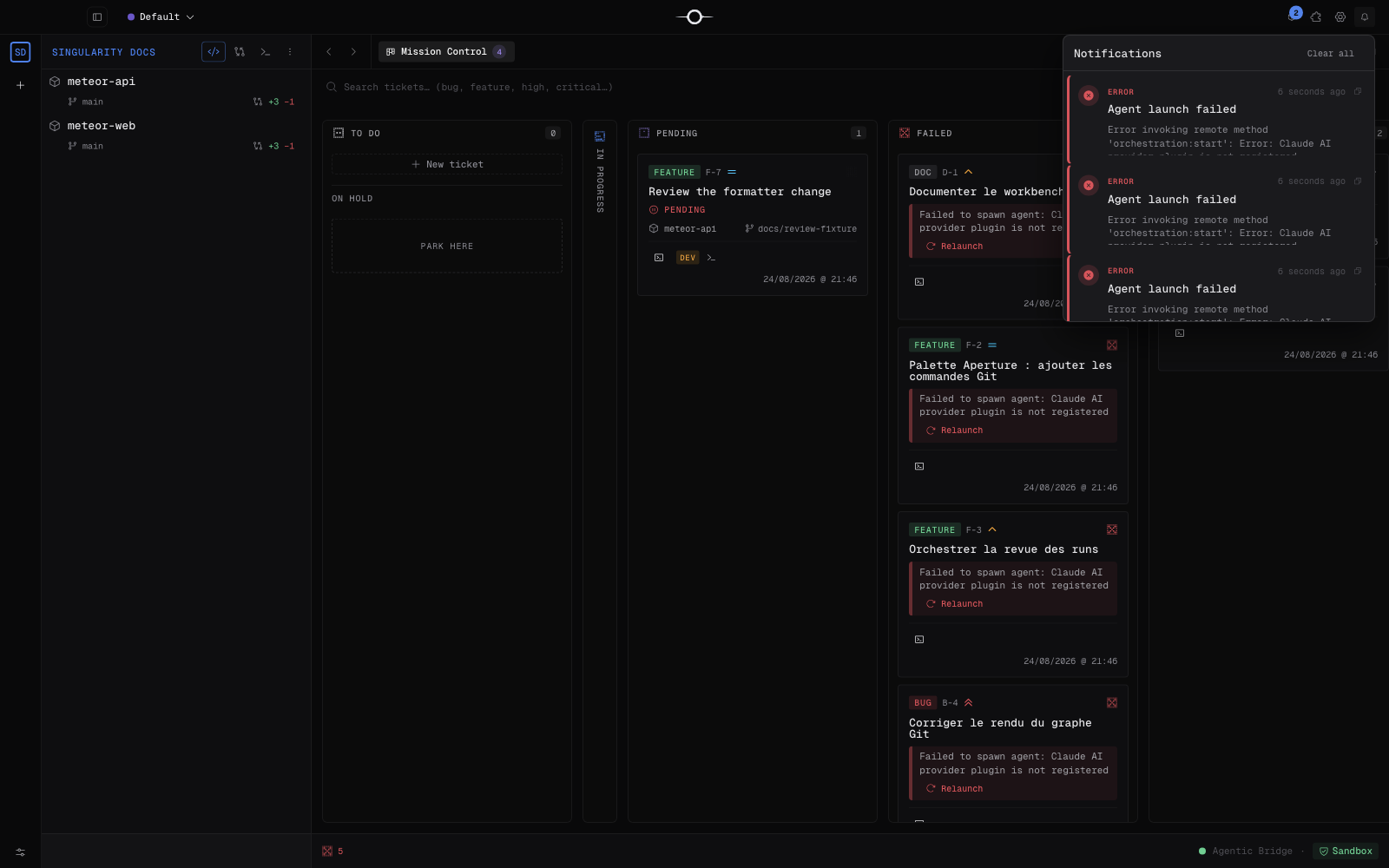
Click the bell icon in the title bar. A red dot means that at least one notification has not been read yet. Opening the popover refreshes the list, marks every displayed entry as read, and clears that counter.
The center reports events including an agent run completing or failing, a pending question or user action, an available update, and errors that need attention. A notification tied to a workspace or ticket can take you back to that context. You can also dismiss an entry, mark everything as read, or clear the list.
System notifications
When an event is added to the center, Singularity can also display a native notification in macOS Notification Center or Windows Notification Center. The operating system may request permission the first time.
To turn these off without disabling the in-app center, open Settings → Notifications and disable OS notifications. Events remain available inside the app.
Settings
The Settings → Notifications panel contains three switches:
- Notification sounds — plays a bell when an agent completes, fails, or needs attention;
- OS notifications — displays native macOS or Windows alerts;
- Dock badge — shows an indicator on the dock or taskbar icon while notifications are unread.
The sound associated with ticket status changes is configured separately under Settings → Kanban → Notifications.
Report a bug from the app
Open Report a bug, provide a precise title, and describe the context, expected result, observed result, and reproduction steps. The form also accepts attachments such as a screenshot, log, or small document that helps diagnosis.
Singularity automatically adds the app version, release channel, operating system, and CPU architecture. The main process sends the report to Stargate, which files it for the team as a GitHub issue; no personal GitHub token is requested or transmitted.
The Singularity website form sends a title and context to the same service with the web platform. Never include secrets, API keys, or personal data in the description or attachments.
Where to find logs
The main file is named singularity-main.log. You can find it at:
- macOS:
~/Library/Logs/Singularity/singularity-main.log; - Windows:
%APPDATA%\Singularity\logs\singularity-main.log; - Linux:
~/.config/Singularity/logs/singularity-main.log.
Older sessions may be retained as rotated files in the same folder. Reproduce the issue, close Singularity cleanly, then copy the relevant log. See Troubleshooting before opening a report as well.
Frequently asked questions
Does opening the center delete notifications?
No. It marks them as read and clears the counter, but they remain in the list until they are dismissed or cleared.
Should I publish my logs publicly?
No. Review them before attaching them: logs can contain file paths, project names, or technical details specific to your machine.