// Singularity documentation
Sync several repositories: fetch, pull, push and rejected push
The navigator’s Git view shows the branch and remote gap of every project in the workspace. Fetch, pull and push without switching tabs, and let Singularity guide the recovery when a push is rejected.
Every repository of the workspace at a glance
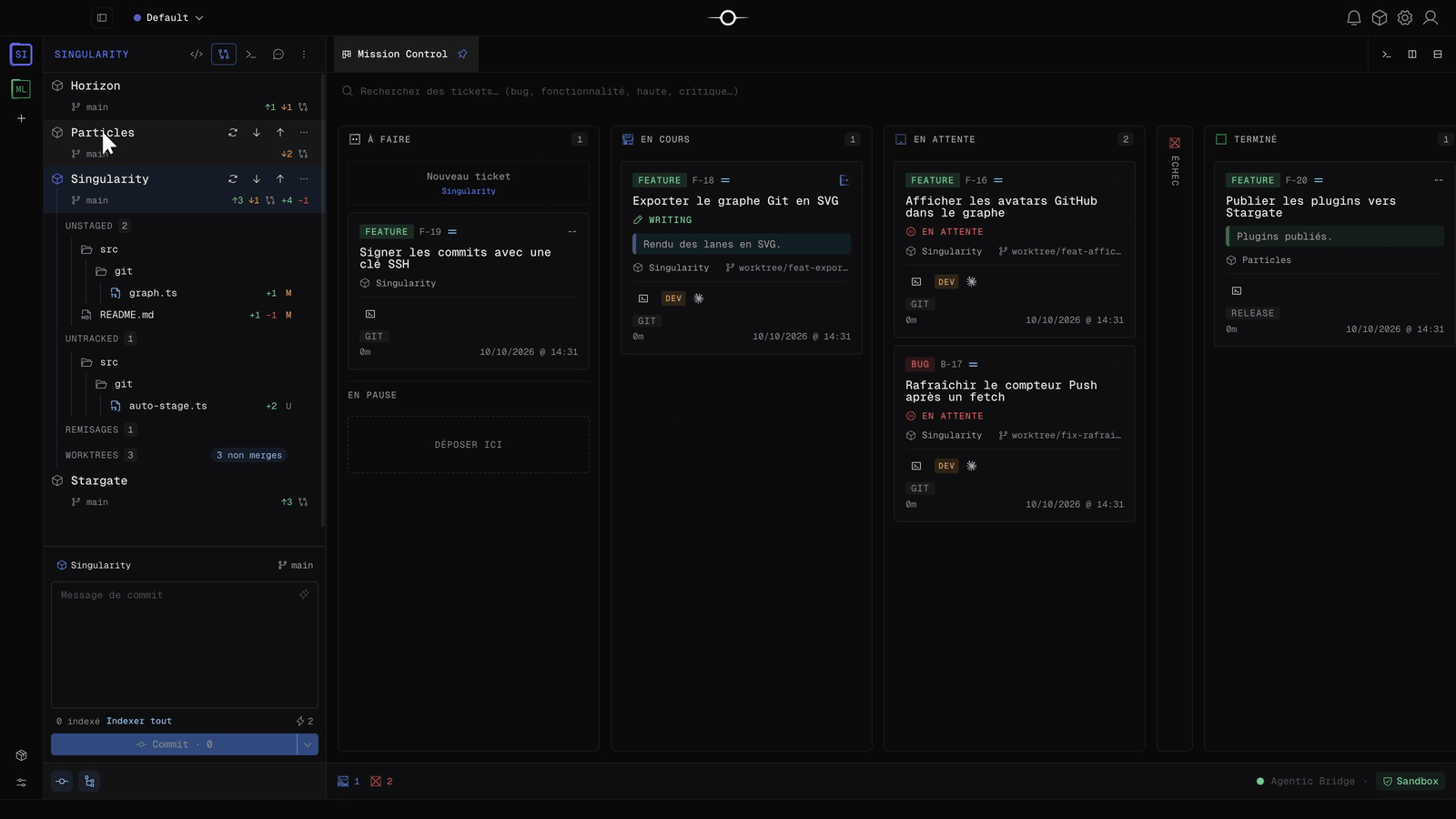
In the navigator, switch to the Git view: each project of the workspace shows its current branch and its ↑ (local commits to publish) and ↓ (remote commits to integrate) counters. A warning icon flags a repository that needs your attention.
Expand a project to see its unstaged, untracked and staged files, its stashes and worktrees, and commit from the composer at the bottom of the panel. A background fetch keeps the counters up to date.
Fetch, Pull and Push on hover
Hover a project to reveal its actions: Fetch downloads remote references without touching your files, Pull integrates the upstream branch — by merge or rebase depending on the divergence — and Push publishes your commits. The … menu gathers the repository’s other actions.
You can sync several repositories in a row without opening their cockpit. A notification confirms each operation, for example “Pushed to origin – 4 commits”. For the cockpit details, see working with the remote.
When the push is rejected
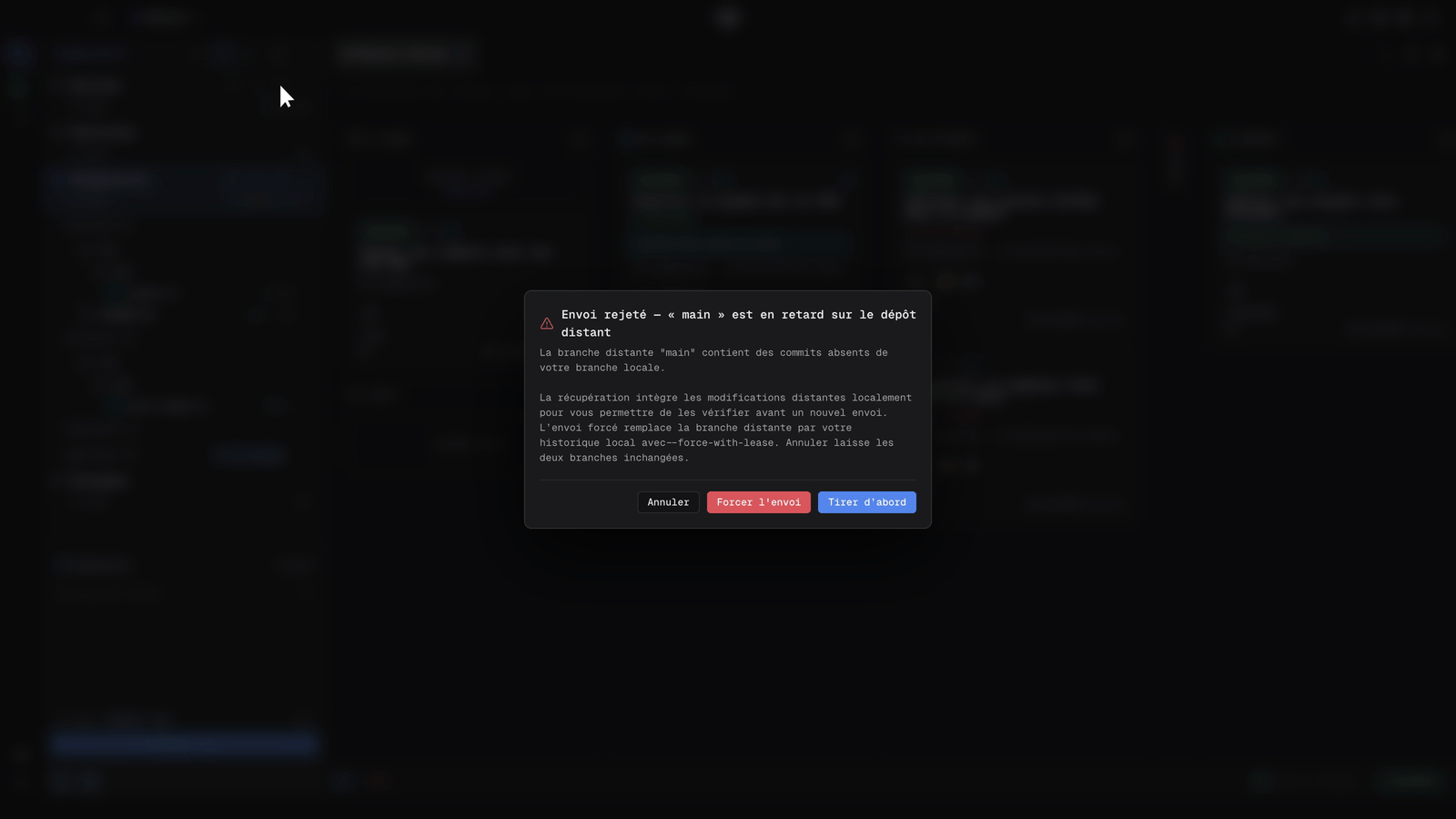
If the remote branch moved ahead, Git refuses the push. Singularity opens the Push rejected — “main” is behind the remote dialog with three choices:
- Pull first integrates the remote changes locally so you can check them before pushing again. This is the safe choice.
- Force push replaces the remote branch with your local history using
--force-with-lease. - Cancel leaves both branches unchanged.
If the recovery fails in turn, Singularity offers a repair ticket. For GitHub workflows, it can also repair a broken SSH configuration.
With agents in parallel
Agents work in their own worktrees and the commit queue integrates their work one ticket after another, by rebase, without merge commits. Your main branch can therefore move while you work: Fetch before pushing, and prefer Pull first over a force push on a shared branch.
Frequently asked questions
Why is my push rejected?
The remote contains commits missing from your local branch: someone — or an agent — pushed in the meantime. Choose Pull first to integrate those commits, check, then push again.
Does force push erase other people’s work?
It replaces the remote branch with your local history using --force-with-lease, which refuses the push if the remote branch changed since your last fetch. Remote commits you have not fetched are protected, but the ones you knowingly overwrite leave the branch.