// Singularity documentation
Workspaces & projects
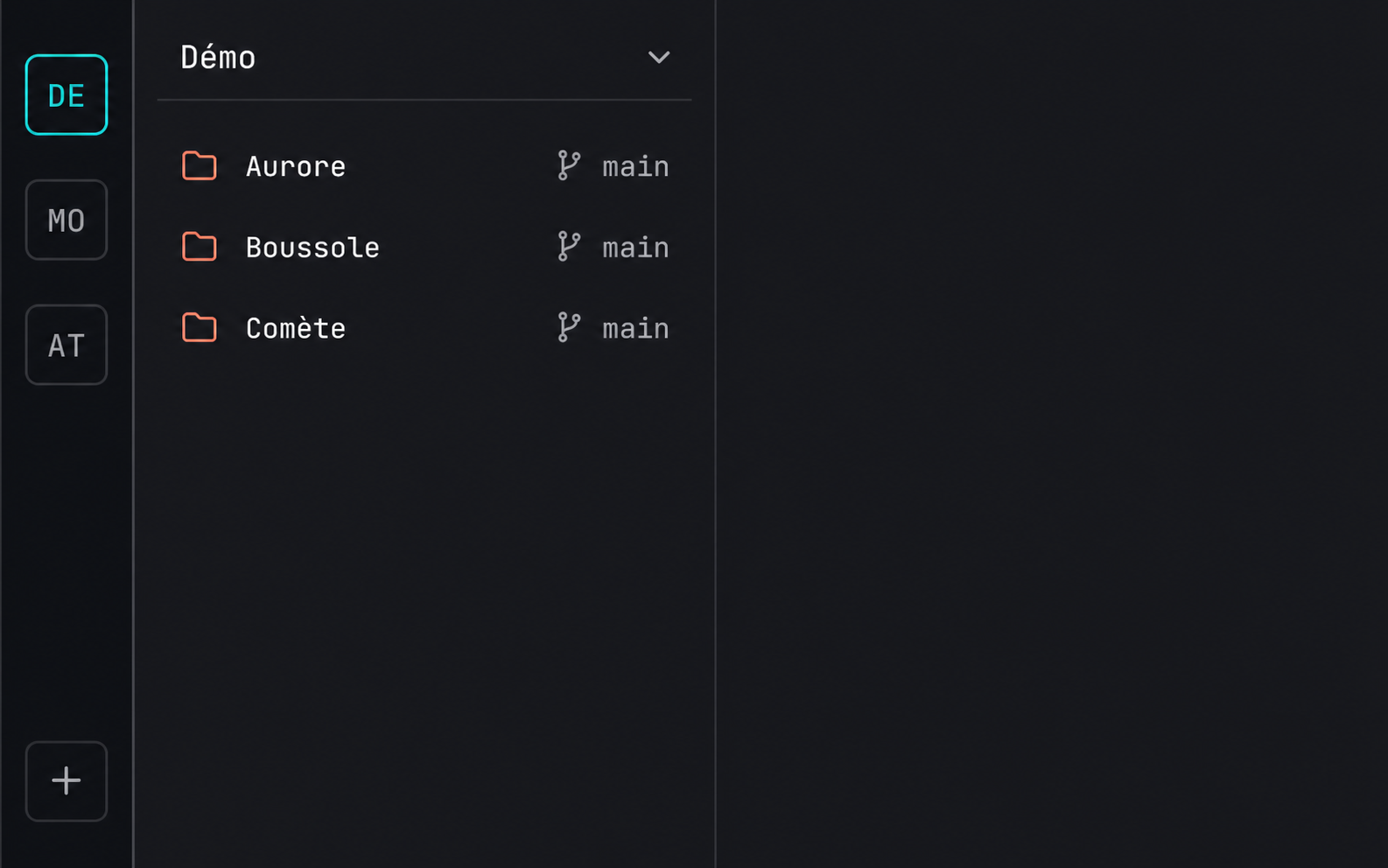
Workspaces group the projects you use together and preserve their viewing context. The rail lets you switch between them without mixing their files, tabs, or layout.
The workspace directory and symbolic links
Singularity builds a working directory at ~/.singularity/workspaces/<name>. Each project appears as a symbolic link to its real folder. A link accesses the same content: editing a file through it changes the project file without creating a copy.
For example, an “Atelier” workspace can group a frontend and an API stored in different folders. The agent can explore both from one root. Docs groups existing docs folders; AI/Config, AI/Rules, AI/Skills, and AI/Memory expose AI configuration and instructions discovered in projects.
These links are neither backups nor Git worktrees. If the target folder moves or disappears, its link no longer provides access. To isolate agent changes, see Git worktrees.
The model
Singularity organizes identity into three levels: a namespace contains several workspaces, a workspace owns a working context, and each project references a folder on disk.
The namespace level groups related workspaces — by organization, client, or domain — without merging their layouts and projects.
Create a workspace
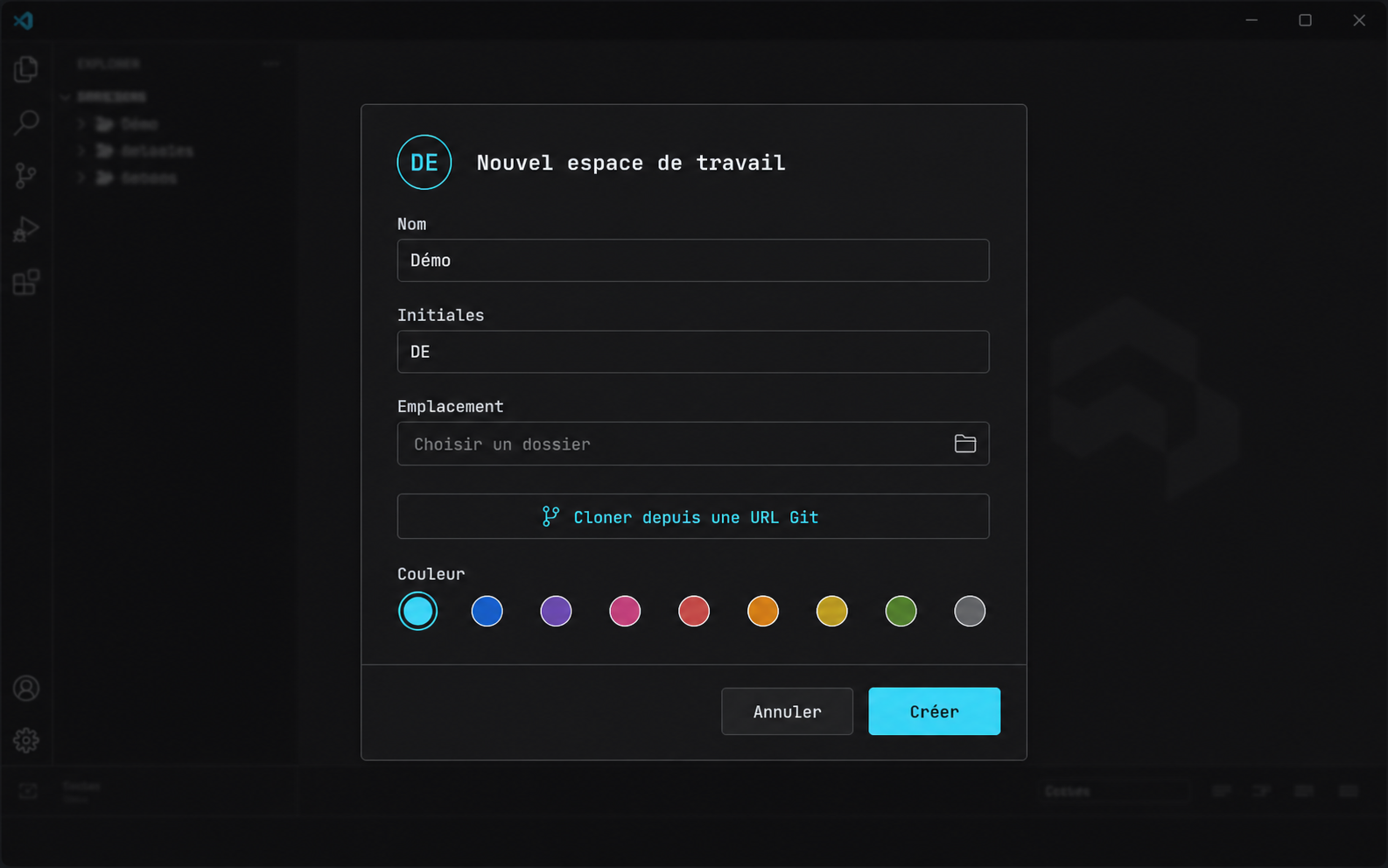
Select the + button in the rail, then enter a name, initials (up to three characters), a folder, and an accent color. The badge combines initials and color, so choose a short, distinct combination that is easy to recognize in the rail.
The selected folder becomes the first project. If Singularity detects several project subfolders, you can add them separately during creation.
Add and move projects
Open the navigator header menu to add a project. Select an existing folder or choose Clone from a Git URL to create a local copy and add it.
To transfer a project, drag it from the navigator onto the target workspace badge in the rail. The project changes workspace; its folder does not move on disk.
Switch workspaces
Select a badge in the rail. Singularity restores that workspace’s deck: its layout, open tabs, and active view. This brings back the context you left the last time you used it.
Application preferences remain global, including language, appearance, shortcuts, and general settings. Switching workspaces does not create a separate application profile.
Edit or delete
Open a workspace menu to change its name, initials, or color. A project menu lets you rename it or remove it from the workspace. Remove only detaches the reference: files remain on disk.
Deleting a workspace removes its configuration and project associations from Singularity. It does not delete project folders; still, make sure you no longer need the saved context before confirming.
Import and export
From the workspace menu, export a .singularity file, then use the import action to preview it and choose where projects should be attached. Re-import recognizes existing identifiers and updates the workspace instead of duplicating it.
The file contains namespace and workspace identity, its color, root, visible tabs, the ordered project list, project paths, and Git URLs when available. It also records the source platform and export date. It does not copy project files, Git history, or general application-profile data. On another machine, a missing path must be mapped to an existing folder or recreated by cloning.
Where data is stored
Namespaces, workspaces, projects, and their state are stored locally in singularity.db, a SQLite database inside the Singularity application profile. Projects themselves remain in the folders you selected.
Singularity does not synchronize this database with a server. To move a workspace’s organization to another installation, explicitly use import/export.
Frequently asked questions
Does removing a project delete its folder?
No. Singularity only removes the project from the workspace; the folder and its contents remain intact on disk.
Are my workspaces synced to the cloud?
No. Their configuration is stored in the application profile’s local SQLite database and is not synchronized to a server.