// Singularity documentation
Pipelines: monitor CI and prepare a fix
The Pipelines plugin gathers your projects’ CI/CD runs inside Singularity: pipeline list, steps, logs, re-runs, then a one-click AI repair ticket when a run fails.
Enable and connect the plugin
Install and enable Pipelines through the Marketplace. This paid plugin supports GitHub Actions, GitLab CI, and Azure DevOps. Add a connection in its settings: name, provider, organization URL, project and token, then Test and add.
Connections belong to the workspace and tokens are stored separately, in the plugin’s isolated keychain: they are never sent back to the UI. If no definitions appear, check the active workspace, provider, selected repository, and account permissions; a connection with expired credentials is flagged as such.
The Pipelines dock
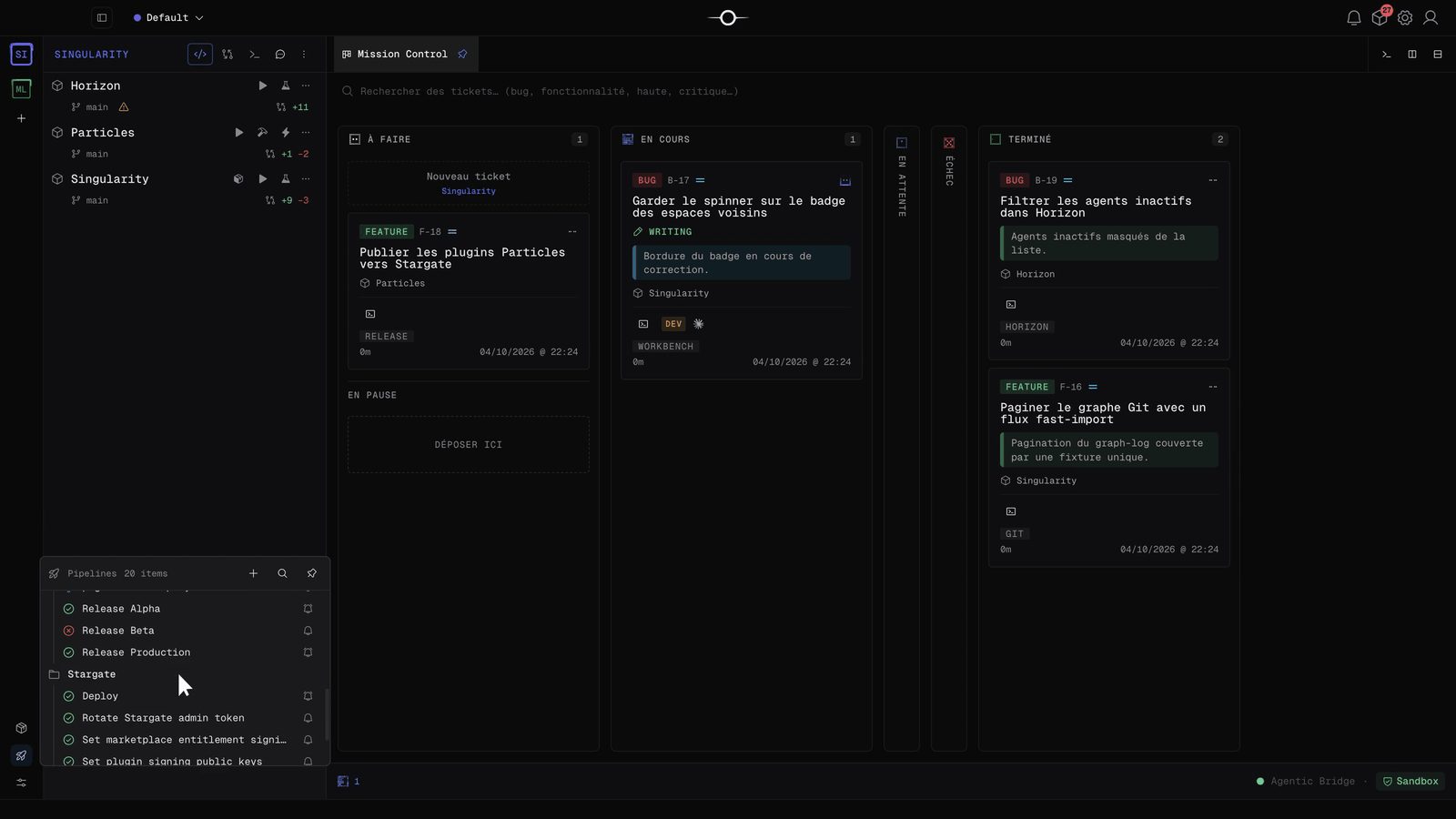
The Pipelines dock, at the bottom of the sidebar, lists the pipelines of every connection, grouped by repository, with the status of their latest run. The bell on a row turns that pipeline’s notifications on or off. Click a pipeline to open it in a tab.
Statuses refresh automatically while you work. To spare quotas, a refresh costs two calls per connection whatever the number of pipelines; if the provider limits calls, the last saved data stays on screen with a warning.
Read a run
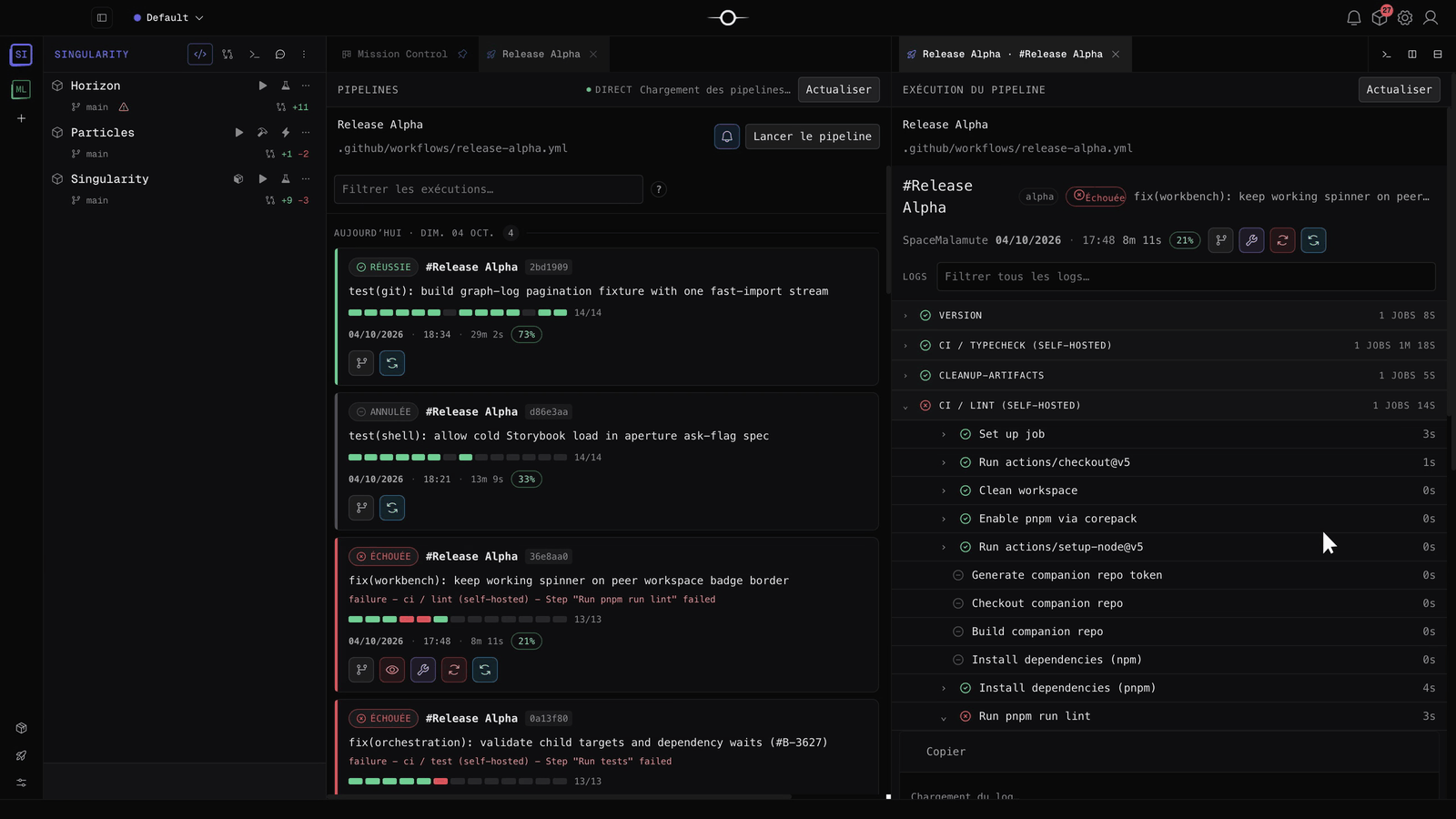
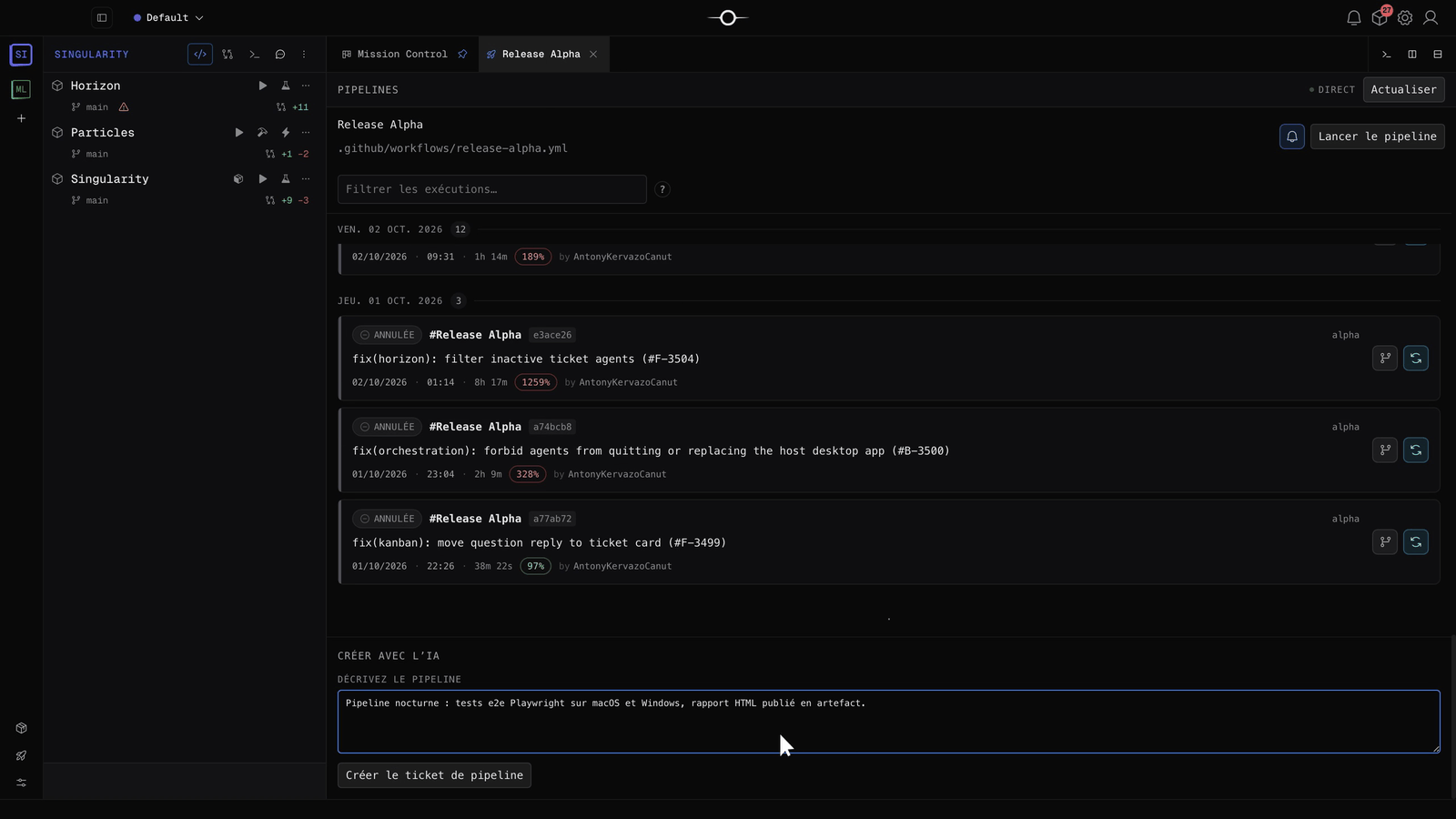
A pipeline tab lists its runs by day, live: status (Succeeded, Failed, Canceled, running…), commit, failed step, step progress bar, date and duration. The Filter runs… field accepts several filters separated by semicolons: date, parameter, author, run, branch or status. Run pipeline starts a run on the branch and with the parameters you choose.
Open a run to see its jobs and their steps with durations, its parameters, repositories and downloadable artifacts. Distinguish the remote run result from the ticket result: a completed ticket does not prove a new CI run succeeded.
Open logs at the first error
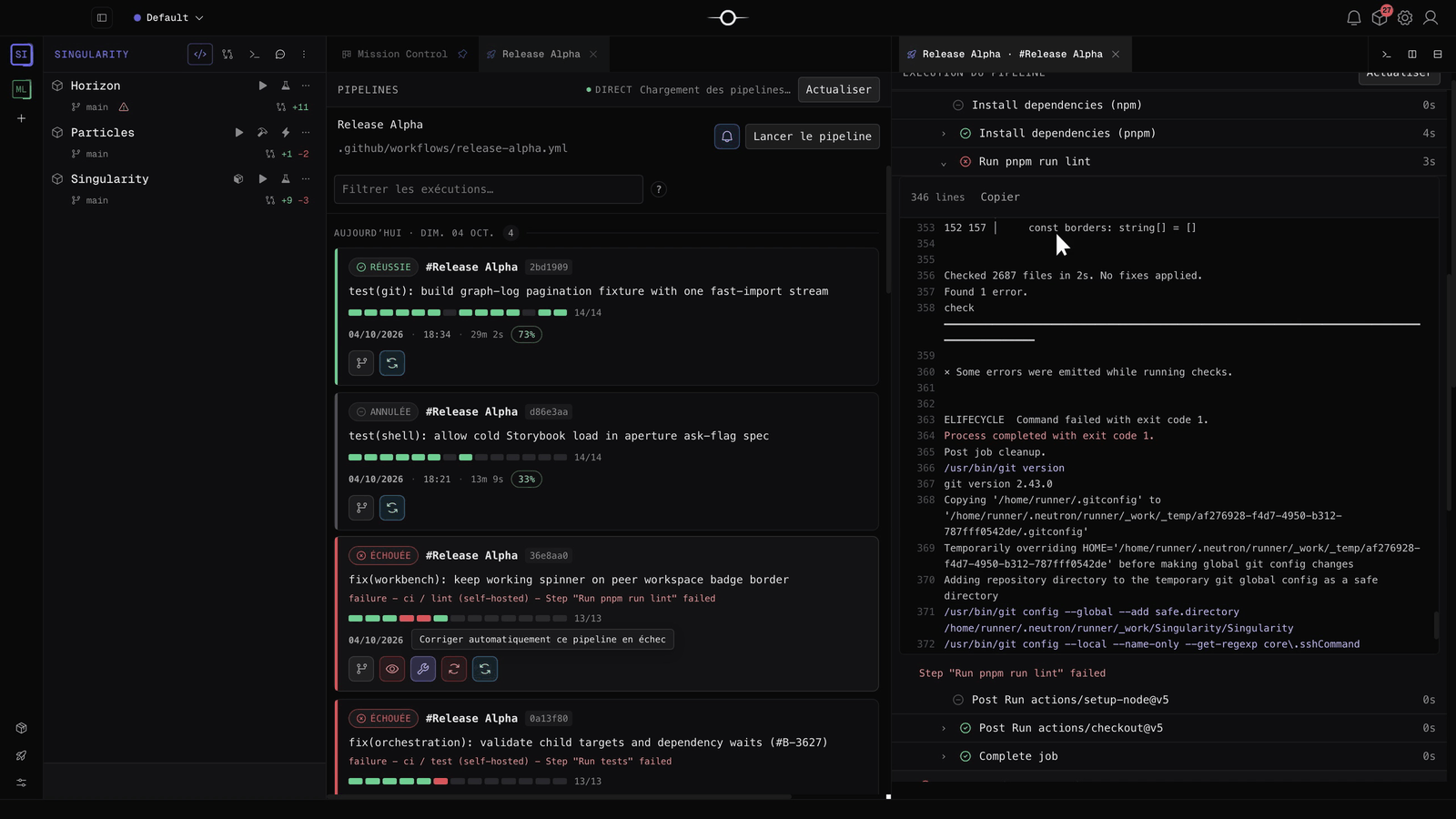
On a failed run, Open logs at the first error expands the faulty step directly. Filter all logs… searches every log, Copy copies the displayed log, and line timestamps can be enabled in the plugin settings.
Each run card also offers: re-run the failed jobs, run again on the same branch, cancel a running run, and approve or reject a pending deployment. These actions act on your CI service: check the target before using them.
Create a repair ticket
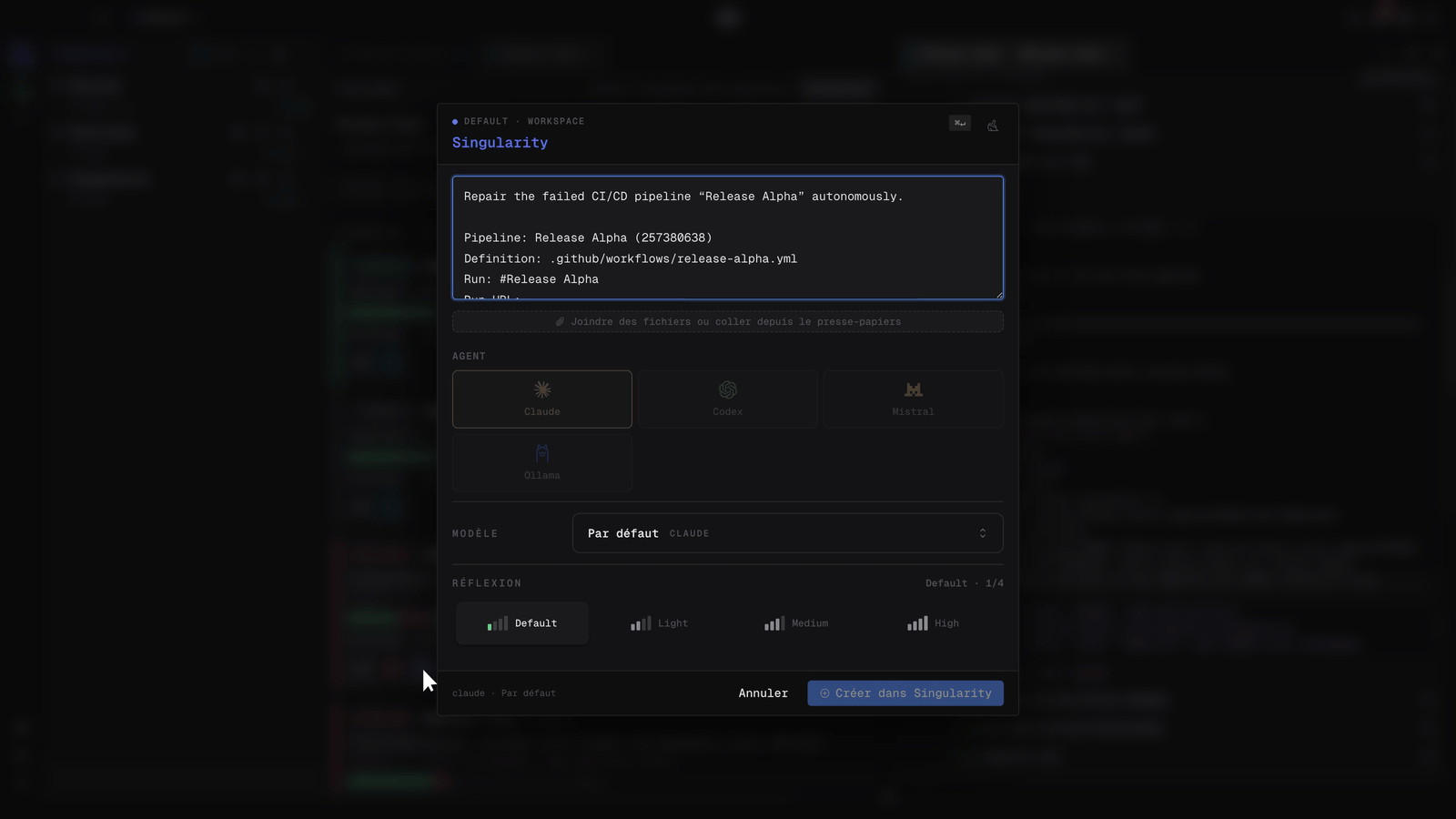
The Autofix this failed pipeline button opens the ticket creation dialog, prefilled: pipeline, definition, run, link and an excerpt of the first failed log, redacted and capped at 16,000 characters. Choose the agent, model and reasoning level, add the local checks if needed, then create the ticket.
A run produces a single repair ticket: triggering the action again finds the same ticket. In the plugin settings, Create a repair ticket automates creation for each new failure on a watched pipeline, and Require ticket approval keeps those tickets pending until you approve them. When its MCP tools are available, the agent inspects CI context without you copying logs: see internal MCPs.
Create a pipeline with AI
At the bottom of a pipeline tab, the Create with AI area accepts a plain-language description, for example “Nightly pipeline: Playwright e2e tests on macOS and Windows, HTML report published as an artifact”. Create pipeline ticket opens the creation dialog: the agent writes the YAML definition in the repository, inside its worktree, and you review it like any other change.
Follow the tickets in Mission Control
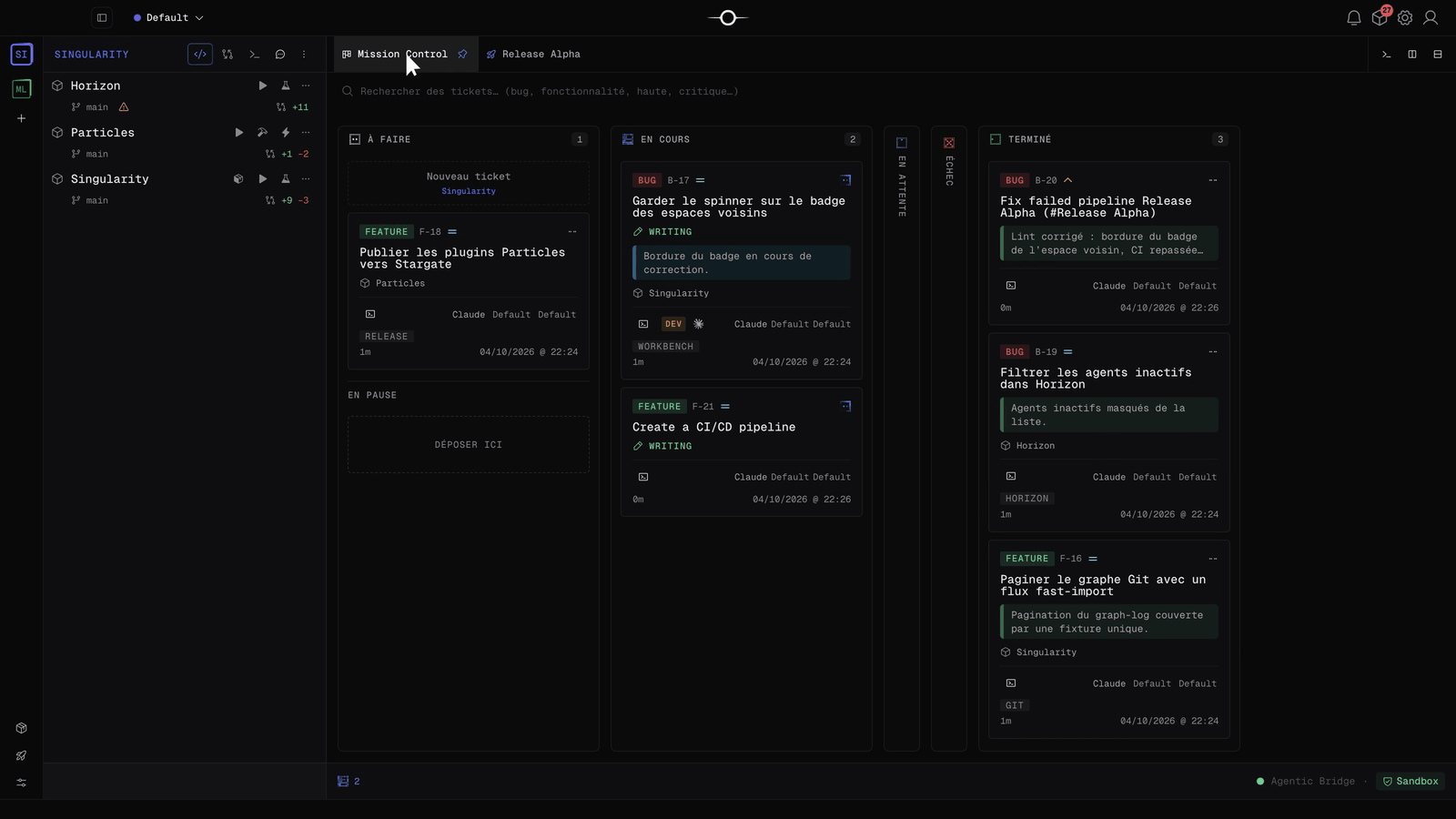
Repair and creation tickets join the board like any other: track their progress in Mission Control, read the report and review the diff before integration. The report should distinguish local checks from remote results actually inspected.
Remote actions and validation
For an AI mission, specify which remote actions are authorized: triggering a run, re-running, approving a deployment. A fix can be checked through local tests and builds before a person starts remote CI.
Commands from the Horizon iPhone app are allowed connection by connection, with Allow commands from Horizon. An unavailable connection, provider quota, or expired access can delay updates: check the date and status before drawing conclusions.