// Singularity documentation
Aperture, the command palette
Aperture is the single entry point for moving around Singularity. Open the palette, type a few characters, and jump to a view, file, ticket, project, or its Git cockpit without browsing through the interface.
Open Aperture
Press ⌘K on macOS or Ctrl K on Windows and Linux. You can also click the animated logo in the center of the title bar. The field is focused immediately, so you can start typing.
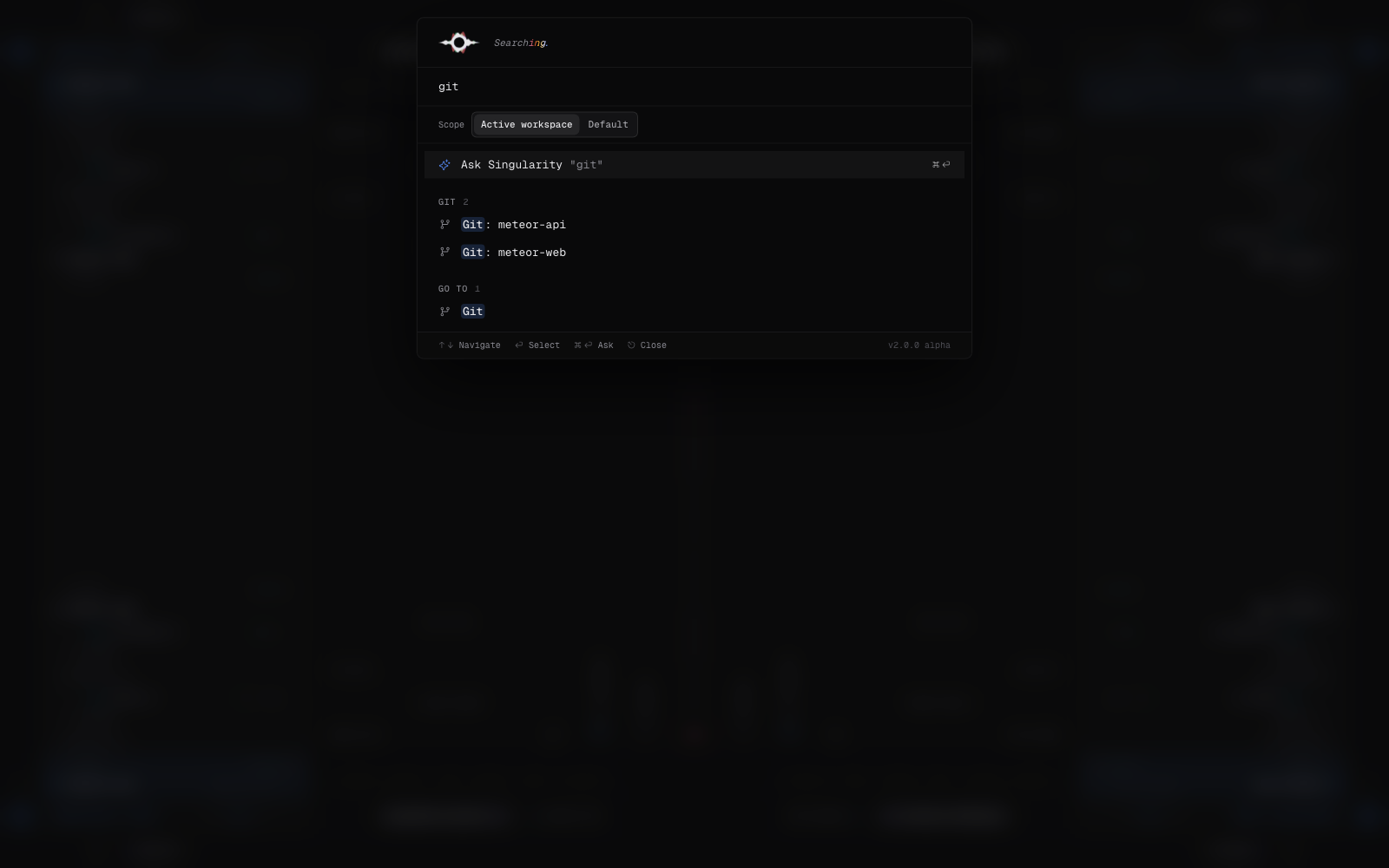
Aperture combines navigation and search in one window. A scope control above the results lets you stay inside the active workspace or widen the search to the current namespace when one is available.
What you can find
Built-in commands are grouped by purpose:
- Views: Mission Control, Terminal, Editor, Git, Marketplace, and Settings. Try
terminal,editor, orsettings; English aliases work even when the interface uses another language. - Files: the relative path, first matching line, and project. Type
workbench-commands, for example, or a code fragment such asopenProjectGit. - Tickets: their title, reference, and project. A query such as
documentationfinds tickets whose title contains that text. - Projects and Git: a project name or path;
git Singularityopens that project’s Git cockpit directly. - Organization: switch workspace or namespace, create a New workspace, or create a New namespace.
Commands contributed by plugins are outside the scope of this page.
How filtering works
Input is matched as a case-insensitive substring. Depending on the category, Aperture checks a ticket title, a view label or alias, a project name and path, or a workspace or namespace name. File contents are also searched after a short delay; only the first twelve file results within the selected scope are shown.
Results do not receive a global relevance score. They keep a predictable order: tickets, files, projects, Git actions, views, workspaces, then namespaces. Within each section, the order supplied by Singularity is preserved. With an empty field, Aperture first shows active tickets and agents, followed by the available destinations.
Keyboard only
Use ↓ and ↑ to move the selection; it wraps to the start or end when you pass the list boundary. Press Enter to activate the selected row and close Aperture. Escape closes the palette without running an action.
As soon as you type a query, the first row offers to send it to Singularity’s full search. Trigger it with ⌘ Enter or Ctrl Enter. From opening the palette to selecting a result, Aperture can be operated entirely without a mouse.
Fast paths
- Open a file: press ⌘K, type a few characters from its name or contents, press ↓ until the file is selected, then Enter.
- Jump to a ticket: open Aperture, type a distinctive part of its title, then confirm the row displaying its reference.
- Open a Git cockpit: type
gitfollowed by the project name and confirm Git: project-name. - Switch context: type a workspace or namespace name instead of returning to the main navigation.