// Singularity documentation
First steps
This tutorial follows the shortest path from opening Singularity for the first time to having an agent complete a ticket: prepare the app, open a repository, configure an AI provider, start the work, then review the result.
Prepare two parallel tickets
Before parallel tests, install dependencies in each checkout and assign separate ignored configuration, ports and test databases. Follow the reproducible worktree setup recipe. Sequence tickets with a dependency when a resource must remain shared.
1. First launch
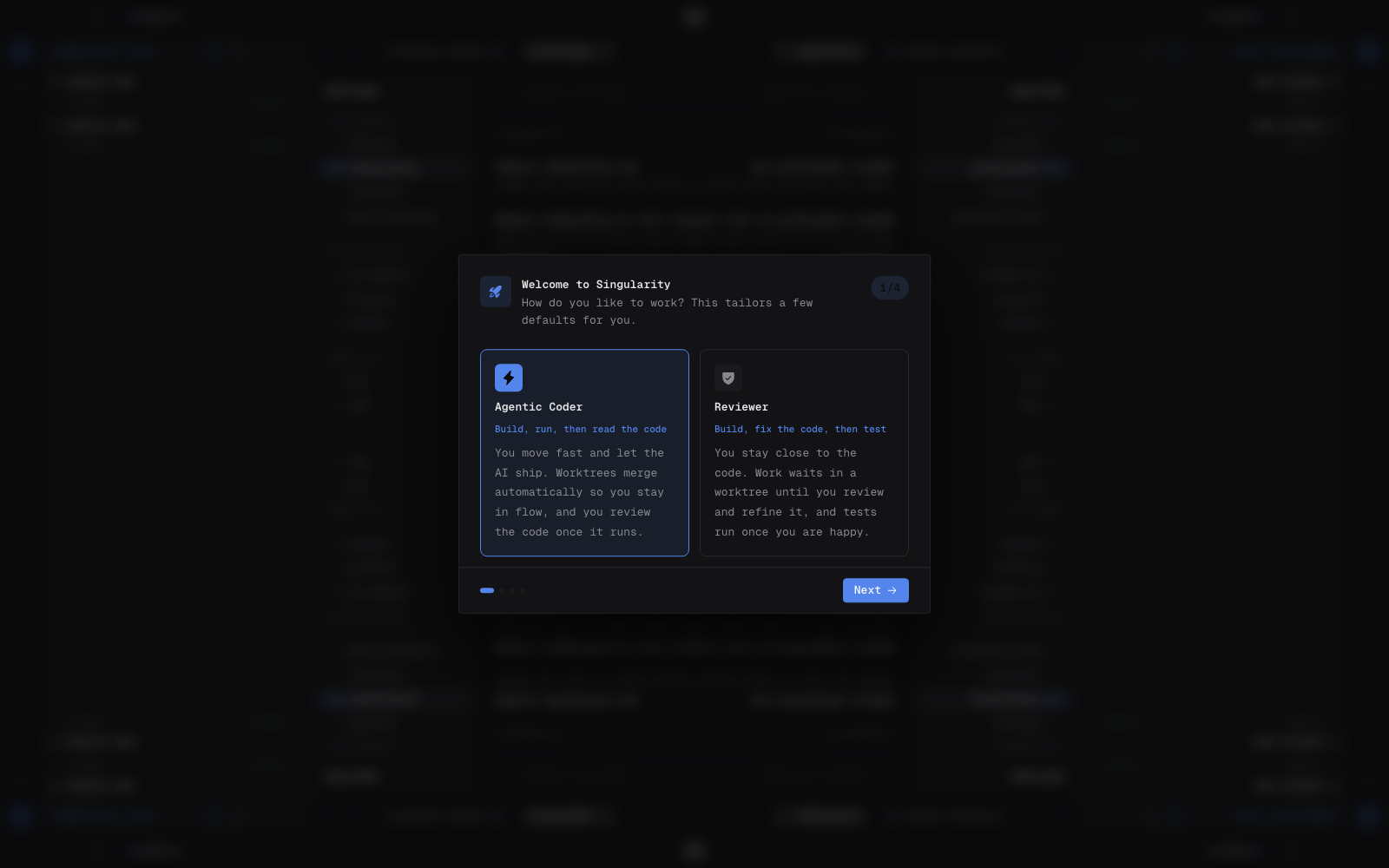
The assistant starts with your usage profile, then asks you to choose an AI provider and checks its command-line tools. It next offers initial board preferences before taking you into the interface. These choices are only a starting point and remain editable.
To revisit this flow, open Settings → Onboarding. You can start it immediately or make it return on the next launch.
2. Create a workspace
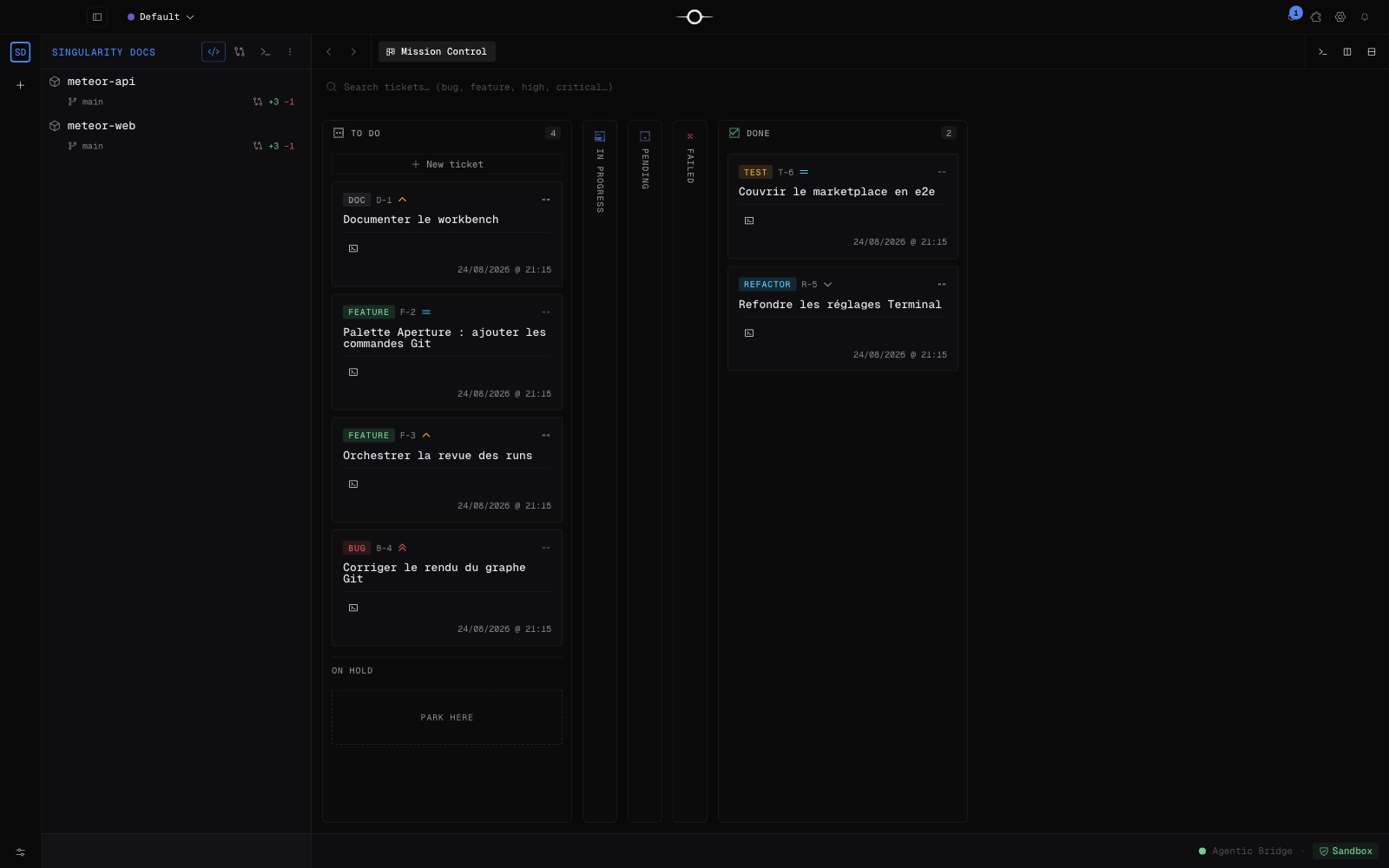
From the welcome screen, create a workspace, give it a clear name and choose its accent colour. A workspace groups the projects, tickets, agent settings and sessions that belong to the same context.
The left rail switches surfaces: Mission Control and the board to steer work, Code to browse files, Git to follow the repository, Terminal for commands, then Settings. The central content opens in the deck.
3. Add a project
In the active workspace, add a project with Open folder to reference a folder already on the computer. For a remote repository, choose clone, enter its URL and select the destination folder.
Singularity stores the project path; it does not move an existing folder. For a private repository, first check that Git can open or clone it with your usual credentials.
4. Open a file
Select Code in the navigator, expand the project, then click a file. It opens in the central editor. A single click opens a reusable preview; keep the tab or open another file to organise your deck.
Deck tabs keep files and work views together. You can inspect code without losing the board, a terminal or the ticket detail.
5. Configure an AI provider
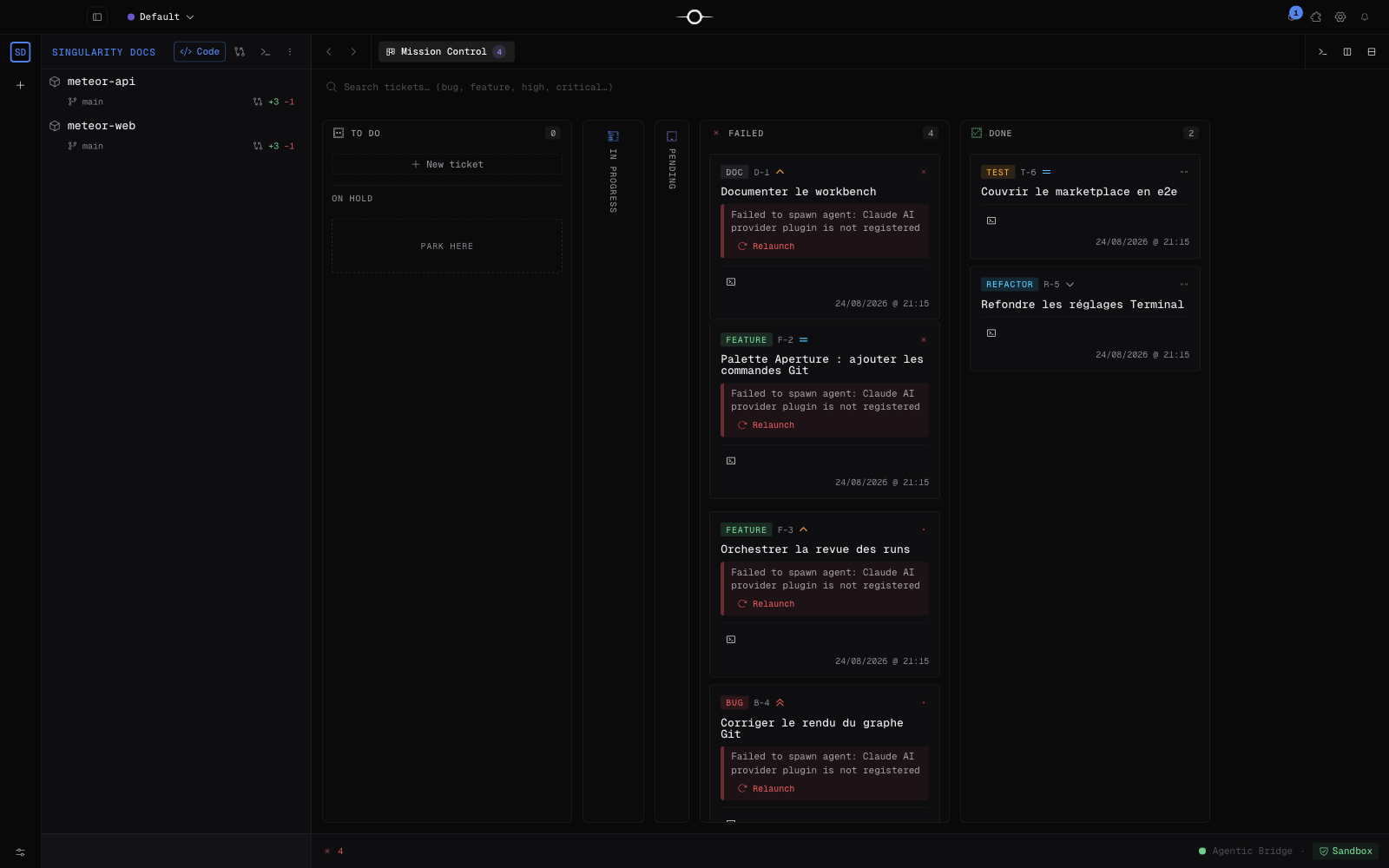
Open Settings → AI & agents, select the provider, then check its CLI, authentication and default model. Singularity drives the CLI installed on your computer, so complete its sign-in from a terminal before the first run.
Fields and permissions differ by provider. Read AI providers & agent settings for each integration’s commands, credentials, models and limits.
6. Create a ticket and start an agent
Return to the board and create a ticket. Give it an outcome-focused title and describe the expected behaviour, known files or constraints, and checks to run. The more observable the objective, the easier the review.
Start with our complete, verifiable ticket example, then adapt it to your project.
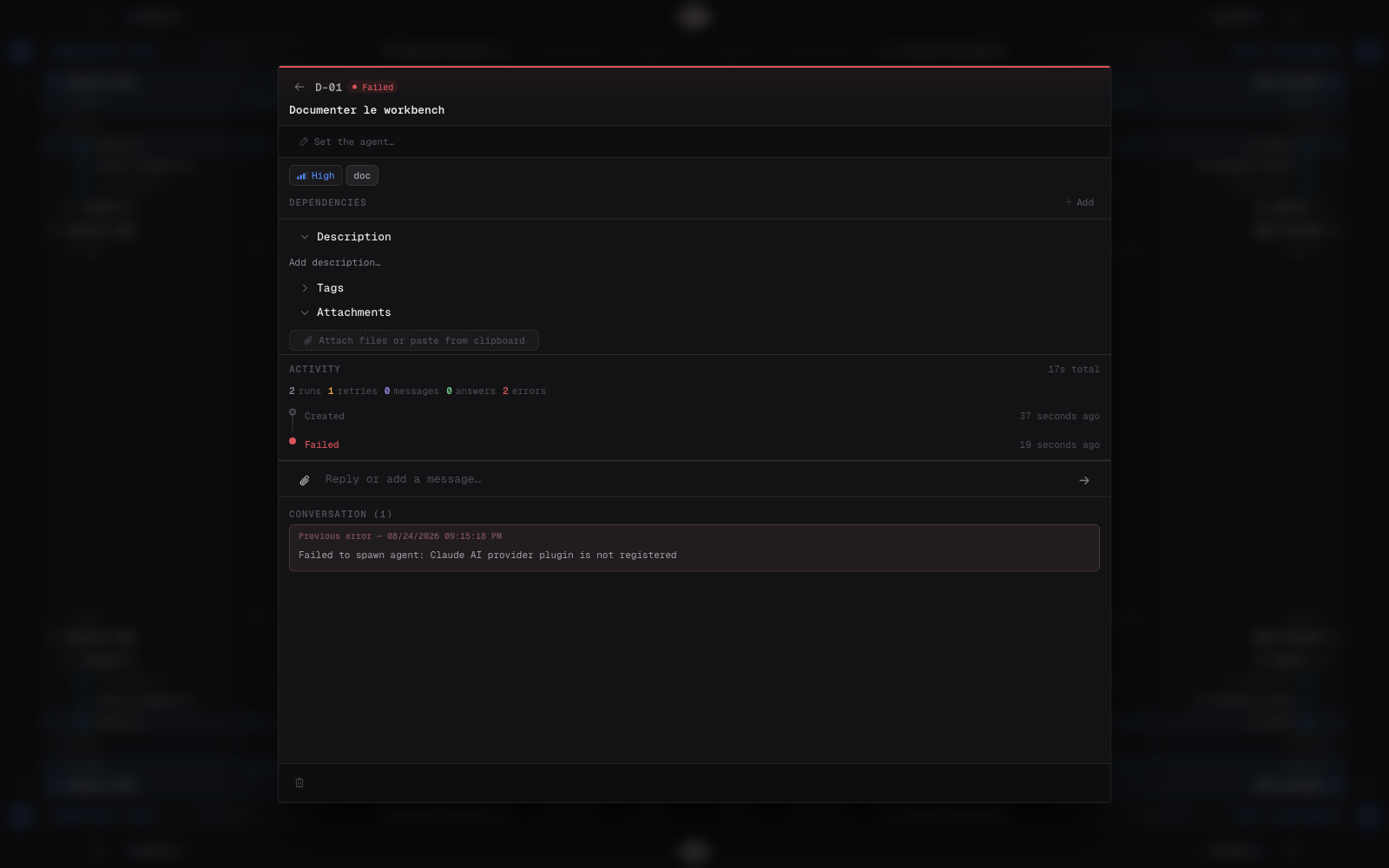
Open the detail, choose the provider, model or role when needed, then start the agent. The ticket moves through the workflow and its terminal shows activity, commands and any requests. You can keep navigating while it runs.
7. Review and merge
When the agent finishes, open the Review tab. Read its summary, inspect changed files and Git diffs, then verify the reported tests. The result stays separate from your starting branch until you integrate it.
Approve accepts and merges the work. Reject discards it. When a correction is enough, relaunch the ticket with precise feedback: state the observed issue and expected result so the agent can resume its worktree.
8. What next
You have completed the essential loop: workspace → project → ticket → agent → review. To turn an idea into verified code, also follow the Vibe Coder workflow: ticket, tests and Git review. Next, explore the Workbench to organise views, Git to follow branches and changes, and orchestration to understand the complete agent and worktree lifecycle.
Frequently asked questions
Can I run the welcome assistant again?
Yes. Open Settings, select Onboarding, then start it immediately or ask for it to appear on the next launch.
Does Singularity change my main branch directly?
An agent normally works in an isolated worktree. You review its result before approving and integrating it into the starting branch.