// Singularity documentation
Marketplace & modules
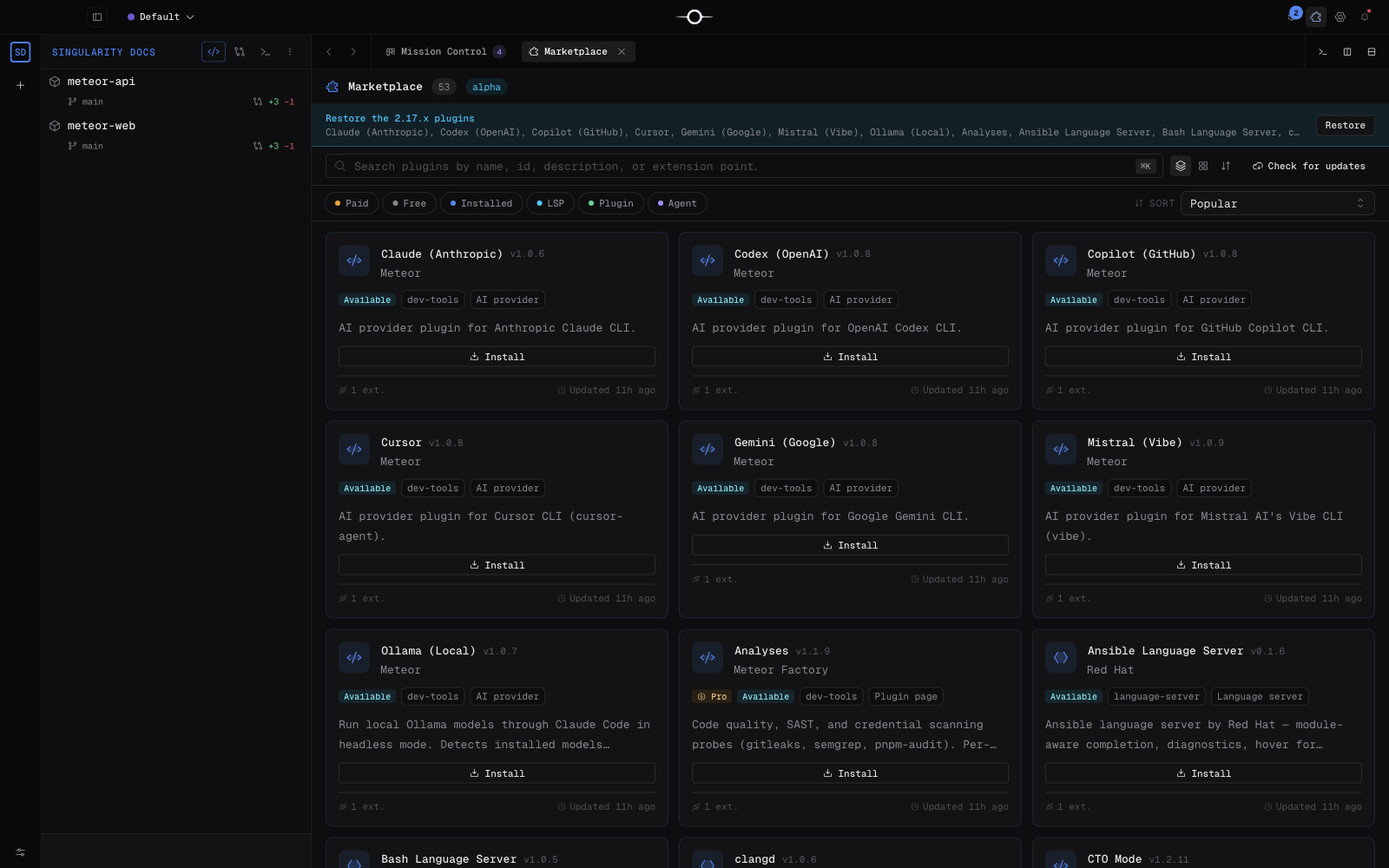
Singularity's Marketplace brings module discovery and management together: you can search, review capabilities, install, update, disable, or uninstall modules from one screen.
Open the Marketplace
Select the Marketplace icon in the title bar. Singularity opens the module list in the main area and its navigator in the side inspector. The number next to the title is the number of items currently loaded from the catalog.
Browse the catalog
The inspector groups Browse views—all modules, featured items, and categories—and Your modules views—installed, updates available, disabled, and recommended. Each row shows its result count.
Search matches the name, identifier, description, and extension points. Filters include paid or free tier, installed state, and module type, and several filters can be combined. The sort menu offers popularity, alphabetical order, and recently updated. When nothing matches, Clear filters restores the list.
A banner warns when the remote catalog is unavailable. In offline mode, it dates the latest valid catalog being used. Alpha builds also show an environment badge beside the title; production does not.
A module's details
Open a card to view its details. The header presents the name, version, publisher, update date, and description. Tabs provide the overview, documentation, changelog, permissions, and any settings contributed by the module.
The overview may include screenshots and the surfaces to which the module contributes. The technical information column summarizes details such as identifier, version, category, compatibility, and published links. A missing field is shown as unavailable rather than inferred.
Review permissions
Review the Permissions tab before installing. It lists every declared capability with its label and purpose: access to files, network, workspace, clipboard, terminal, notifications, or settings. The sandbox prevents a module from accessing a capability it has not declared.
An optional permission is never granted automatically. Until you explicitly grant it, it remains denied and the feature that depends on it stays inactive. A new required permission introduced by an update must also be accepted before the module is reactivated.
Install, update, or uninstall
From the details of an available module, select Install. Singularity downloads the artifact, verifies compatibility, checksum, and signature, then installs an immutable version and activates it once required consent is in place. Progress and any errors appear in the installation terminal.
Use Check for updates in the search bar to refresh available versions. The Updates available view groups them; open an item and select Update. The details switch disables or re-enables an installed module without removing its files. Uninstall removes it and revokes stored consent, so a later reinstall asks for permissions again.
Broken, incompatible, or revoked modules
A module that fails to activate carries a Broken badge. Its details show the diagnostic and disable the switch: read the message, check module diagnostics, then update or uninstall it. An incompatible module stays visible with the reason and expected action, such as updating Singularity, but cannot be activated.
A corrupted, unsigned, or revoked artifact is not loaded. Singularity keeps the latest valid version when rollback is available; otherwise the module remains disabled. Refresh the catalog, install a corrected version if offered, or uninstall the module. Do not bypass the warning.
Paid modules
Paid modules carry a Pro badge and can be isolated with the Paid filter. Appearing in the catalog does not mean your license authorizes them: the license tier determines whether installation or activation is available.
If you already purchased the module, its details let you restore the purchase with its receipt. Singularity asks the Marketplace service to validate that receipt instead of trusting module metadata. An expired offline entitlement blocks activation until connectivity returns or a valid restoration succeeds; free modules continue to be managed normally.
Frequently asked questions
Is an optional permission granted during installation?
No. It remains denied until you explicitly grant it; the module feature that depends on it stays inactive in the meantime.
What happens when the catalog is unavailable?
Singularity reports offline mode and uses the latest valid cached catalog when one exists. Without a usable catalog, no external module is shown.