// Singularity documentation
The navigator
The navigator is Singularity’s left sidebar. It brings workspace files, Git changes, and terminal sessions together in three complementary views without taking you away from the deck.
Three views, one panel
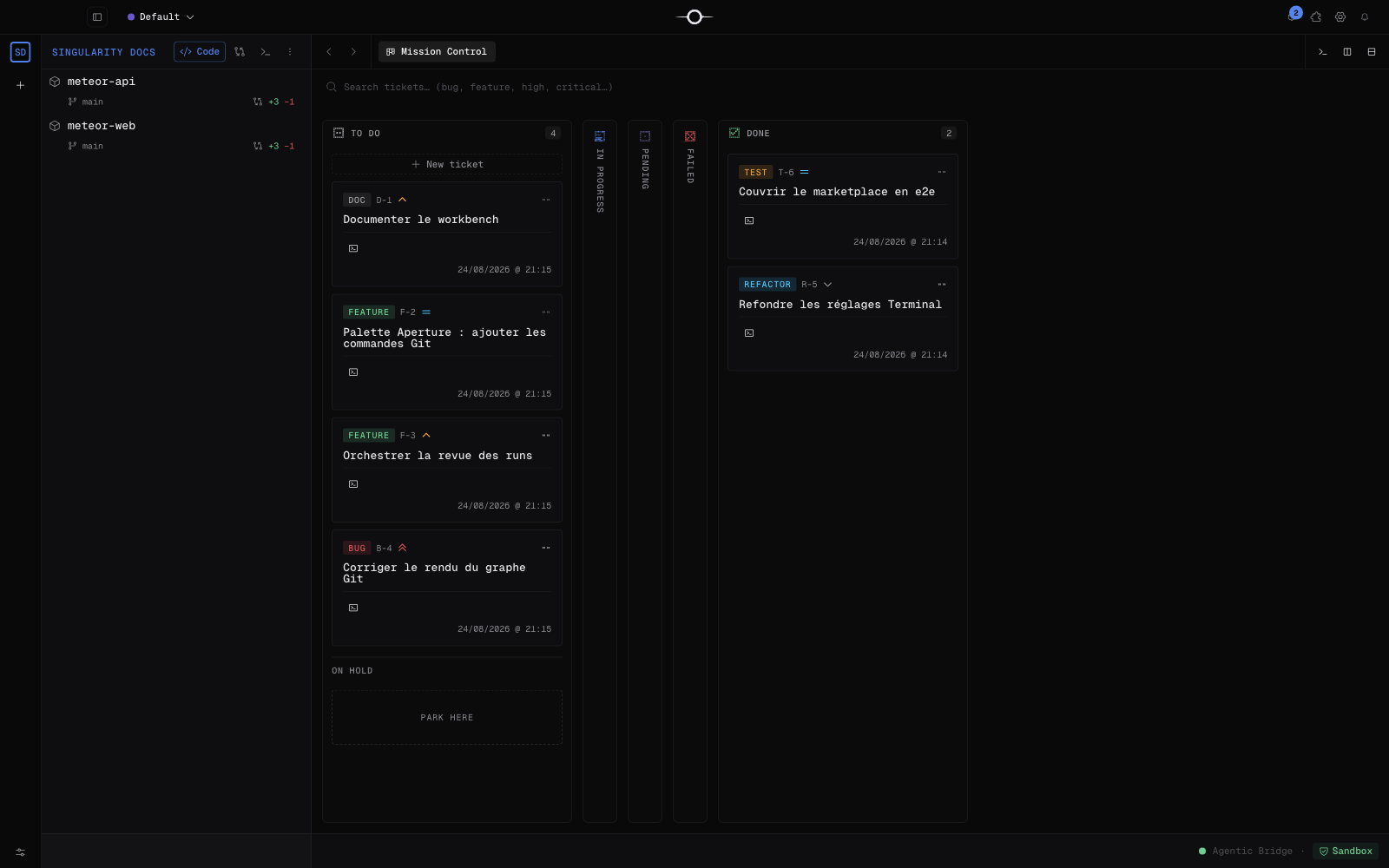
The switcher at the top of the panel moves between Code, Changes, and Terminals. Code browses projects and files; Changes combines Git status with preparation of the next commit; Terminals lists open sessions.
Switching views closes neither files nor tools already open in the deck. The navigator remains your starting point while the centre area keeps its context.
Browse code
The Code view presents every workspace project as a tree. Expand a project and then load its folders as needed; select a file to open or focus it in the deck. Git markers on rows also identify changed files.
A project’s context menu lets you edit the project, copy its path, open it in an external window, or remove it from the workspace. The last action deletes nothing from disk: its confirmation says the project can be added again.
Prepare changes
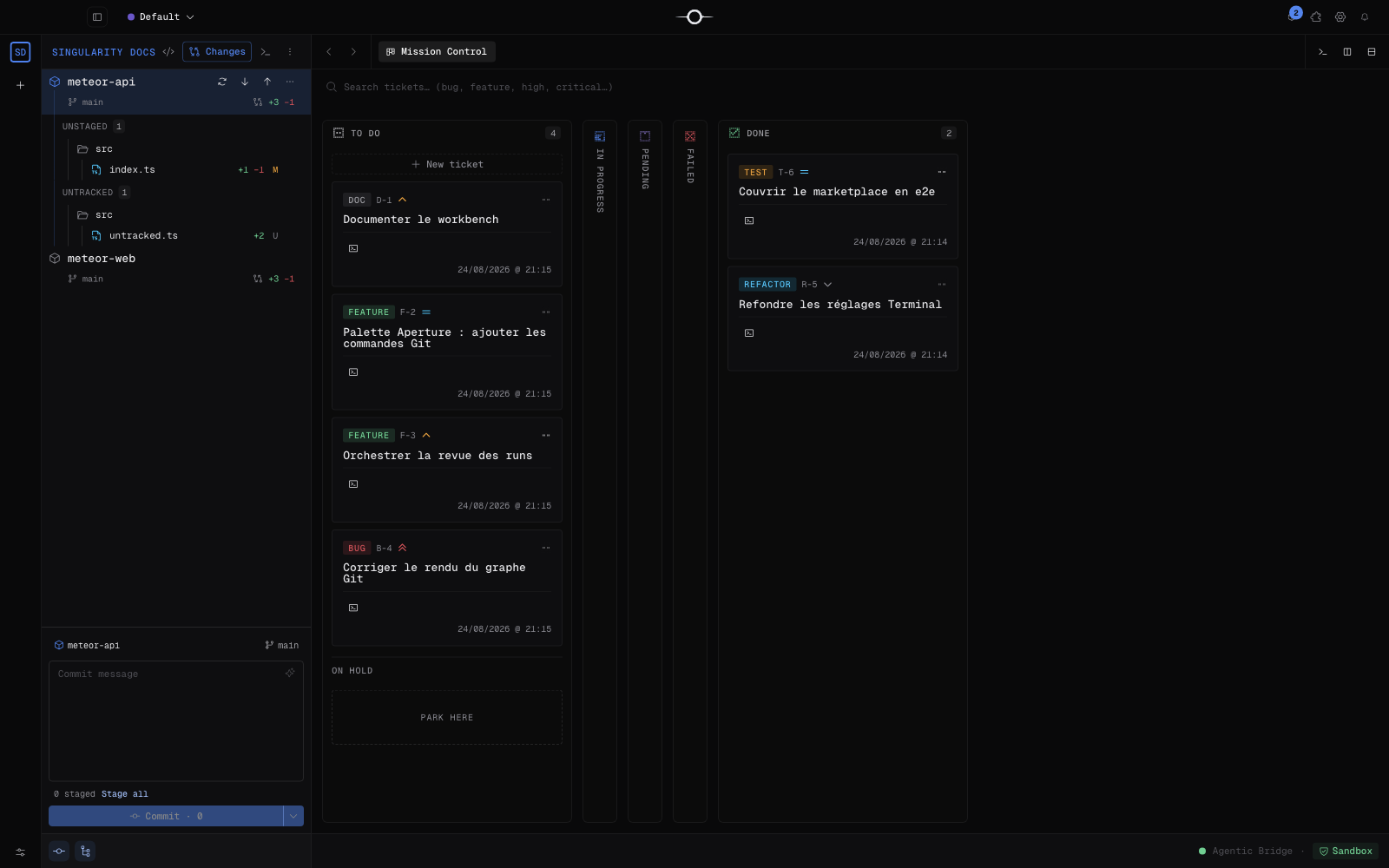
The Changes view lists changed files project by project. Expand the project you want to handle: staged, unstaged, and untracked changes remain separate. Row commands stage or unstage that file, while group commands apply the operation to every file in the group. Selecting a change opens its diff in the deck.
The layout button switches between a folder tree and a flat list. The composer button reveals the integrated commit composer: enter a subject and optional body, then commit. The composer and staging actions remain scoped to the selected project, preventing files from different repositories from entering one commit.
Understand irreversible actions
Discard changes for a file restores its changes to HEAD and also removes the file when it is untracked. Discard all changes restores every uncommitted project change to HEAD and removes its untracked files. In both cases, the confirmation explicitly warns that the action cannot be undone.
The scoped commands separate the risks: discard tracked changes restores every tracked file to HEAD but keeps untracked files; trash untracked files deletes those files from disk while keeping tracked changes. That deletion cannot be undone either. Check the project and scope shown in the confirmation before continuing.
Use quick Git actions
A Git project’s context menu provides Pull, Push, and Fetch. Counts next to Pull and Push show commits behind or ahead. Run one operation at a time and address any reported conflict before continuing.
Stash all changes temporarily shelves a dirty working tree; Pop latest stash restores the newest stash and removes it from the stack. Open Git dashboard opens the project’s full cockpit in the deck for history and advanced Git tools.
Find terminal sessions
The Terminals view lists open workspace sessions, including terminals launched for agents. Select a session to open or focus it in the Hangar and continue from its existing output.
This view is a session list; the terminal itself appears in the centre area. You can follow an agent, return to a manual shell, and then find your files again without closing any context.
Add a project or clone a repository
Open the Workspace actions menu in the navigator header. Add project references a folder already on your computer in the active workspace. Clone repository… opens the clone form where you provide a Git URL and choose the local destination.
In both cases, the project joins this workspace’s Code and Changes views. Adding an existing folder neither moves it nor creates a copy of its files.
Frequently asked questions
Does removing a project delete its files?
No. The project only leaves the workspace and stays on disk, so you can add it again later.
Can I undo deleting untracked files?
No. Git has no copy of these files, and Singularity’s confirmation states that deleting them from disk cannot be undone.