// Singularity documentation
AI agent orchestration
Singularity turns a ticket into an autonomous, observable mission: an agent reads the request, works in an isolated environment, reports each step, then returns a change ready to merge or review.
Prepare two parallel tickets
Before parallel tests, install dependencies in each checkout and assign separate ignored configuration, ports and test databases. Follow the reproducible worktree setup recipe. Sequence tickets with a dependency when a resource must remain shared.
Internal MCPs: acting inside Singularity
An MCP is a tool interface AI can call during a mission. Singularity’s internal gateway lets it read ticket context, publish activity, inspect attachments, prepare a worktree, monitor children, and record its result. These operations update the tracking visible in the app.
Active plugins can add specialized tools. The orchestration_list_available_mcps catalog lists available servers; ticket kind and tags can expose relevant tools from the start. Installing a plugin does not mean all its capabilities are active in every workspace.
For example, to diagnose a CI failure, an agent can read logs through Pipelines tools, then prepare a fix and report. Available tools remain subject to permissions and mission instructions. Access to a tool does not authorize publication or remote execution.
See tickets, the Marketplace, and Pipelines for the related surfaces.
The principle: one ticket, one agent, one worktree
The ticket is the agent's mission: its title, description, attachments, and context become the run's specification. When worktree isolation is enabled, Singularity creates a dedicated Git checkout on its own branch. The agent can read, edit, test, and commit without disrupting your working directory.
At the end, commits are placed back onto the base branch through a rebase. History stays linear, and several agents can progress in parallel without sharing working files.
Start an agent
You can start a run from a board card or from the ticket detail. Select the AI provider and model suited to the mission, then launch the agent. The provider maps to a CLI installed and authenticated on your machine; the model determines the session's capabilities and cost.
The scheduler can also pick the next ready ticket automatically, based on dependencies, priority, and the concurrent-agent limit. Tickets that are not ready stay in place.
Follow the run
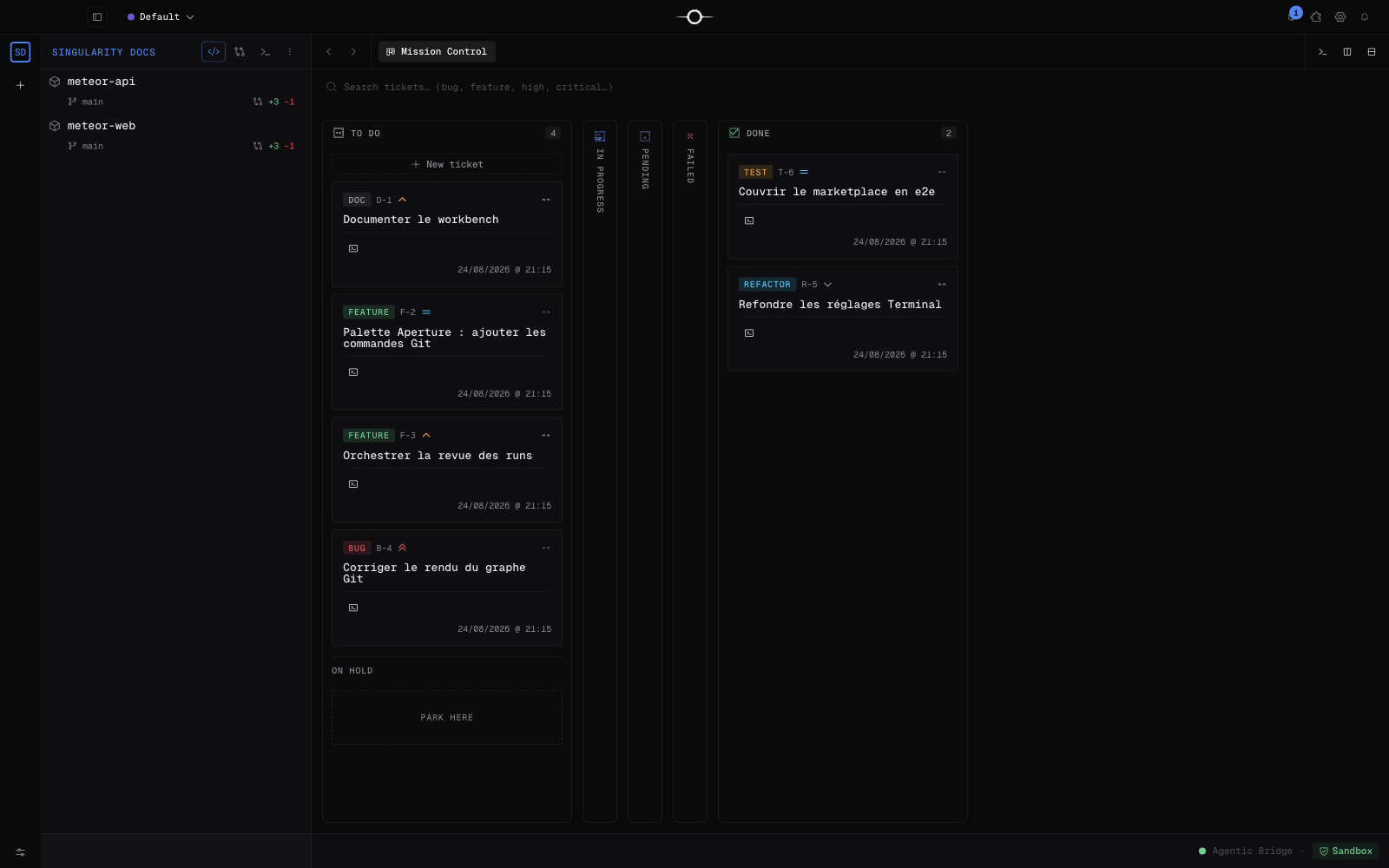
The agent terminal shows its live stream: commands, tools, and results. In Mission Control, the card's activity chip summarizes the current phase—reading, writing, testing, committing, or waiting—without requiring you to open the terminal.
The Worked on indicator is updated throughout the mission. It immediately shows which repositories the agent has read or changed.
Interact during the mission
A blocking question puts the ticket on hold and shows that your action is required. Answer in the ticket detail: the response is sent to the same session and the agent resumes with its full context.
You can also send a message while a run is active, stop the process if it is heading in the wrong direction, then restart or relaunch the ticket. A manual stop is explicit and is not presented as a technical failure.
Understand run completion
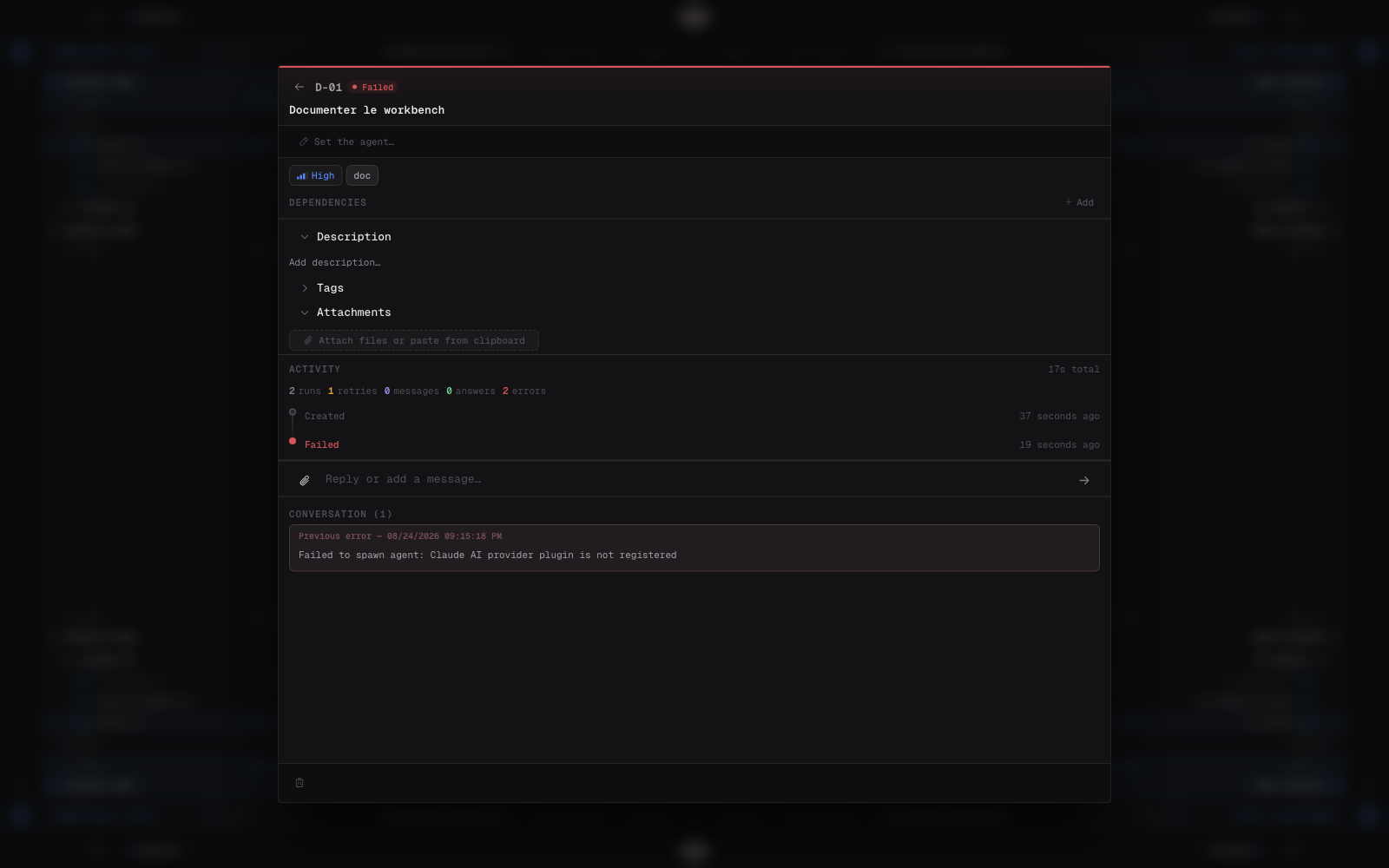
At the end of a mission, the agent records a detailed report and a short resolution visible on the card. The status clearly distinguishes each outcome:
- Done: the work is complete and has passed the selected flow.
- Failed: the run stopped with an error and can be relaunched.
- Pending: the run is paused, for example while waiting for an answer, child tickets, or the commit queue.
- User action: a step that cannot be automated is assigned to a person.
Automatic merge or review
The automatic-merge setting determines the final step. When enabled, Singularity integrates the worktree after a successful run. When disabled, the result is parked for inspection: you can read the report, review the changes, and choose to approve them or request a correction.
See reviewing agent runs for the complete validation flow.
The MCP gateway
Each session gets a local, temporary MCP server authenticated for that run only. This is how the agent communicates with Singularity: it can read the ticket and its dependencies, record worked-on projects, publish its activity phase, ask a question, attach a document, or create a follow-up ticket.
The gateway expires with the session, so the agent does not receive broad, permanent access to the application.
Sandbox
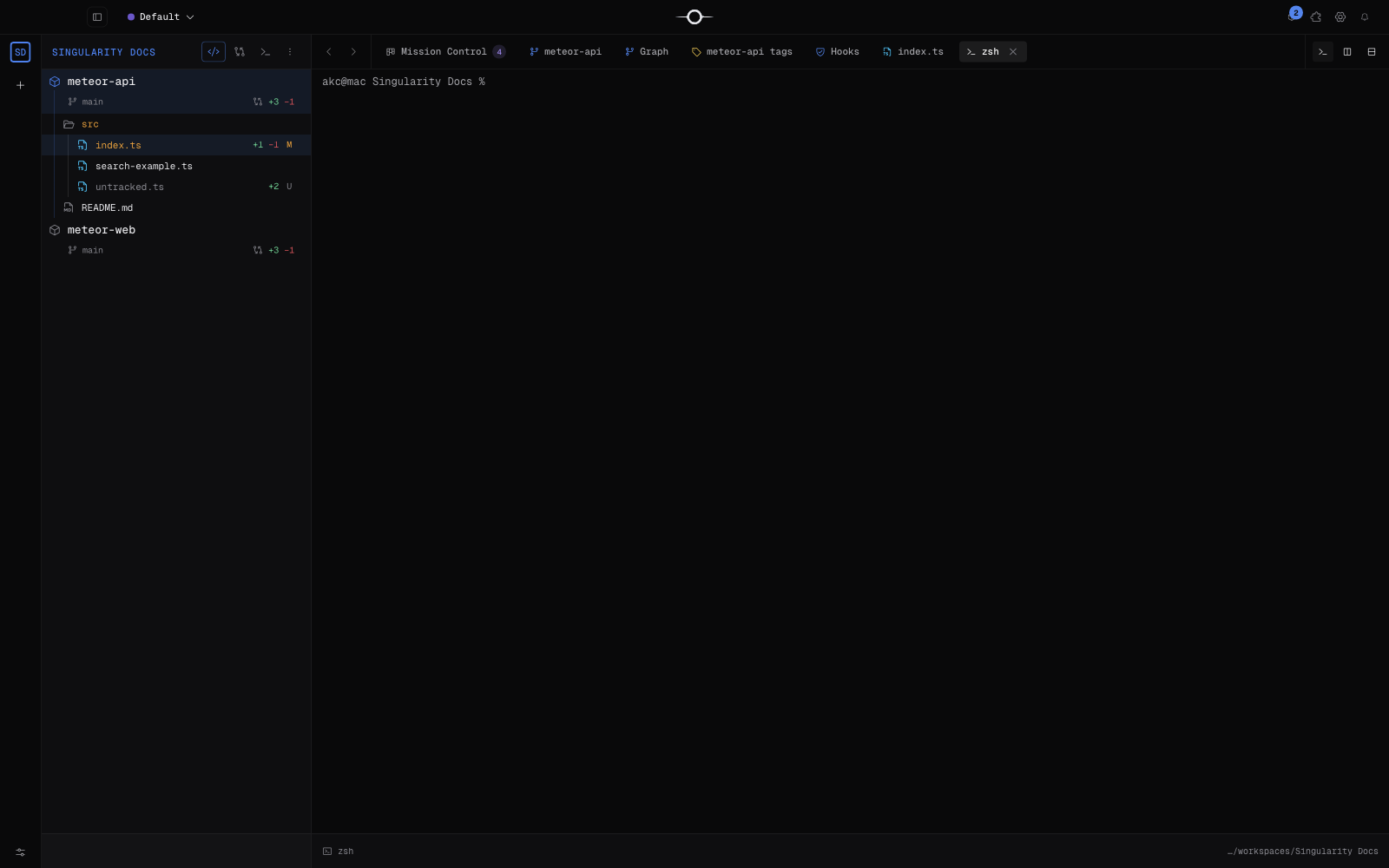
The optional sandbox wraps the agent process in operating-system restrictions: Seatbelt on macOS and Landlock on Linux. Depending on the provider and project configuration, it limits filesystem and network access so that agent commands stay within the intended scope.
This protection complements Git worktree isolation: the worktree separates code changes, while the sandbox constrains the process producing them.
Recovery after an incident
Runs, attempts, and terminal output are persisted as they happen. If the application closes, Singularity checks at the next startup which sessions it owned and whether their process is still alive, without stopping agents owned by another app instance.
A valid session can be reattached or resumed natively when the provider supports it, notably with Claude. Otherwise, the ticket is placed in an explicit, recoverable state instead of being silently treated as complete.
Frequently asked questions
Can I close Singularity while an agent is working?
Yes. On restart, Singularity reconciles recorded runs with processes that are still alive. An interrupted run is resumed when the provider supports it, or moved to an explicit state so that you can relaunch it.
Does the agent edit my branch directly?
Not when worktrees are enabled: every run works in an isolated Git checkout. Its commit is then rebased onto the base branch, automatically or after your review depending on the selected setting.