// Singularity documentation
User Actions: when the AI agent hands over to you
A User Action is a ticket meant for a human. The agent creates it when a step needs a person — opening an account, passing a 2FA check, providing a file — and resumes on its own as soon as you mark it done.
Why a ticket for a human?
An AI agent cannot do everything: it cannot open a Stripe account that requires identity verification, generate an API key behind two-factor authentication, or draw a game’s sprites. Instead of failing or inventing a workaround, it creates a User Action: a user-action ticket that states exactly what you need to do.
The handover is explicit: the AI works, you handle the step that is yours, then the AI resumes. Enable the User Actions plugin from the Marketplace; it has no UI of its own and plugs into the Mission Control board.
The “User action” column
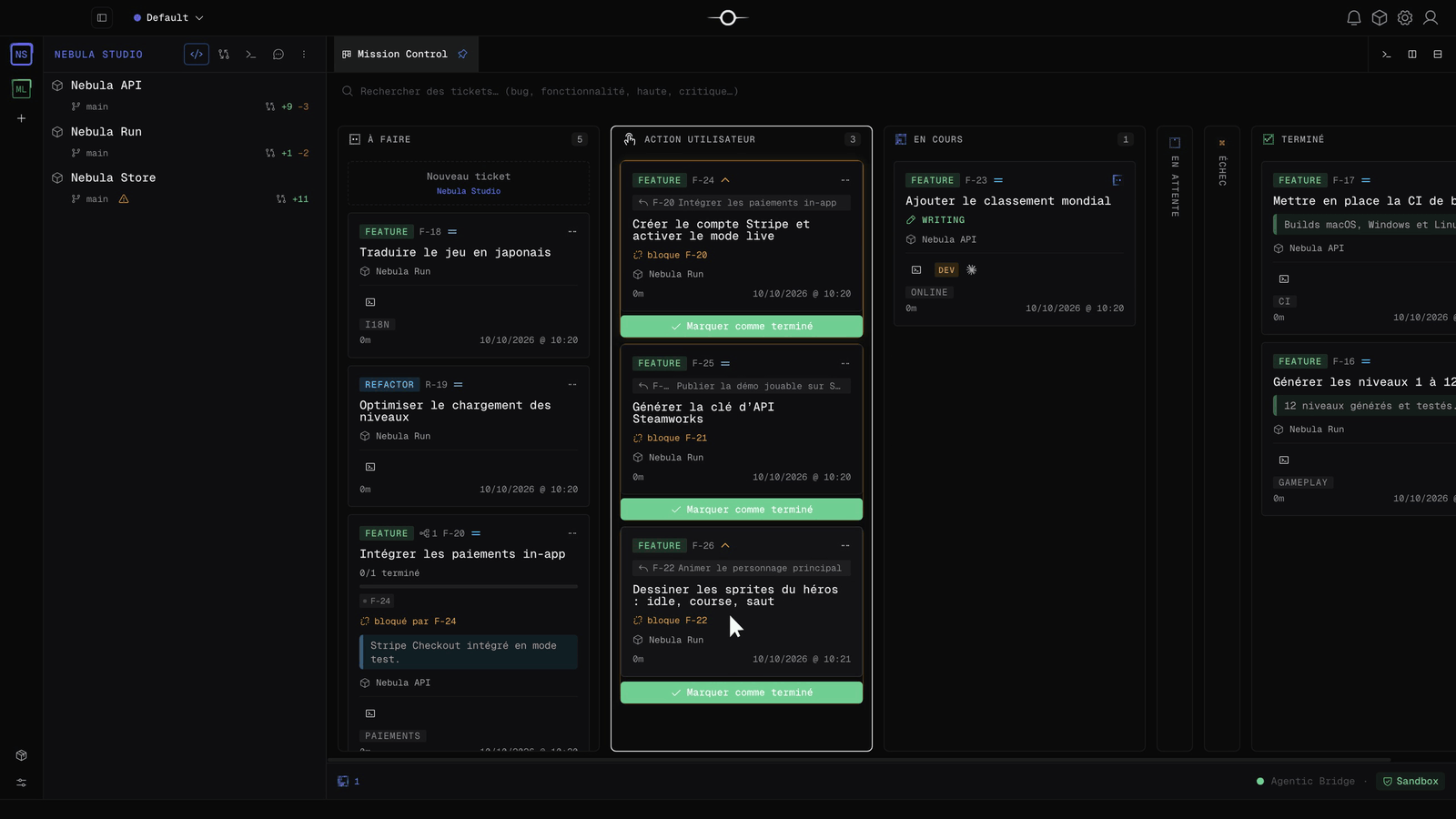
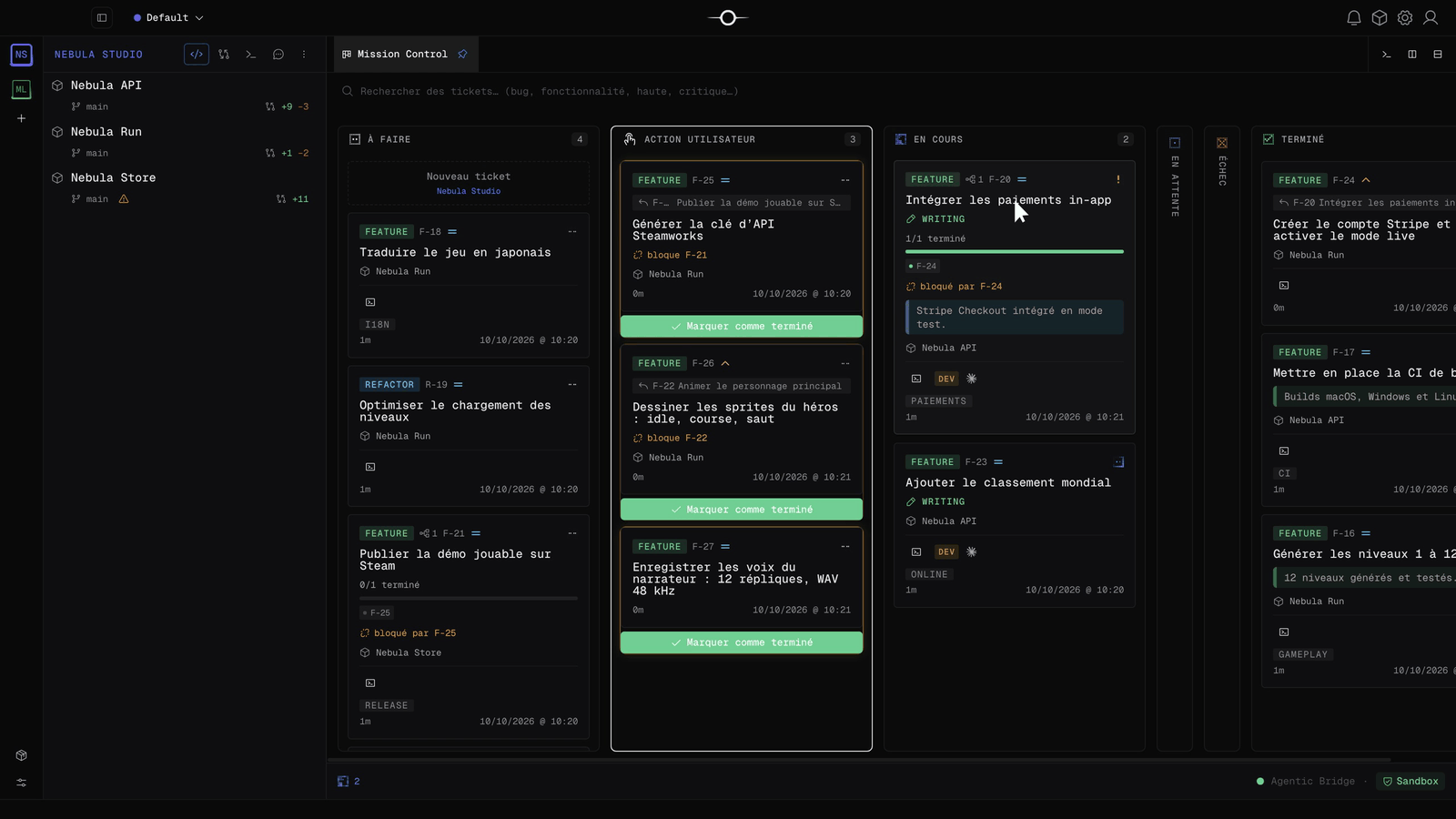
Actions land in a dedicated column right after Todo, with a counter. Their cards pulse to draw attention and cannot be dragged. The column disappears when it is empty.
Each card shows its parent ticket — the agent that asked for it — and the blocks F-20 chip shows which work is waiting. An action whose prerequisite is not yet done or integrated stays in Pending instead of joining the column.
Instructions written by the agent
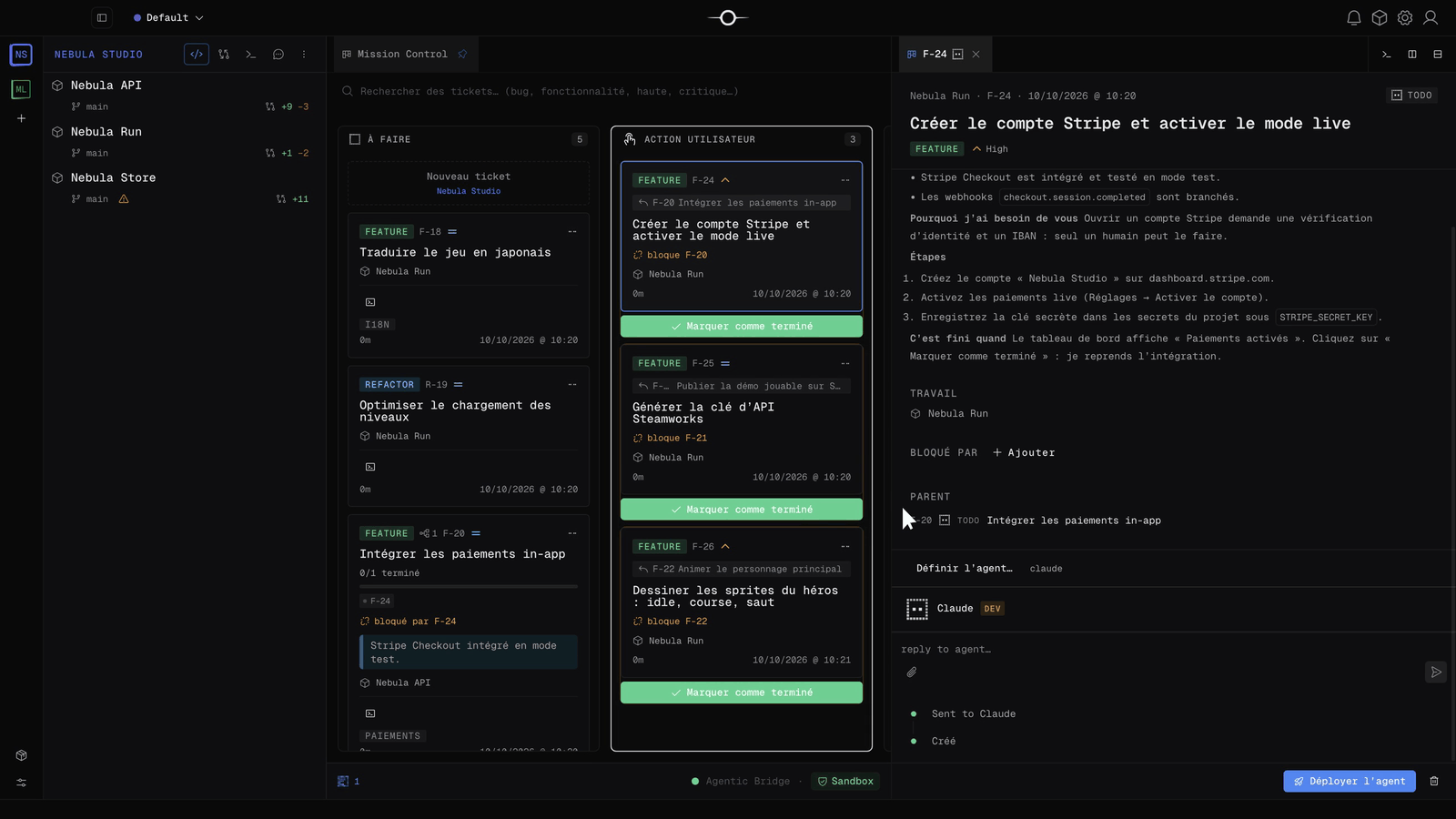
Open an action to read its instructions. Singularity’s prompts enforce a format: what is already done, why you, numbered steps with the exact accounts, menus and fields, then the observable done criterion. A secret is never requested in the ticket: the agent says where to enter it, for example in the project secrets.
The detail view also shows the project, the parent ticket and the dependencies. Steps and criteria are not structured fields: everything lives in the instructions text.
The agent blocked by the action
The agent creates the action with the user_action_create MCP tool: title, instructions, priority from low to critical, and a blocking option. The action is attached to the agent’s ticket and awaits your approval.
With blocking: true, the agent’s ticket depends on the action: its card shows blocked by F-24 and a 0/1 done bar. The agent then calls orchestration_wait_for_ticket and its run pauses without consuming quota. The user_action_list tool lets it find the workspace’s actions. See dependencies.
Create your own action: the “Human” agent
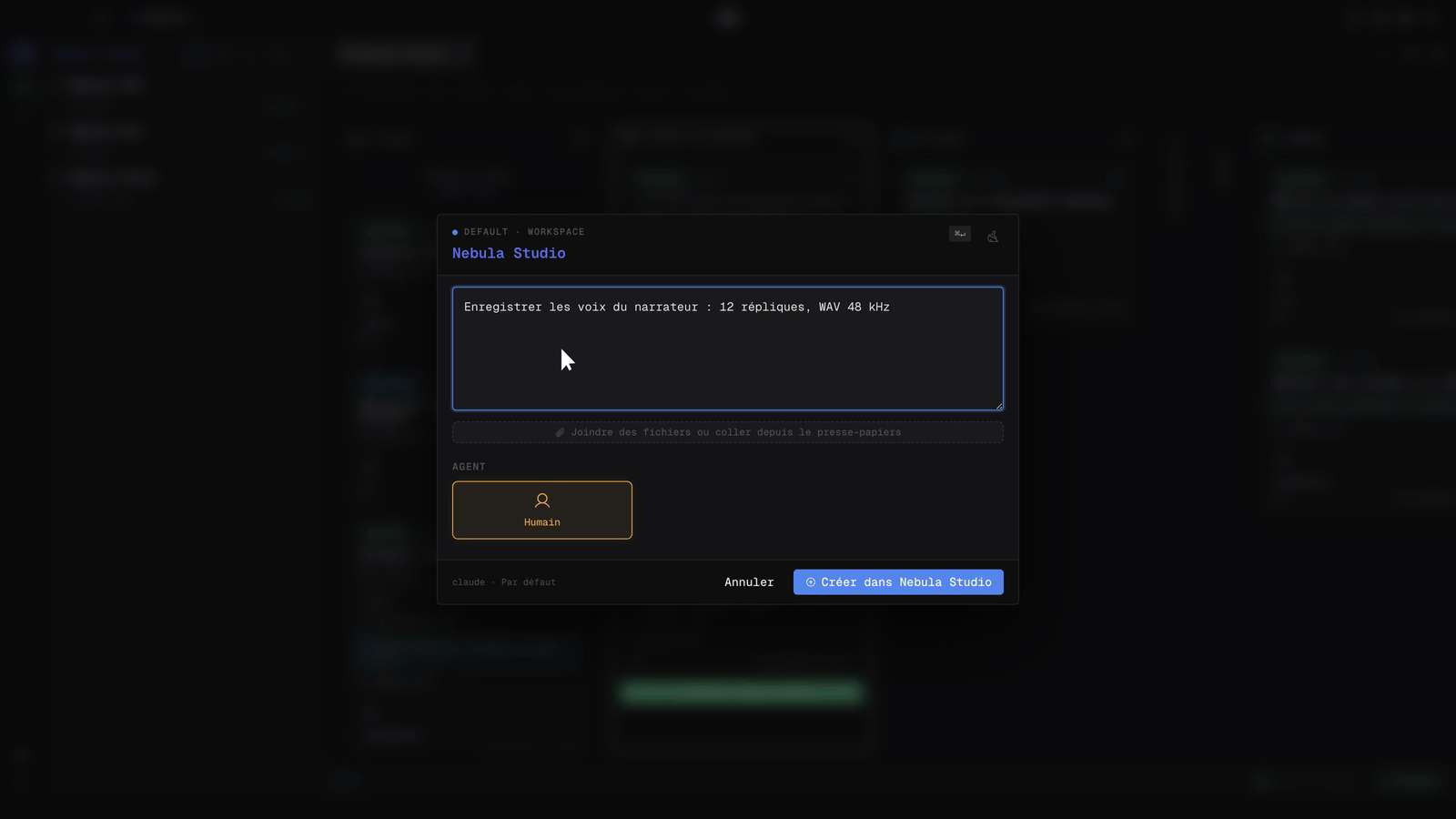
You can also record a human task yourself. In New ticket, choose the Human agent: the ticket is created as a user-action, with no model or reasoning level, and is never sent to an AI. It joins the column like the agents’ actions.
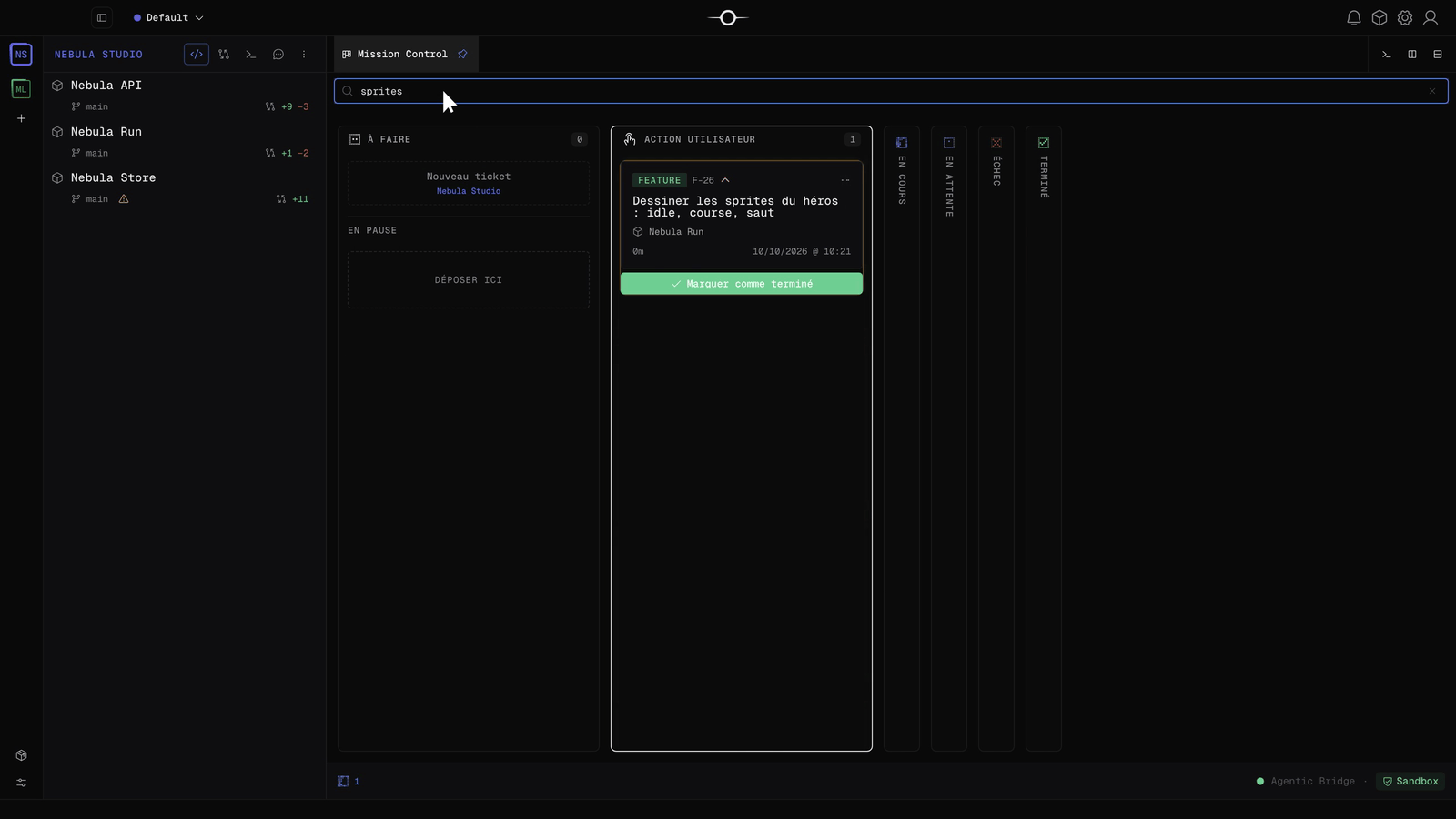
The board search also filters this column, by title, description or number.
Find an action
Type a few letters in the Mission Control search bar: only matching cards remain visible, including in the User action column. Clear the search to get the full board back.
Mark as done: the agent resumes
Once the step is done, click the green Mark as done button under the card. The action moves to done and the agent’s prerequisite is met: the bar switches to 1/1 done and, when all its dependencies are done, the scheduler restarts the agent’s ticket, which returns to In progress.
An action without an agent can also be handed to an AI with Set agent…, and replying to the ticket moves it to in progress and starts the assigned agent. In the Horizon iPhone app, the column and creating a “Human” action are available; the done button is not yet.
Frequently asked questions
Can an AI start a User Action?
Not automatically. The scheduler, prequalification and automatic resume all skip user-action tickets. You can still hand an action to an agent explicitly with “Set agent…” or by replying to the ticket.
What happens to the agent while I act?
With a blocking action, the agent’s ticket depends on the action and its run pauses. Once every dependency is done, the scheduler restarts it with its context.
Do I need a plugin?
Yes. User Actions come from the User Actions plugin, enabled from the Marketplace. Without it, the column and the matching MCP tools do not appear.