// Singularity documentation
Installation & updates
Install the package that matches your operating system and processor, then let Singularity check for new versions. The app is available for macOS, Windows and Linux; Git and AI-provider CLIs remain separate tools.
System requirements
Each package includes the Electron app and its native components. Official builds cover Apple Silicon and Intel macOS, x64 and ARM64 Windows, and Linux. Always choose a native architecture: it must match the processor, notably for SQLite and the embedded terminal.
Git must be installed separately and available from the terminal. Also install and authenticate every AI-provider CLI you intend to use. Singularity drives those tools; it does not bundle or replace them.
Download the right package
Go to singularity.meteorfactory.dev. The page detects the operating system, then recommends Apple Silicon or Intel on macOS and x64 or ARM64 on Windows. When detection is inconclusive, it defaults to Apple Silicon on macOS and x64 on Windows.
Links for the other platform and architecture remain available below the primary download. The associated release page provides the other published artefacts, including Linux packages.
Install on macOS, Windows or Linux
macOS: open the .dmg, drag Singularity to Applications, eject the disk image, then open the app. Releases also include a .zip, mainly for the updater. If Gatekeeper warns you, use Control-click > Open; do not weaken the Mac’s global security settings.
Windows: run singularity-<version>-<architecture>-setup.exe and accept the administrator prompt. The NSIS installer installs Singularity for all users and creates a desktop shortcut.
Linux: use the AppImage as a self-contained package (make it executable before launching it), or install the .deb on Debian and Ubuntu. No official Snap package is produced.
Stable and alpha channels
Stable prioritises releases validated for day-to-day use. Alpha receives the newest development and may contain regressions or incomplete features.
The channel belongs to the installed package: to switch, download and install the desired channel’s package for your architecture. The alpha feed is protected by a channel key supplied to authorised testers; no key is published in this documentation.
Automatic updates
Singularity checks its feed and reports newer versions. Downloading remains an explicit action; once downloaded, the update is prepared and can be applied when the app quits. Package architecture is checked before an automatic install.
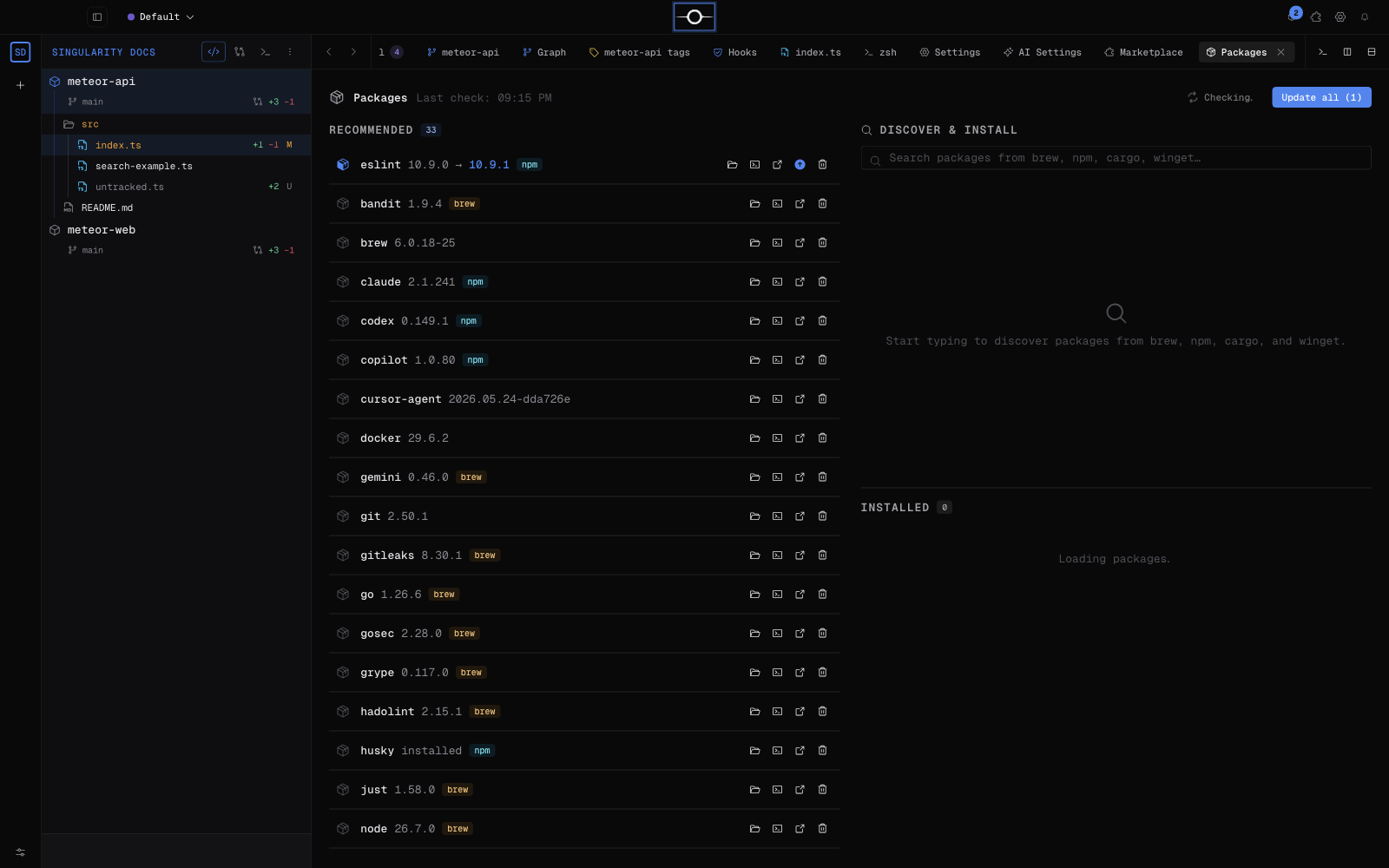
The active version and channel appear at the bottom right of Aperture. The Updates / Packages centre also checks and updates tools installed on the computer; see Settings for related options.
Uninstall or start over
First uninstall the app normally: remove it from Applications on macOS, use Installed apps on Windows, or remove the AppImage/.deb package on Linux. This does not necessarily remove the user profile.
For a complete reset, quit Singularity, back up and then delete ~/Library/Application Support/Singularity (macOS), %APPDATA%\Singularity (Windows) or ~/.config/Singularity (Linux). This erases workspaces, projects, tickets, settings, histories and other app data: functional data lives in the local SQLite database and cannot be recovered without a backup.
Frequently asked questions
macOS refuses to open the app. What should I do?
Check that the DMG came from singularity.meteorfactory.dev. In Finder, Control-click Singularity, choose Open, then confirm. If macOS still blocks it, open System Settings > Privacy & Security and use Open Anyway for Singularity only.
How do I return to a stable version?
Download the stable package for your architecture and install it over your current version. Automatic updates do not force a downgrade to an older stable version. Your local profile is retained; back it up before changing to an older version.
Where is my data stored?
In the Singularity profile for your user account: ~/Library/Application Support/Singularity on macOS, %APPDATA%\Singularity on Windows and ~/.config/Singularity on Linux. Functional data is stored locally in SQLite.