Notes is the Singularity plugin for writing and finding Markdown notes specific to each workspace. Meeting notes, decisions, checklists: the text stays next to the project’s code and tickets, and a note can become a ticket as soon as it turns into a mission.
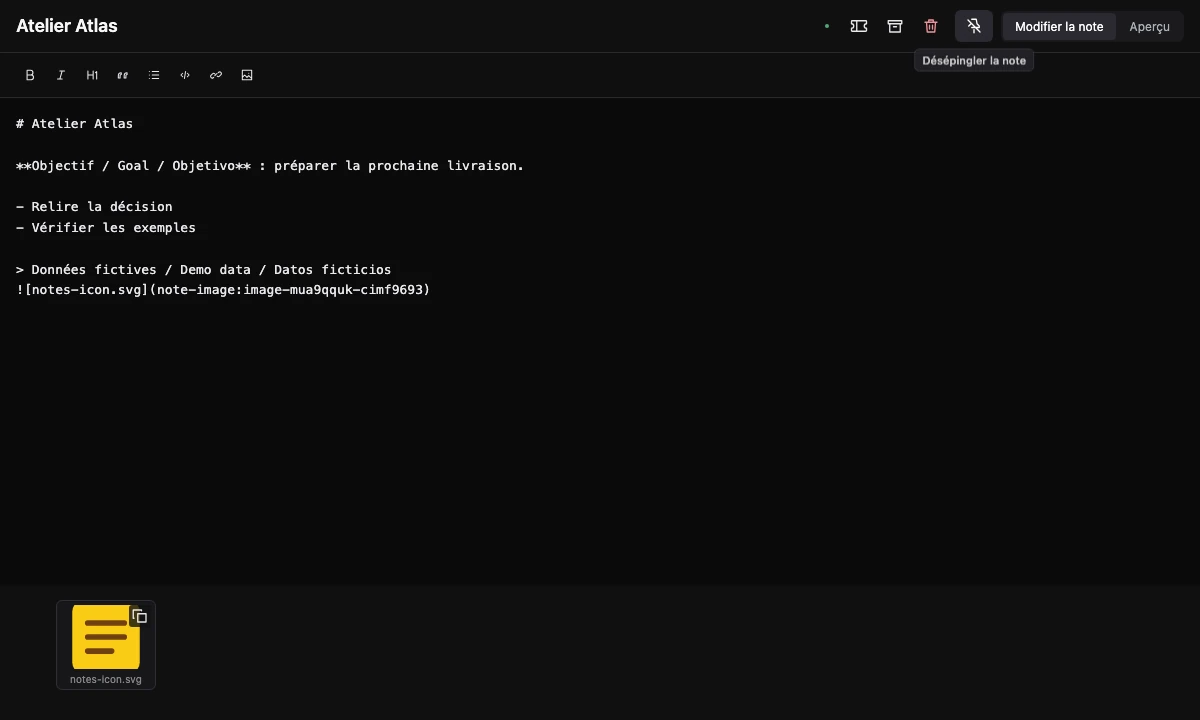
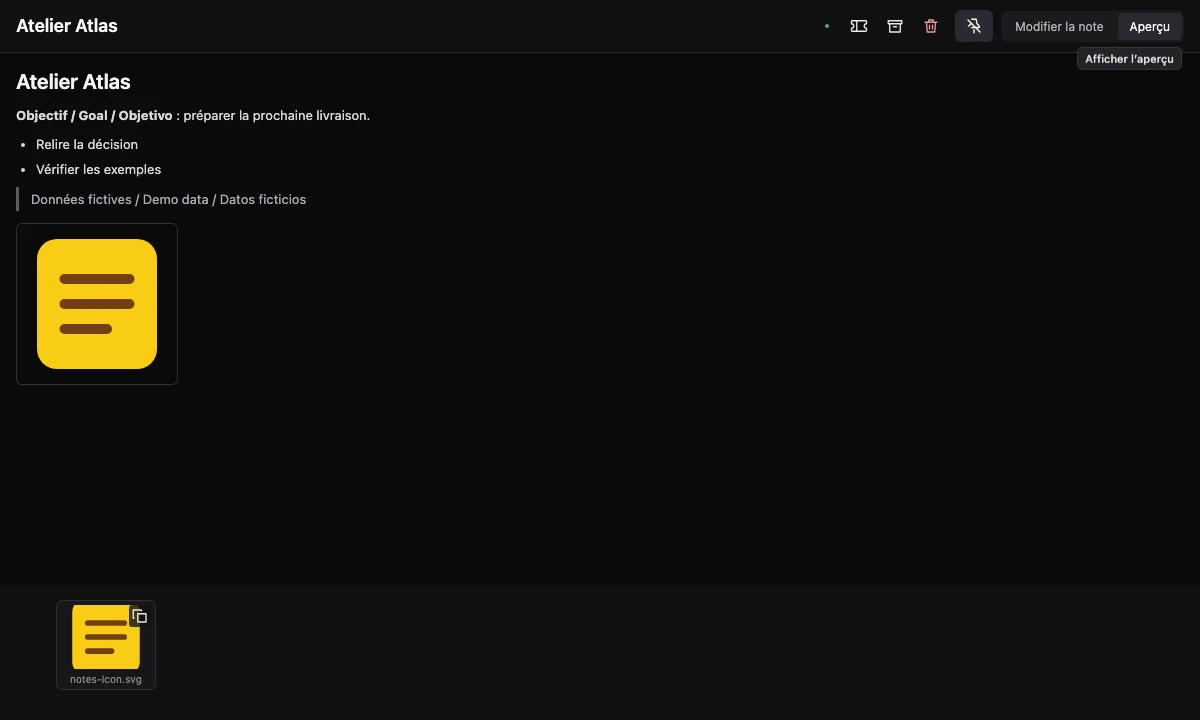
Real screenshots of the Notes editor in an isolated bench, with fictional data.
What is the Notes plugin for?
Project context quickly scatters across a notes app, a chat and temporary files. Notes keeps it in the relevant workspace: one project’s note does not appear in another workspace. The panel opens from the sidebar, with folders, reordering, pinning and archiving.
How do you write and organize a note?
Create a note with +, give it a title and write in Markdown: headings, lists, bold, italics, quotes, code and links. Saving is automatic after a short pause. The Preview action shows the rendered result. Add an image under 10 MiB from the picker or the clipboard: its note-image: link places it in the text.
How do you go from a note to a ticket?
Convert a note into a ticket when its content becomes a mission, or link it to an existing ticket; a badge then opens the ticket from the note. Review the description before starting an agent: meeting notes often need the expected outcome and acceptance criteria added.
How do you use it day to day?
- Prepare a meeting: a pinned note gathers the goal and the points to review.
- Keep a decision: the reasoning stays in the project’s workspace.
- Prepare a mission: collect the context, then convert the note into a ticket.
What are the limits?
Markdown is a subset. Colors exist in the service, but the current editor offers no picker. There is no settings page. Keep the note-image: link: removing it and saving also deletes the unused image. Shared synchronization requires an optional permission and a shared workspace.
Frequently asked questions
Is the Notes plugin free?
Yes. It needs no external account or API key for local notes.
Why does a note seem to have disappeared?
Notes belong to their workspace: check that you are in the right one, then look in the archives.
What happens to a note if I disable the plugin?
It is kept. Disabling, updating and rolling back do not delete data.