Looking for a graphical Git client to prepare commits, understand branches and review changes? Singularity brings these tools into a desktop application. Start with its Git cockpit, keep your existing editor and explore additional tools when you need them.
This guide covers Git capabilities present in Singularity’s code on October 10, 2026. Screenshots show real application components running with demonstration data, not a customer repository.
Download Singularity · Read the Git guide · Explore plans
Use Singularity as your graphical Git client
The Git cockpit brings together project status, changed files and repository references. In a workspace with multiple repositories, select the project you want to inspect. File indicators and live status updates help you keep track of ongoing changes. Standard Git operations do not require asking an AI agent to edit your code.
Review diffs, stage files and create commits
Distinguish modified, untracked and staged files, with addition and deletion counts. Stage or unstage individual files or all changes, and discard edits you no longer need. Inline diffs and a side-by-side comparison with an editable working copy support review. Chunk controls let you revert part of a change; comparisons with HEAD are also accessible from the editor and file tree. File history provides context for earlier changes.
Write your commit message and commit the selected changes. With an AI provider configured, you can request a suggested message and review it before committing. This is optional assistance.
Git graph and commit search
The graph connects commits to their parents and displays branches, remote references, tags, worktrees and stashes. Inspect divergences and merges, open commit changes, or reveal a reference in history from its dedicated panel.
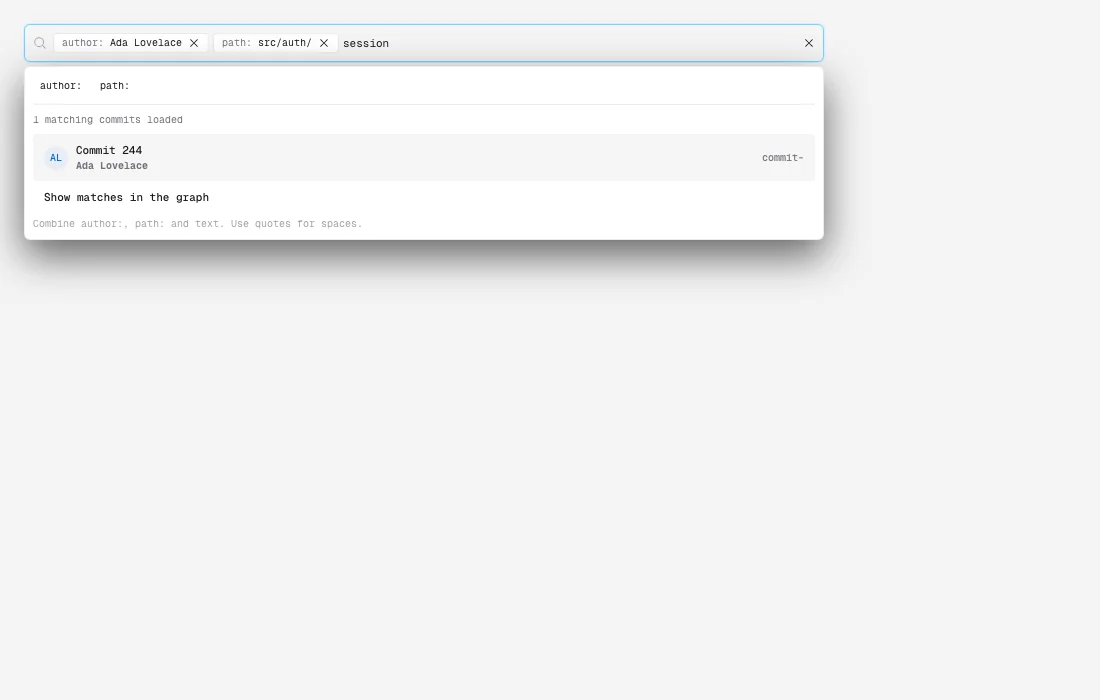
Search by message, author, date or file path. Fuzzy matching helps find approximate terms, while structured author: and path: filters can be combined. Search can load further history beyond the initial page of commits. Ctrl/Cmd+F focuses search while the relevant view is active.
Manage local and remote branches
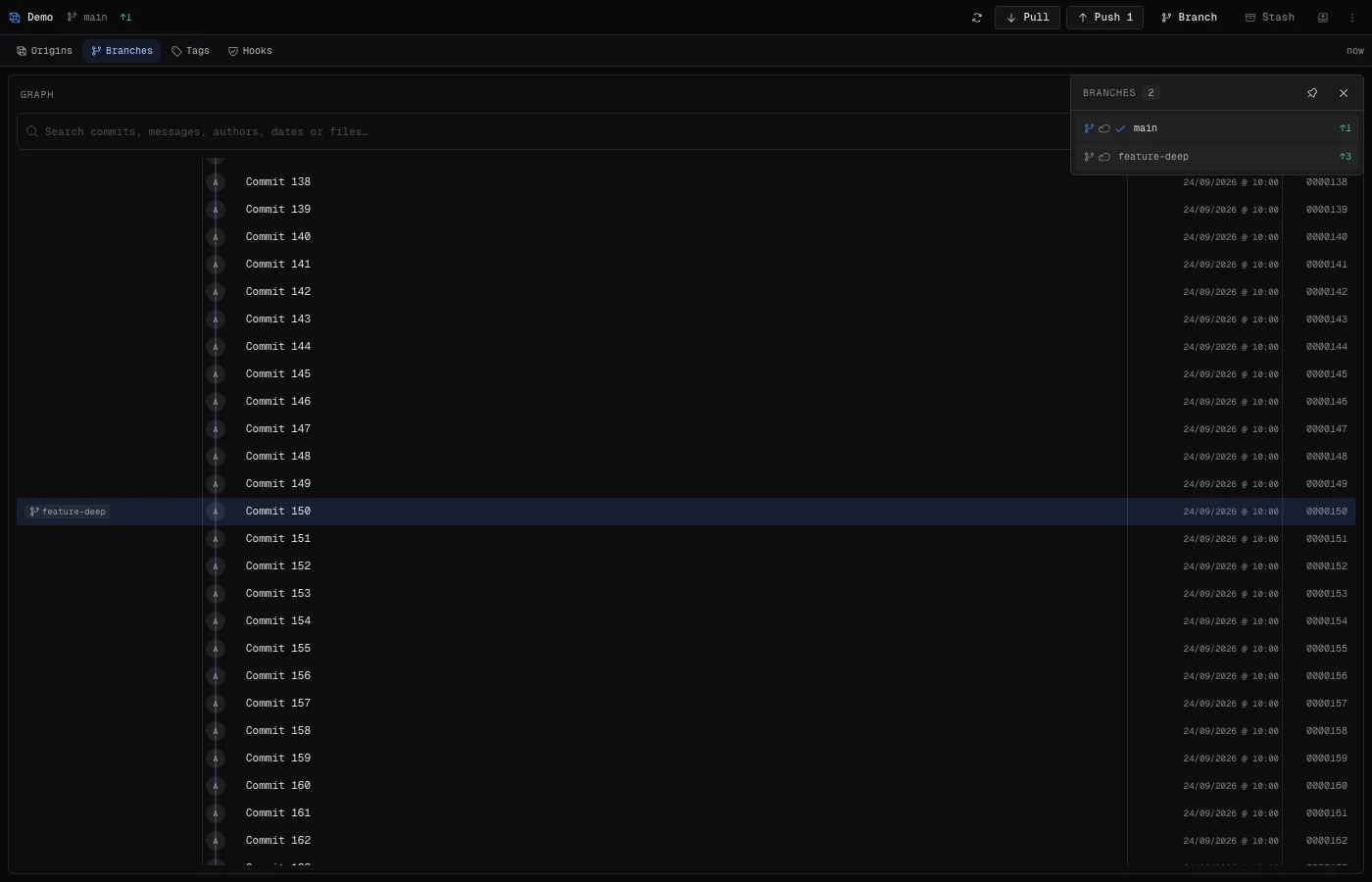
Create branches from existing references, switch, rename and delete local or remote branches. The branch view identifies the active branch, upstream information and worktree branches. Filter names and compare branches before integration. Merge one branch into another or fast-forward a reference when history permits. Branch locking adds application-level protection; it does not configure your hosting provider’s protection rules.
Fetch, pull, push and configure remotes
Fetch retrieves remote references, pull integrates changes according to context, and push publishes commits. Branch-specific actions and upstream tracking keep the destination explicit. List, add, rename or remove remotes and change their URLs. These Git operations use the repository’s configured protocols and access, rather than being restricted to one hosting provider.
Settings include Git identity and tools to detect SSH keys, read public keys and generate keys. Force push is available for the relevant actions; check the target and coordinate with your team before rewriting shared history.
Set work aside with stash
List stashes, inspect their diffs, save changes, apply a stash while keeping it, pop it, drop it or create a branch from it. The branch-switching flow also supports saving changes aside, useful when an urgent fix interrupts unfinished work.
Resolve conflicts and select the right history operation
Singularity exposes merge conflict context and resolution tools, detects operations in progress, and allows aborting a merge or rebase. Review and test the resolved result before continuing.
- Cherry-pick: apply a specific commit on the current branch.
- Revert: add a commit that undoes a previous commit’s effects.
- Soft, mixed and hard reset: move the branch with different effects on the index and working files. Hard reset can discard uncommitted changes.
- Checkout commit: inspect a revision, using detached HEAD when no branch is selected.
Understanding revert versus reset is particularly useful when undoing work that has already been shared.
Manage Git tags and releases
Browse and filter tags, inspect available metadata, and reveal a tag in the graph. Create, rename and delete tags, inspect their presence on remotes, or publish them to a remote. Local and remote deletion are separate actions: deleting a local tag does not automatically remove it from the server.
Work on several branches with Git worktrees
A Git worktree adds another working directory connected to the same repository. Keep a feature open while preparing a fix on another branch. Singularity supports creating worktrees, viewing detailed status and changes, and removing them.
Removing a worktree and deleting its branch are different operations. Bulk cleanup can also remove branch references, so check what you need to keep. Read the worktree guide for details. If you later use AI agents, configurable orchestration can isolate their work in worktrees and integrate commits through rebase.
Git hooks, Husky and repository setup
The Hooks panel lets you inspect detected hooks, read and edit scripts, create or delete them, and make them executable. Husky detection and initialization are also available.
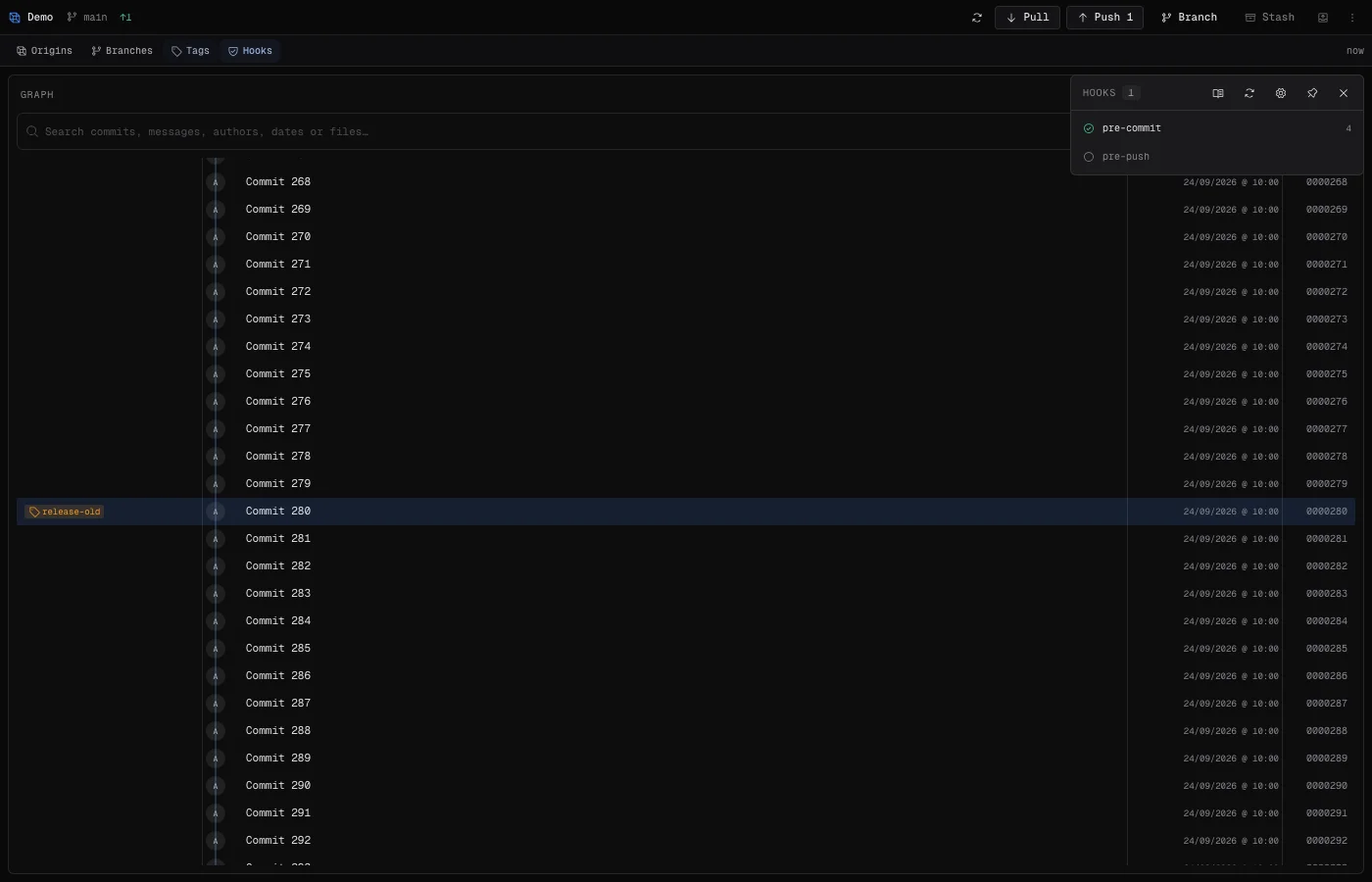
A failed pre-commit hook means the commit did not happen. Fix the cause and retry. See our Git hooks and tests article. Repository cloning and initialization, helpers to check ignored paths and update .gitignore, and Git configuration tools round out repository setup.
Your first workflow in five steps
- Open or clone a repository in a workspace.
- Review changed files and their diffs.
- Stage the files you need and write a precise commit message.
- Check the branch, upstream and graph before synchronizing.
- Fetch, pull or push according to your goal, then check the result.
Start with this Git workflow and explore the editor, terminal and AI tools later. Download Singularity and follow the getting started guide.
Frequently asked questions
Can I use Singularity only as a Git client?
Yes. Use the Git cockpit for diffs, commits, branches, remotes and history without running AI agent tasks. Other application tools remain available when needed.
Do standard Git operations require AI configuration?
No. AI-generated commit messages and agent tasks do require a configured AI provider.
Does Singularity support multiple Git repositories?
Yes. A workspace can contain several projects; select the repository whose changes and history you want to inspect.
Can I search commits by author or file?
Yes. Commit search supports author: and path: filters, combined with text to locate a change.
What limitations should I check before choosing this Git client?
This guide describes capabilities in the code on October 10, 2026; availability in your installation depends on its version. It does not promise interactive rebase, commit amend or integrated blame annotations. Check downloads and plans for installation options.