Your code is ready. The pipeline turns red. You leave the editor, find the repository and run, scroll through logs, then return to the code. Often the expensive part is rebuilding the context.
The Pipelines plugin brings these steps into Singularity, alongside projects, Git, the editor and the kanban. Your provider still executes your workflows; Singularity helps you monitor them, understand failures and prepare fixes.
Three providers, one workspace
Pipelines supports GitHub Actions, GitLab CI and Azure DevOps. Connections belong to a workspace, allowing several repositories or remote projects to share a working environment while keeping their access separate.
Select a definition in the sidebar to inspect its runs, branches, statuses and durations. Available indicators such as success rate and median duration help reveal repeated failures or slowdowns.
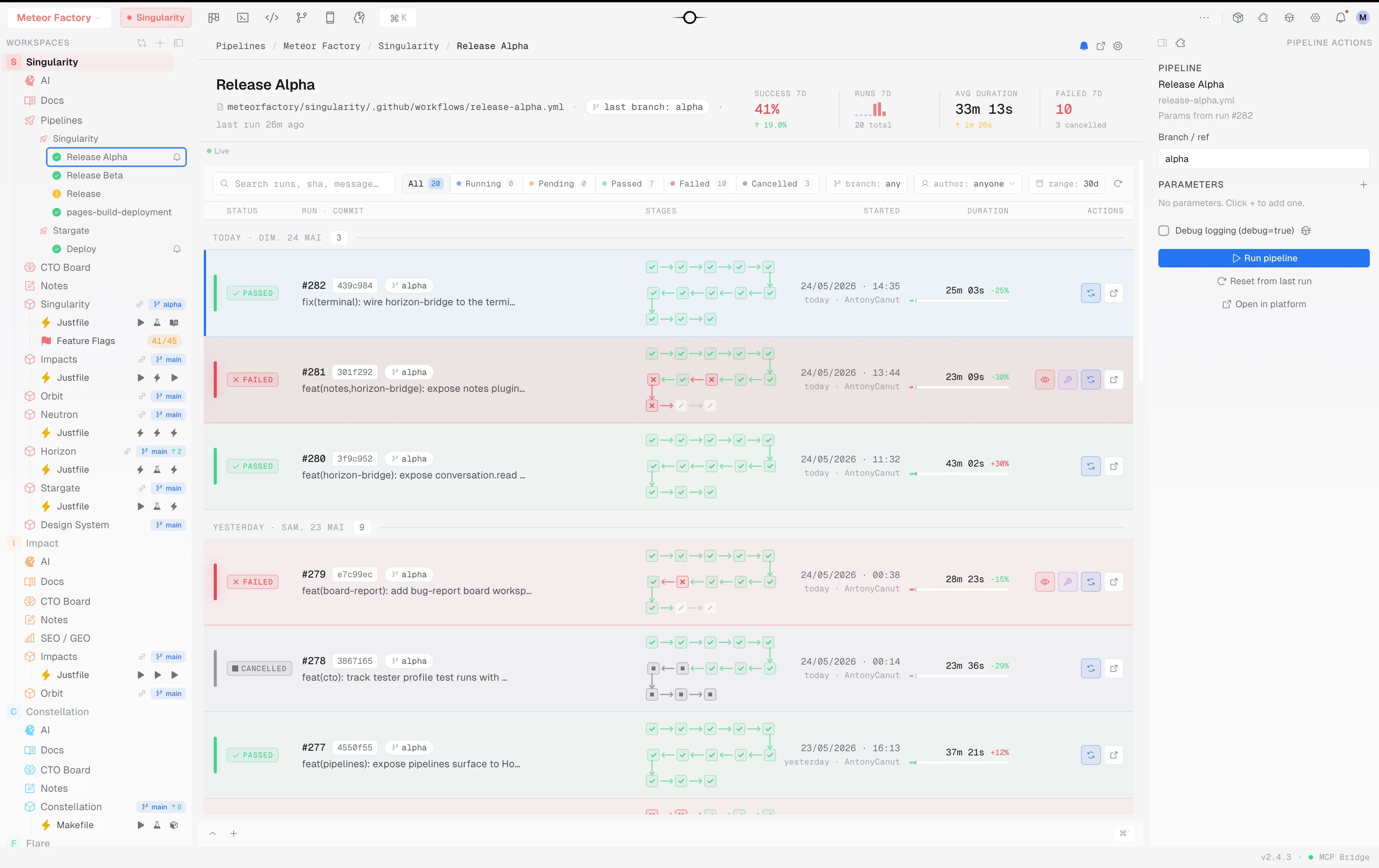
What you can do with Pipelines
| Need | Capability | Work saved |
|---|---|---|
| Monitor | Browse definitions, run history and statuses. | Finding the right run across multiple CI consoles. |
| Diagnose | Inspect stages, tasks and logs; jump to the first error. | Searching the entire log without a starting point. |
| Collect outputs | Inspect and download accessible artifacts. | Finding generated files in the provider portal. |
| Control runs | Select branches and parameters; start, cancel or rerun where supported. | Reconstructing execution parameters elsewhere. |
| Approve | Inspect and handle approvals offered by the provider. | Missing a run waiting for intervention. |
| Stay informed | Track a pipeline for start and completion notifications, with an optional chime. | Checking repeatedly whether CI has finished. |
| Edit | Open the linked local YAML when available. | Searching for the workflow definition again. |
| Create or repair | Prepare an AI creation or repair ticket. | Copying CI context into a chat manually. |
Actions depend on the provider, run state and account permissions. Retrying failed jobs or approving a gate is not supported everywhere. You can open the pipeline on its platform for provider-specific operations.
A failure becomes a task with Autofix
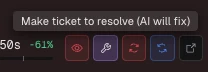
The AI repair action creates a repair ticket from a failed run. When Pipelines MCP tools are available to the mission, the agent can inspect logs and the timeline without asking you to copy them.
- Understand. Read the failed task and distinguish code, configuration and access problems.
- Compare. Inspect previous runs and relevant Git changes.
- Fix. Prepare a targeted change, with a regression test where appropriate.
- Verify locally. Run the relevant tests, validators and builds, then report the evidence in the ticket.
- Review and confirm. Inspect the diff; a person or your authorized automation then starts remote CI.
A completed ticket does not prove a new CI run succeeded. Local validation and remote results are separate evidence. AI prepares the work; team permissions define the actions it may perform.
Create a pipeline from an intention
“Build the application and run tests on pull requests.” “Prepare staging deployment after approval.” Creating a pipeline with AI turns this goal into a ticket. The agent can examine the stack, existing scripts and connections to prepare a suitable definition.
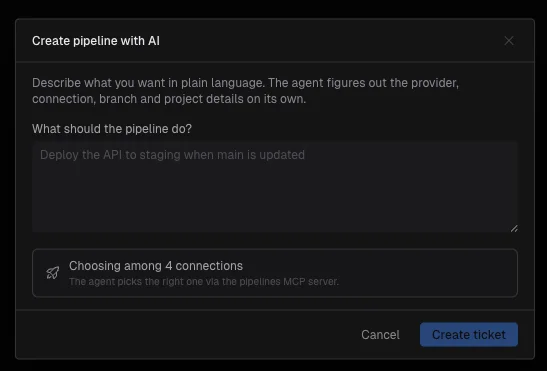
YAML remains native to your provider, readable and versioned in your repository. Review branches, environments, permissions and required secrets. The agent cannot invent missing access.
Time saved: fewer chores, more focus
The gain comes from human attention around the build: navigation, polling, collecting logs and rebuilding context. While CI runs or the agent investigates, you can work on another task. Build execution itself does not magically become faster.
Consider an illustration, not a benchmark: if finding the error and collecting context takes 15 minutes, while opening the ticket and reviewing the proposal takes 5, you recover 10 minutes of attention per incident. Five comparable incidents would save 50 minutes. Actual results depend on complexity, log quality and review effort; CI and agent execution time must be counted separately.
Measure active time spent collecting context and fixing manually against time spent preparing and reviewing tickets. Also track accepted fixes and regressions: speed only matters when the correction holds.
Start with a useful pipeline
- Install and enable the paid Pipelines plugin through the Marketplace.
- Add a GitHub Actions, GitLab CI or Azure DevOps connection to the workspace with the required permissions.
- Open a frequently used pipeline, inspect its history and enable tracking.
- On the next failure, create a ticket describing the expected result and local checks.
- Review the fix and check the next remote execution result separately.
Background updates can be delayed by provider quotas, connection outages or expired access. Check the run date before assuming its status is current.
Pipelines connects code, CI and repair. Keep your providers and workflows while bringing diagnosis into your development environment. See the Pipelines documentation and the ticket-based development workflow.